

How to Find and Replace Text in the Notes App on iPhone
If you use the Notes app for everything, whether it is quick reminders, ideas, or long documents, the last thing you want is a note filled with repeated mistakes.
Thankfully, the updated Find & Replace feature in Apple Notes can clean things up in seconds, saving you from scrolling endlessly through long documents. In this guide, we’ll walk through two different methods to use the Find and Replace feature and share a few tips to help you get the most out of it.
Table of Contents
- Method 1: Use “Find in Note” to Search Text on iPhone
- Method 2: Use “Find Selection” to Replace Specific Words in Notes
- What’s the Difference Between “Find in Note” and “Find Selection”?
- Advanced Tips for Editing and Replacing Text in Long Notes
- Common Mistakes to Avoid When Using Find and Replace in Apple Notes
- Final Words
Method 1: Use “Find in Note” to Search Text on iPhone
If you need to quickly search for a word or phrase in a long note, this is the most accurate way to find and replace text in the Notes app on iPhone.
Let’s walk through it step by step:
- Launch the Notes app on your iPhone.
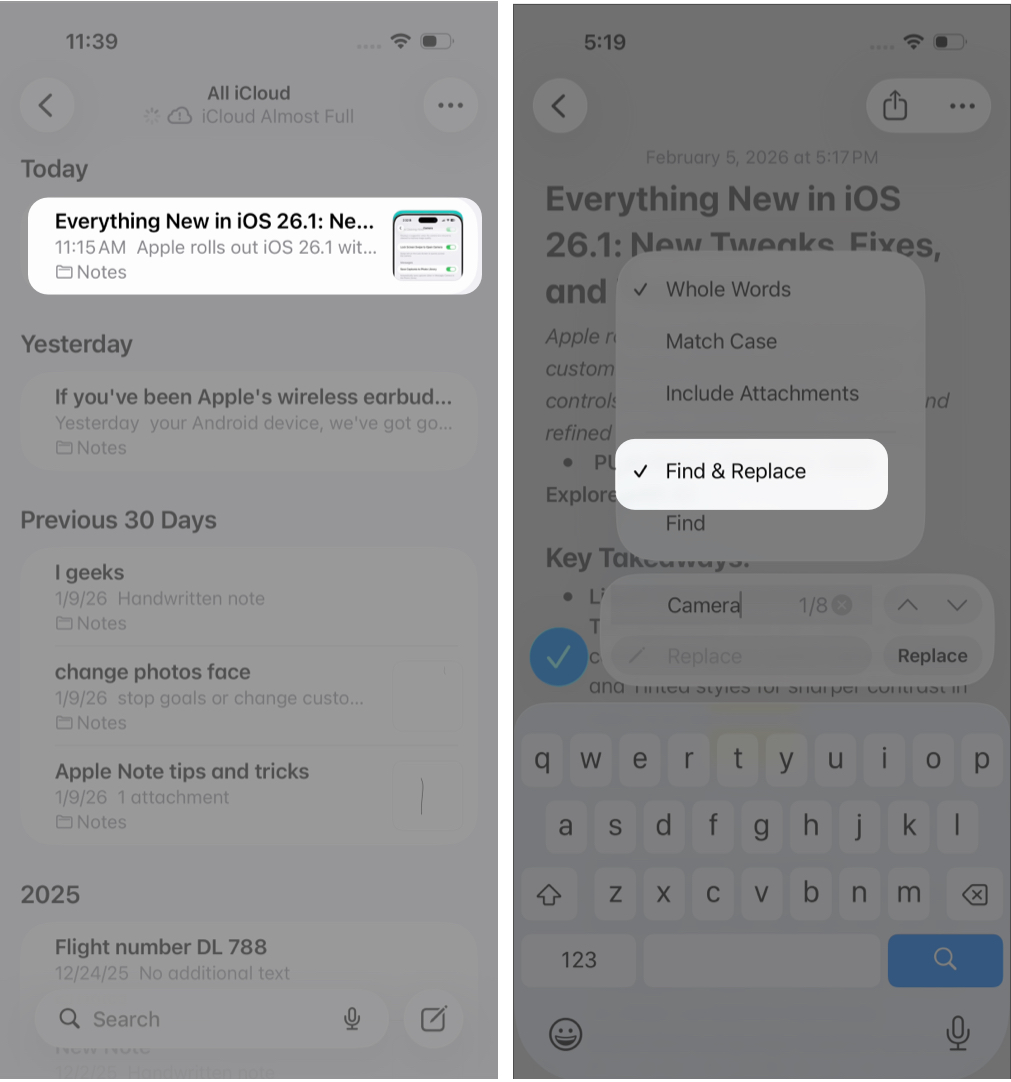
- Open the note you want to edit.
- Tap the three–dot menu (•••) button in the top-right corner.
- Select Find in Note from the menu.
- A search bar will appear at the bottom of the screen.
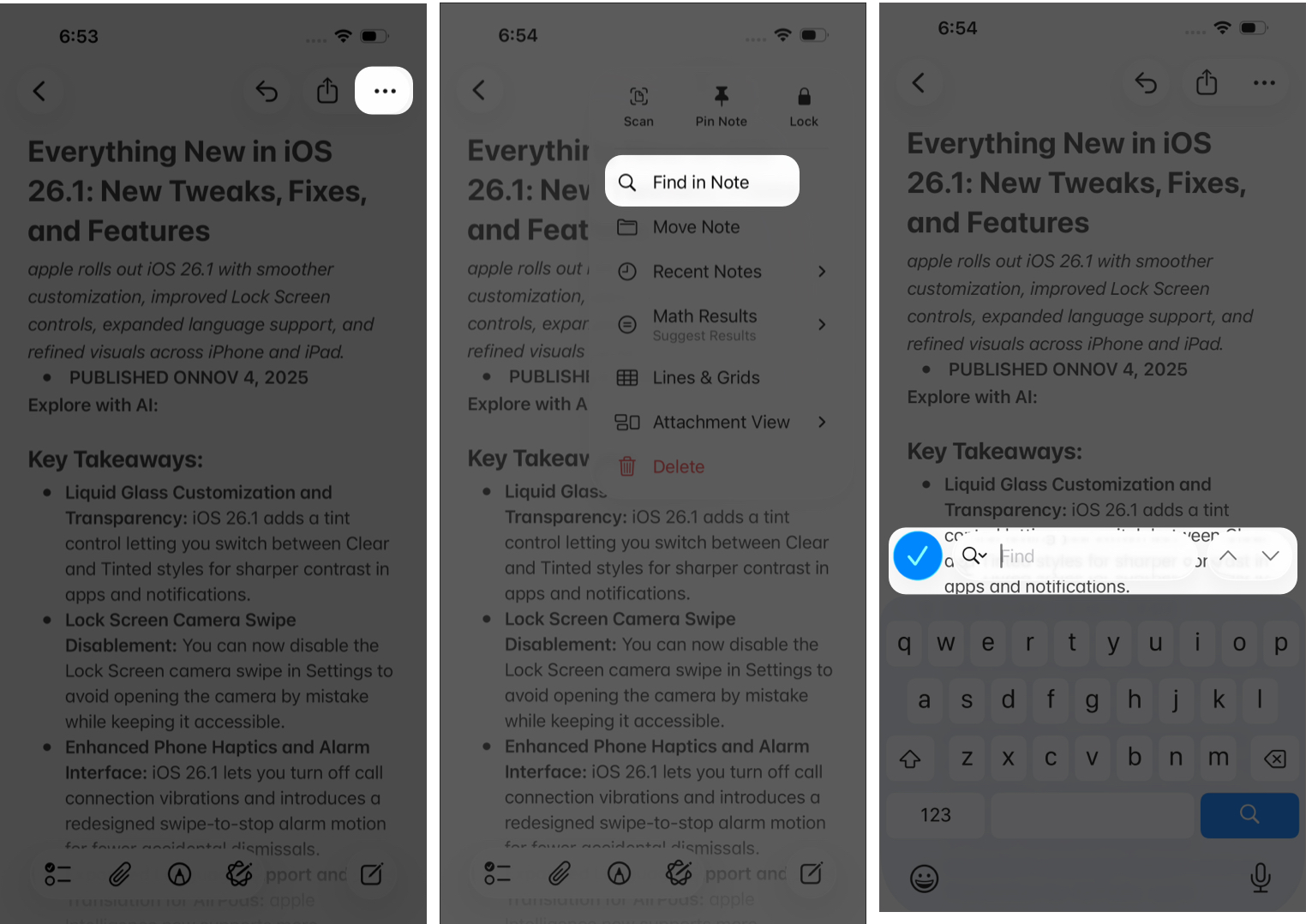
- Type the text you want to find. Notes will highlight all matches in yellow across the document. Use the up and down arrows to jump between results.
- When a match is detected, you’ll see a Find & Replace option under the magnifying glass icon.
- Enter the new word or phrase you want to use. Tap Replace to change one match.
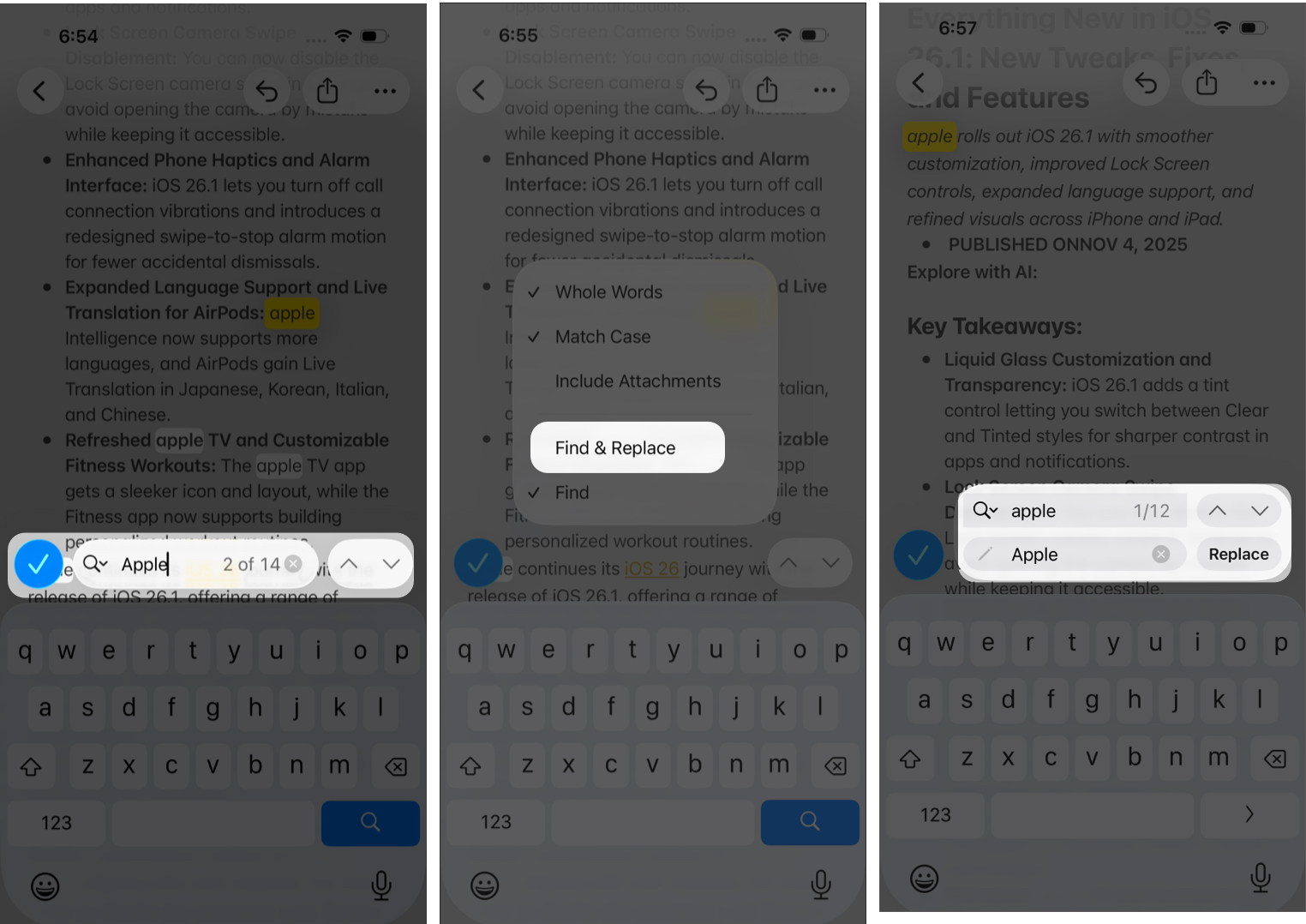
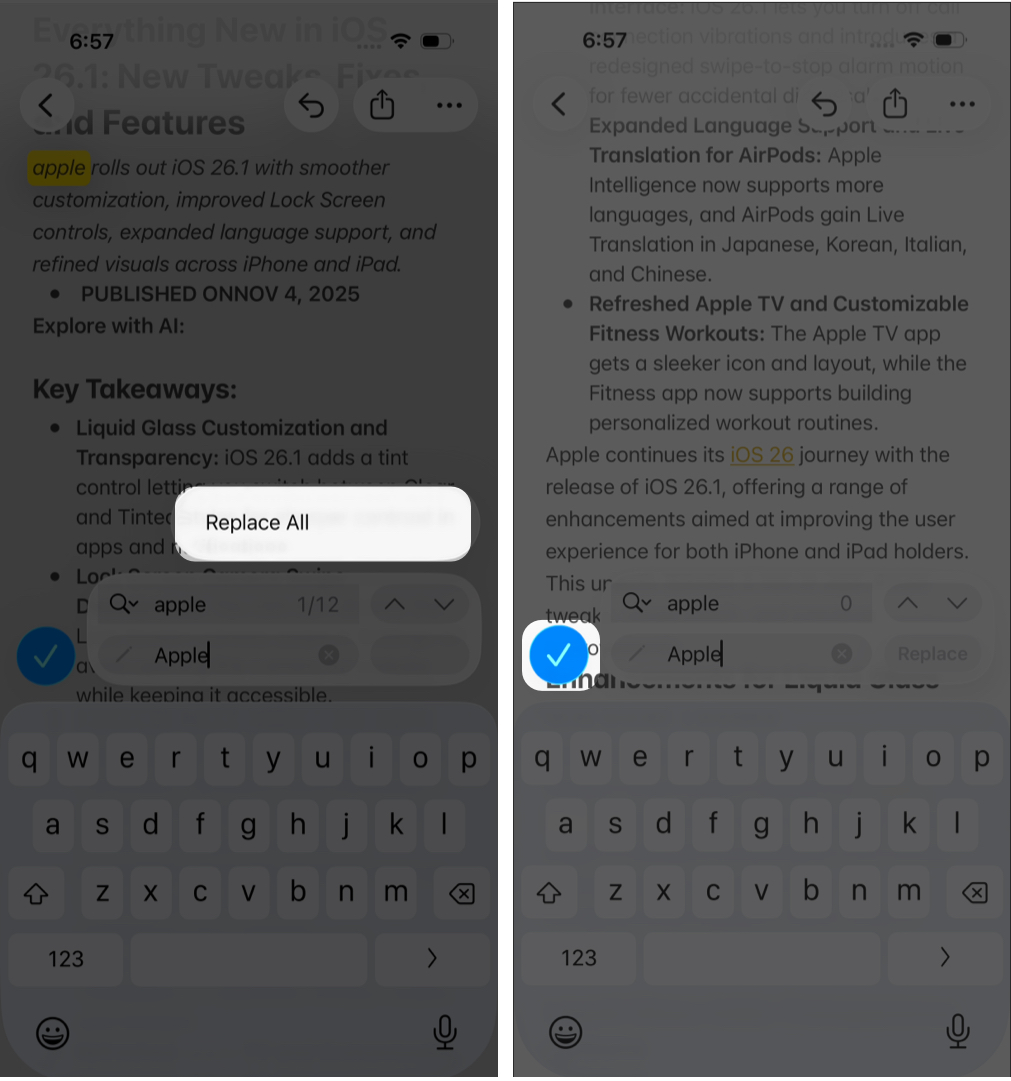
- Press and hold the Replace button, then tap Replace All to change every match in the note.
- To undo changes, tap the Undo icon in the top-right corner.
Method 2: Use “Find Selection” to Replace Specific Words in Notes
If you already know exactly which word or phrase you want to replace, the Find Selection method is faster.
- Open the Notes app.
- Double-tap the word or phrase in your note.
- Tap the right arrow in the pop-up menu strip.
- Select Find Selection.
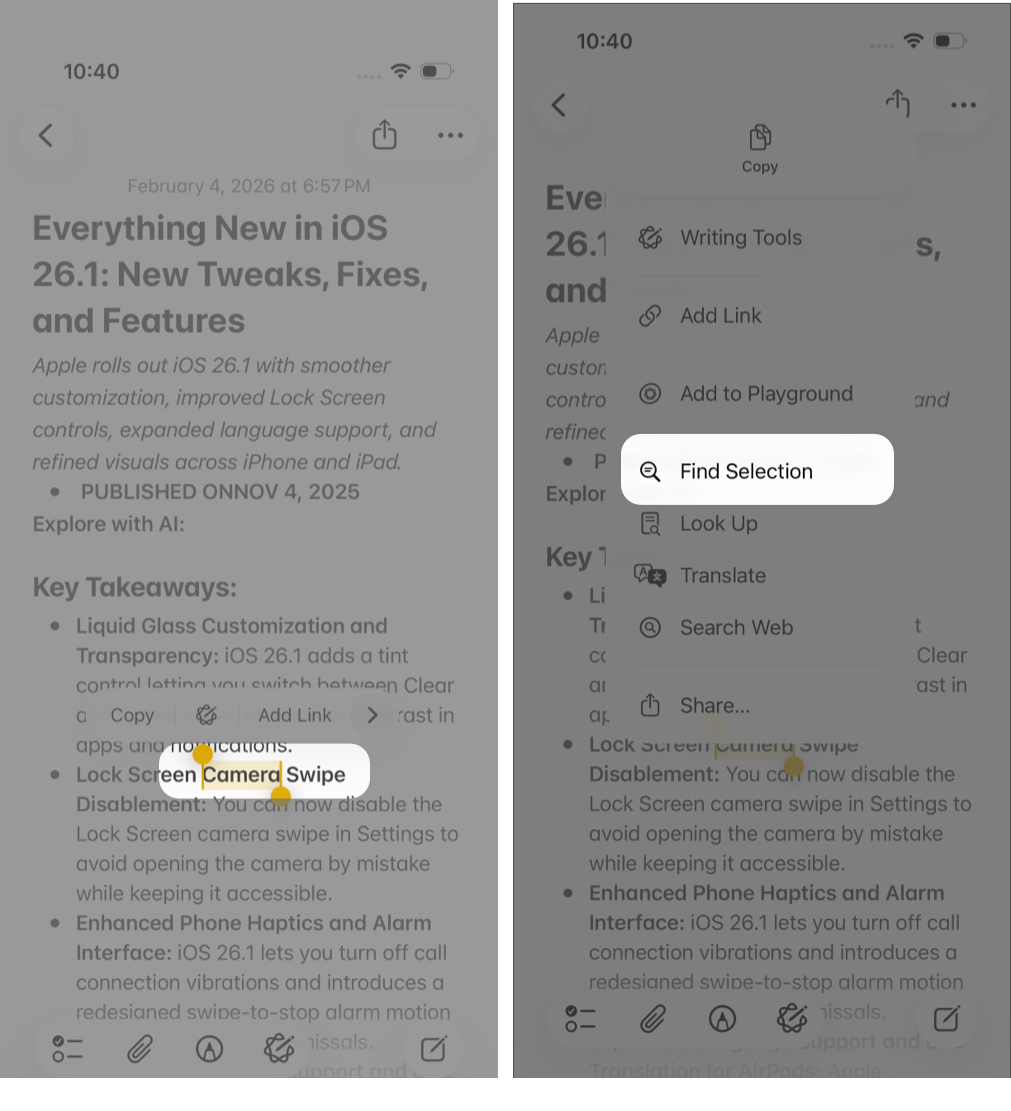
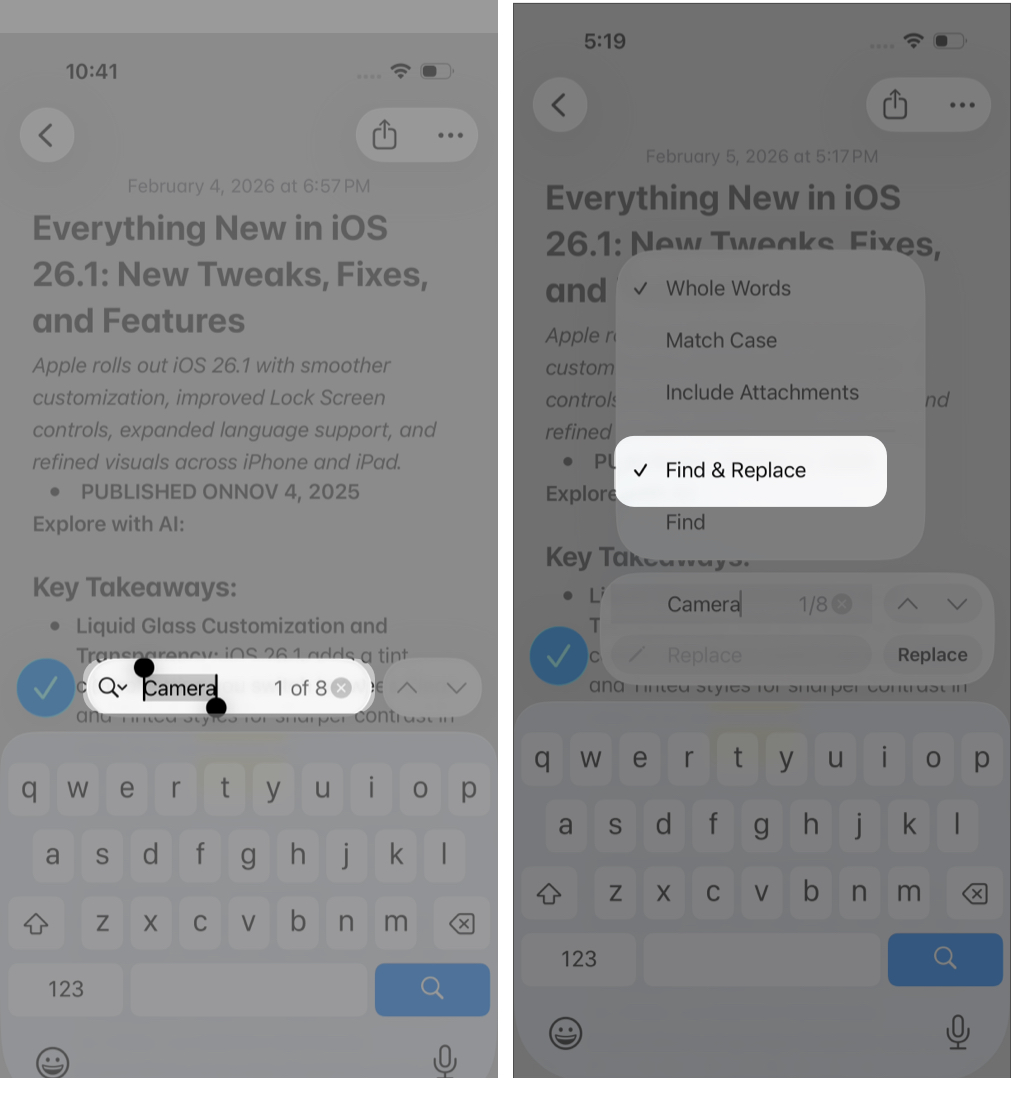
- Notes will instantly highlight matching text in the document.
- Tap the small magnifying glass icon and choose Replace or Replace All, just like in the previous method.
What’s the Difference Between “Find in Note” and “Find Selection”?
- Find in Note: Use this to search the entire document, especially when you have not selected any text.
- Find Selection: Use this when you have already selected the text you want to edit. It quickly finds identical matches and lets you replace them instantly.
Advanced Tips for Editing and Replacing Text in Long Notes
If you are working on long articles, large documents, or research notes, these tips will help you avoid mistakes while editing.
- Use Headings to Navigate Faster: Break your note into sections using headings from the formatting menu. This makes it easier to move around and ensures you replace text in the correct section.
- Duplicate the Note Before a Bulk Replace: Before using Replace All, create a backup. In the Notes app, long-press the note and tap Duplicate from the pop-up menu.
- Know When to Switch to Pages or Word: Apple Notes is powerful, but it has limits. If your note is extremely long or heavily formatted, it may be better to export it to Pages, Word, or Google Docs for more advanced editing.
- Use Apple Intelligence for Smarter Edits: If your device supports Apple Intelligence, you can go beyond basic Find & Replace. It can help locate similar words or phrases, suggest synonyms, or process requests such as “Find and replace apple with Apple in this note.”
AI-powered edits can sometimes make unexpected changes, so always review suggestions before accepting them.
Common Mistakes to Avoid When Using Find and Replace in Apple Notes
Here are some common mistakes users make while editing:
- Changing Text Inside Links by Mistake: If the word you want to replace is part of a link, using Replace All can break the URL. Review each match carefully before replacing everything.
- Disrupting Checklist Formatting: Replacing words inside checklist items can sometimes remove the checkbox formatting. Use Replace All carefully in checklist-heavy notes.
- Replacing Similar Words Accidentally: For example, replacing “app” could unintentionally change “apple.” Use Match Case or Whole Words to avoid partial matches.
Final Words
If you rely on Apple Notes for quick notes, work, or personal planning, the Find and Replace feature can help keep your documents accurate and organized while speeding up your editing process.
It may seem like a small feature, but it can save significant time when working with long notes. Try it out using the latest version of the Apple Notes app on your iPhone.
FAQs
Yes. If you replace text by mistake, tap Undo in the top-right corner to revert the changes.
Yes. Find and Replace works completely offline on any iPhone or Apple device.
You can search handwritten or scanned text in Notes, but Replace only works with typed text, not images or handwriting.
About The Author