
50+ Instagram Tips for iPhone: Use Instagram Like a Pro in 2026
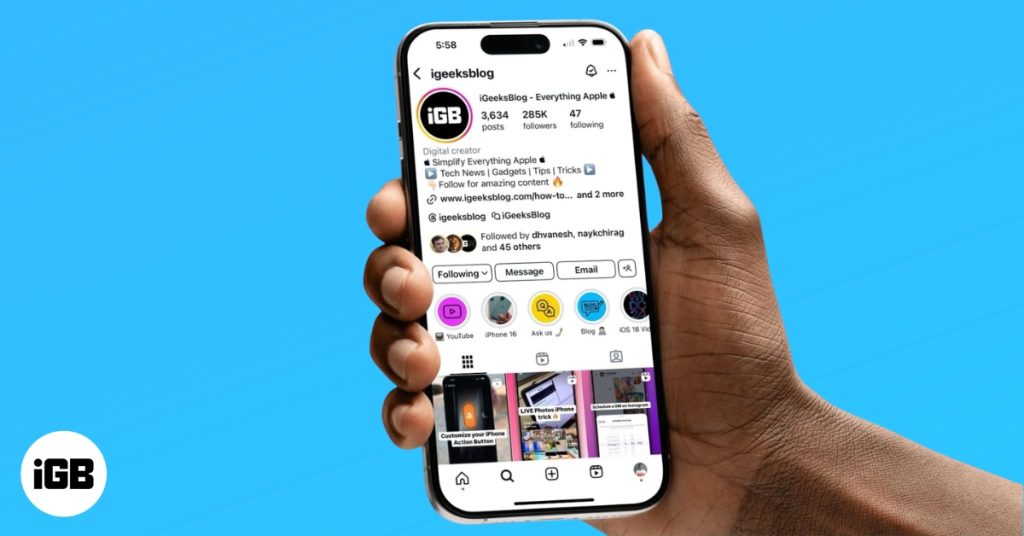
Instagram continues to introduce new features that make sharing your photos and videos easier than ever. Whether you’re a casual user, influencer, or business owner, knowing these Instagram features can help you stand out. Here, I’ll share expert tips, hidden tricks, and must-know settings to use Instagram on your iPhone like a pro. Good luck!
Table of Contents
- 1. Restyle Your Stories with AI
- 2. Automatic AI Dubbing & Lip-Syncing for Reels
- 3. Auto Scroll Reels
- 4. Enjoy a Personalized Feed with “Your Algorithm.”
- 5. Repost Your Favorite Reels or Posts
- 6. Track Your Friends with Instagram Maps
- 7. Link Reels to Create a Mini Series
- 8. Send HD Photos in DM
- 9. Schedule a Direct Message
- 4. Recover a deleted post, story, or reel
- 5. See Who Has Unfollowed You
- 7. Save the Instagram Story in the Highlights
- 8. Find Out Who Viewed Your Instagram Highlights
- 9. Praise Your Post Sharers
- 10. Add Music Link to Your Instagram Bio
- 11. Make Your Instagram Account Private
- 12. Reduce Instagram Data Usage
- 13. Hide Irrelevant Ads on Instagram
- 14. Mute Someone’s Stories
- 15. Hide Inappropriate Comments on Posts
- 16. Don’t Save Original Photos on Instagram
- 17. Pin Favorite Instagram Posts at the Top
- 18. See the History of Your Instagram Account
- 19. Clear Instagram Search History
- 20. Save Instagram Stories as a Draft
- 21. Find links You Have Visited
- 22. Share Photos/Videos Directly to Instagram
- 23. Restrict an Account on Instagram
- 24. Archive Instagram Posts or Story
- 25. Pause Instagram Push Notification
- 26. Make a Close Friends List on Instagram
- 27. Download Your Instagram Data
- 28. Check Time Spent on Instagram
- 29. Save Posts for Later on Instagram
- 30. Add Another Instagram Account to the Bio
- 31. Set Filters as Favorites
- 32. Create an Auto-Complete Quick Reply
- 33. Make Your Stories Interactive
- 34. Get Notifications Whenever Your Favorite Person Posts
- 35. Hide Photos You Are Tagged In
- 36. Set Manual Tagging
- 37. Turn Off Comments
- 38. Go Quiet on Instagram
- 39. Remove Instagram Followers
- 40. Reset the Instagram Explore Page
- 41. Hide Active Status
- 42. Turn Off Your Precise Location
- 43. Recover Your Instagram Account from Hackers
- 44. Deactivate Your Instagram Account
- 45. Change the Password of Your Account
- 46. Hide Like Count on Instagram Post
- 47. Share a Post as Your Story
- 48. Hide the Story and Live with Specific People
- 49. Auto-Generate Video Captions
- 50. Change the Instagram Language
- 51. Check Apps and Website Access to Your Account
- 52. Share Your Instagram Profile
- 53. Get Verified on Instagram
- 54. Add Music to Instagram Notes
- 55. Use Boomerang in Instagram
1. Restyle Your Stories with AI
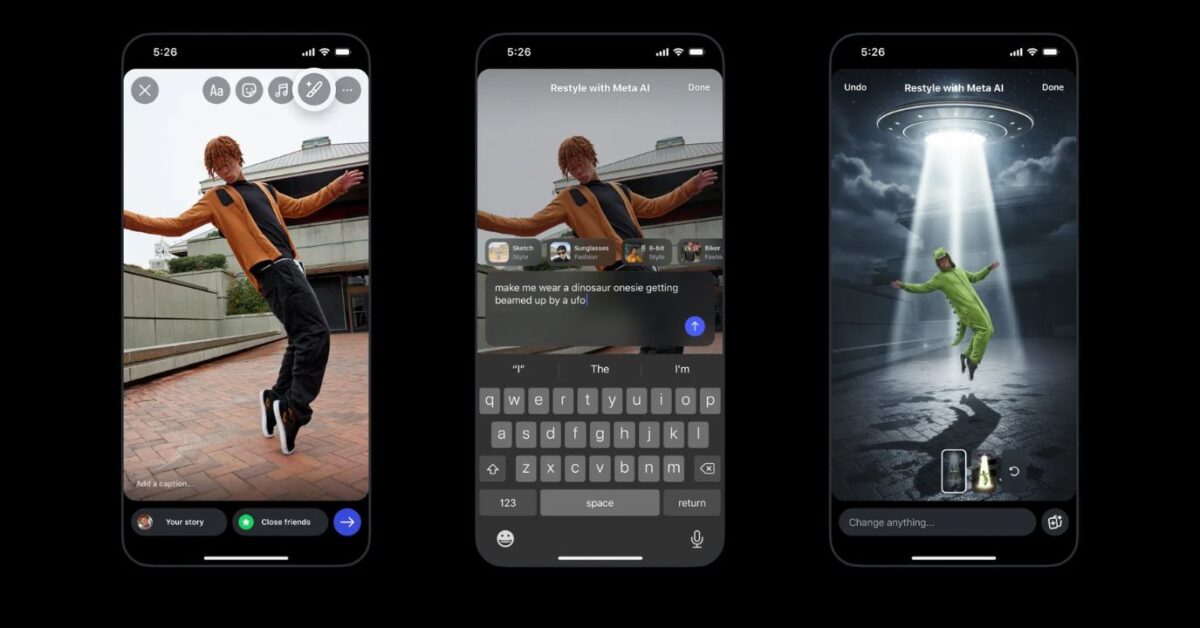
Instagram’s AI tools have made Stories much more creative and much easier. Now, instead of manually editing photos with multiple apps, you can use AI restyling options directly inside Instagram.
These tools can remove unwanted objects, change backgrounds automatically, and apply artistic filters to your photos.
To use Instagram Restyle Stories with Meta AI on iPhone:
- Open Instagram.
- Tap the plus icon on your profile picture to add a Story.
- Select a photo from your camera roll or take one.
- Tap the restyle button (pen icon) at the top.
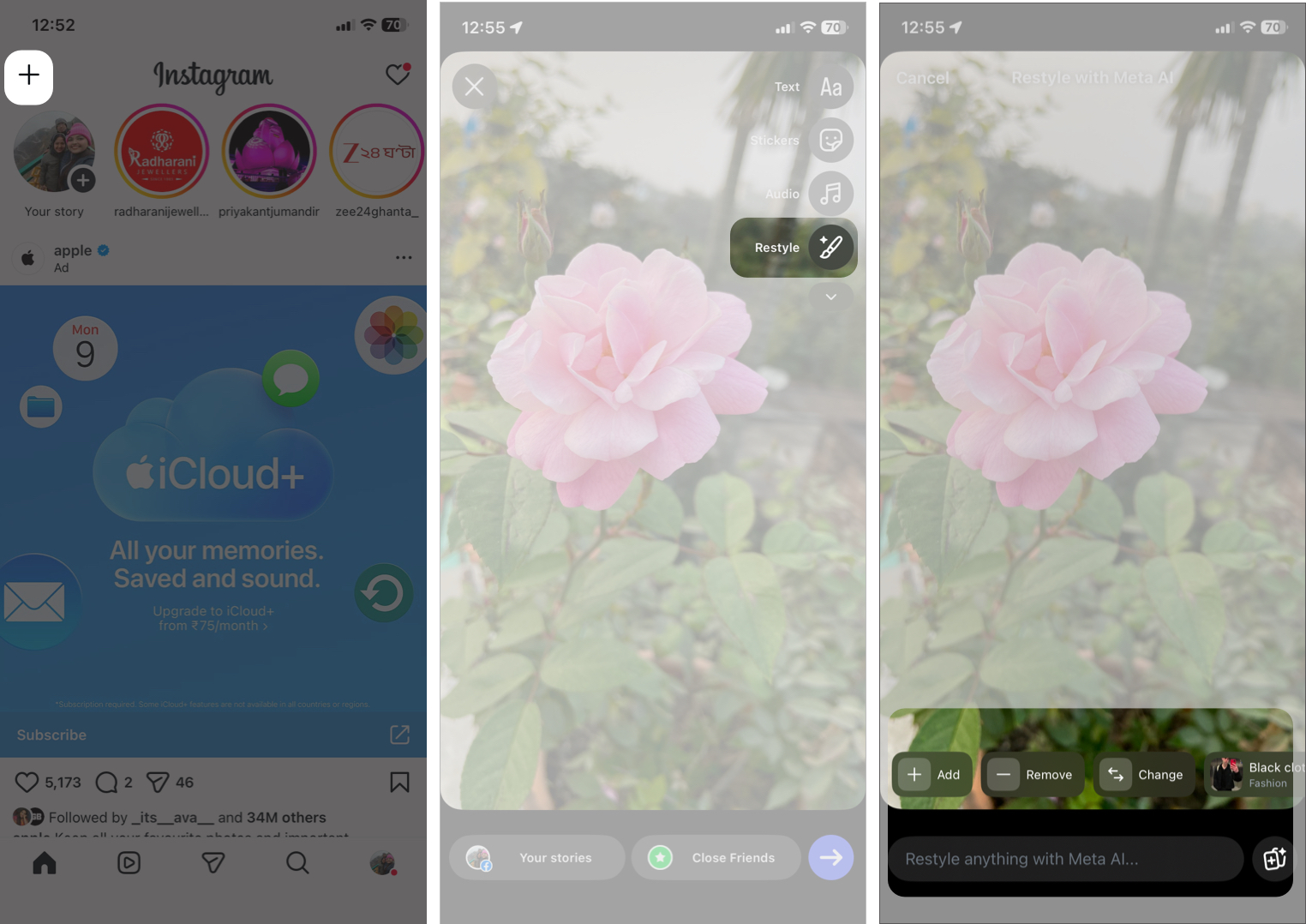
- Now you can add, remove, or change any element in the photo by writing a prompt.
- Tap the Scroll through the preset filters for a quick edit.
- Once satisfied, post the story or save it on your device.
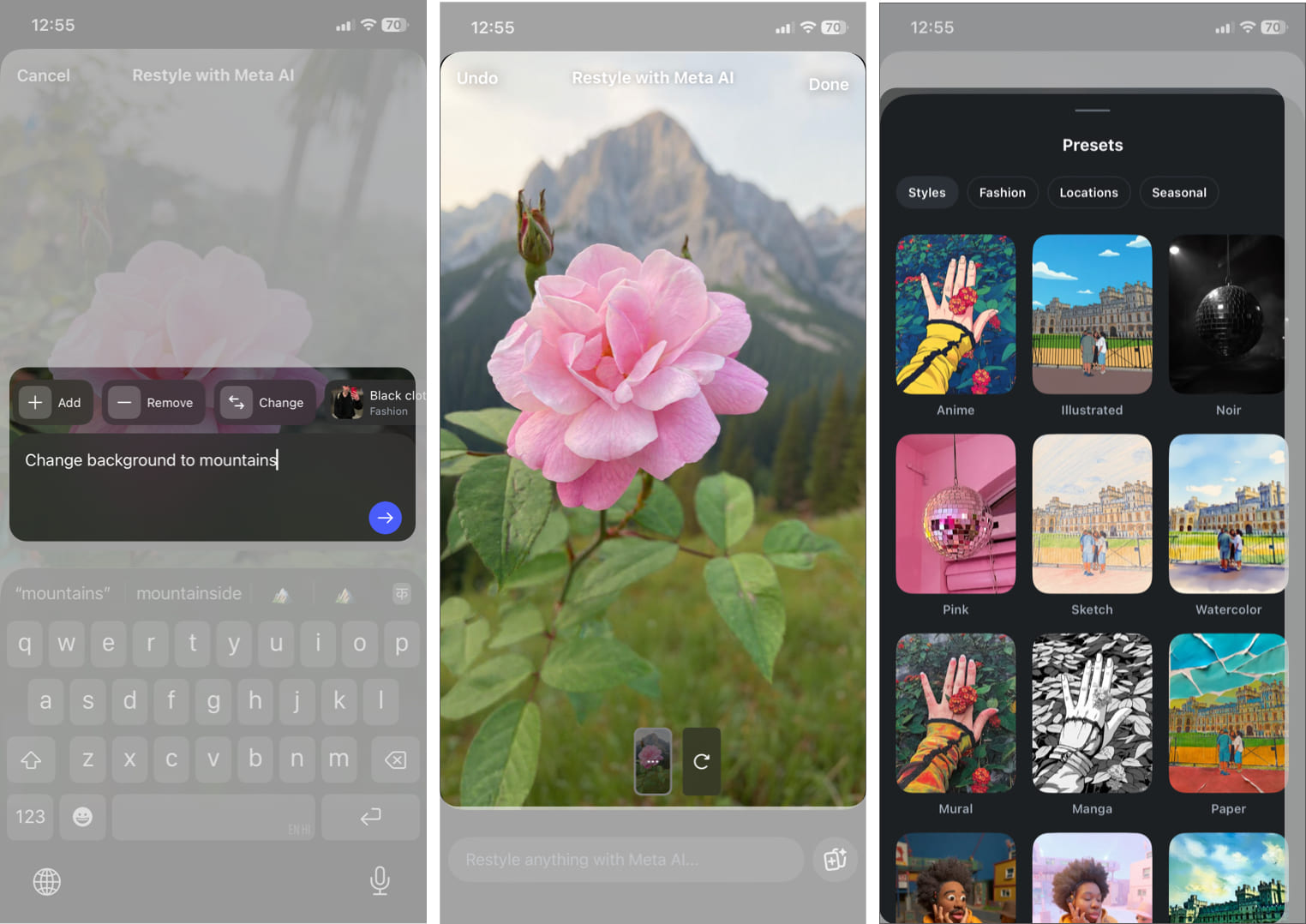
The key tip? Don’t overdo it. Clean, minimal edits perform better than overly filtered content. AI is there to enhance your story!
If you post Stories regularly, this feature saves time and keeps your content fresh.
2. Automatic AI Dubbing & Lip-Syncing for Reels
Want to you scale your content internationally with very little extra effort? This feature is a game changer. Now, you don’t need to record multiple versions of the same video in different languages.
With Instagram’s AI-powered dubbing and lip-syncing for Reels, your videos are automatically translated into other languages. Meta AI keeps your voice tone and characteristics intact via cloning and syncs the lip movements for a natural look.
How to use it:
- Go to Instagram, tap the plus sign, and create or upload a Reel.
- Tap Next to go to the upload page.
- Write a caption and make all other necessary changes. Then scroll down and tap More options.
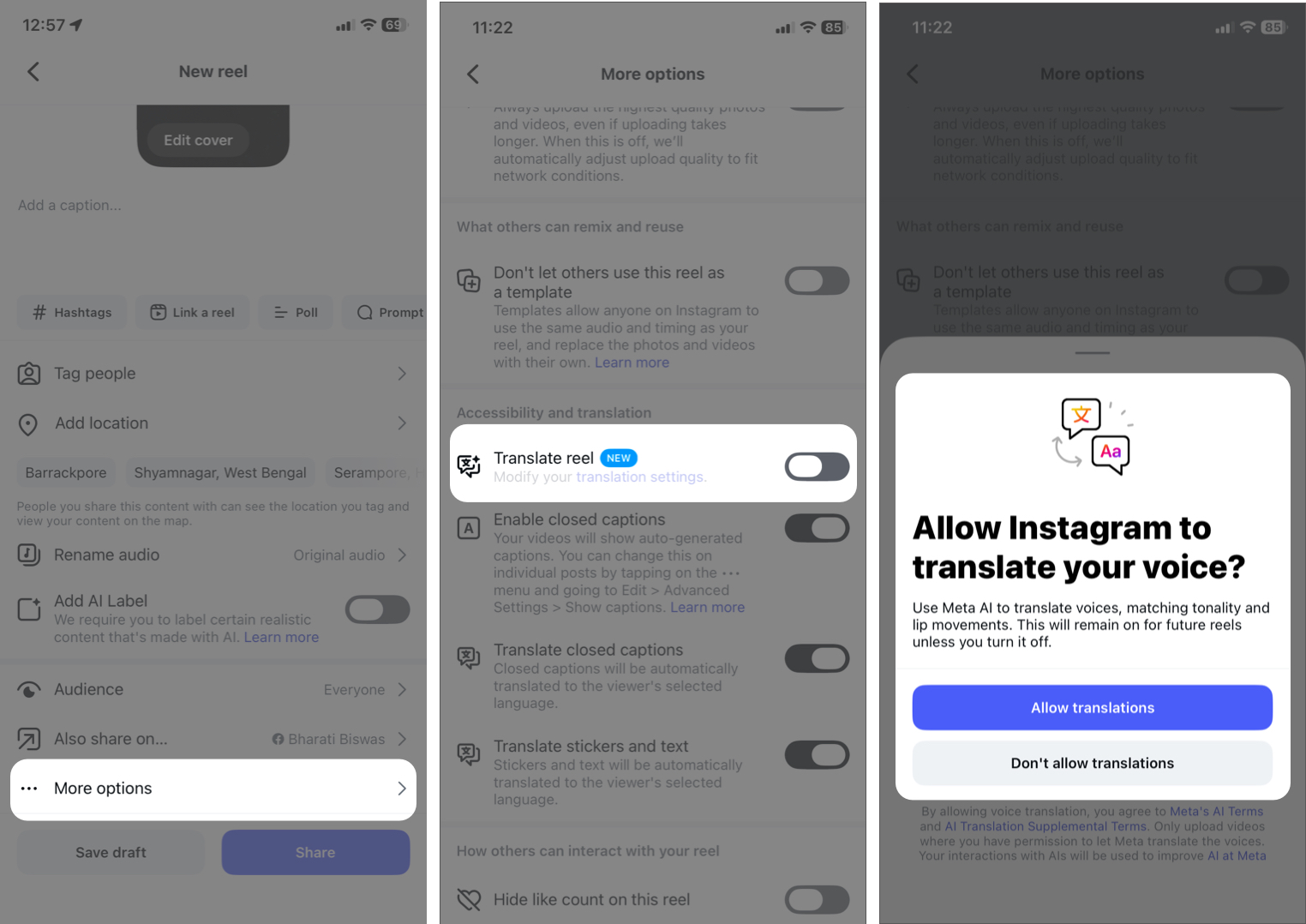
- Toggle on Translate reel under Accessibility and translation and select Allow translations.
- Now, tap translation settings and select your target language under Translate to.
- You may also toggle on Approve translations to review the dubbing before publishing.
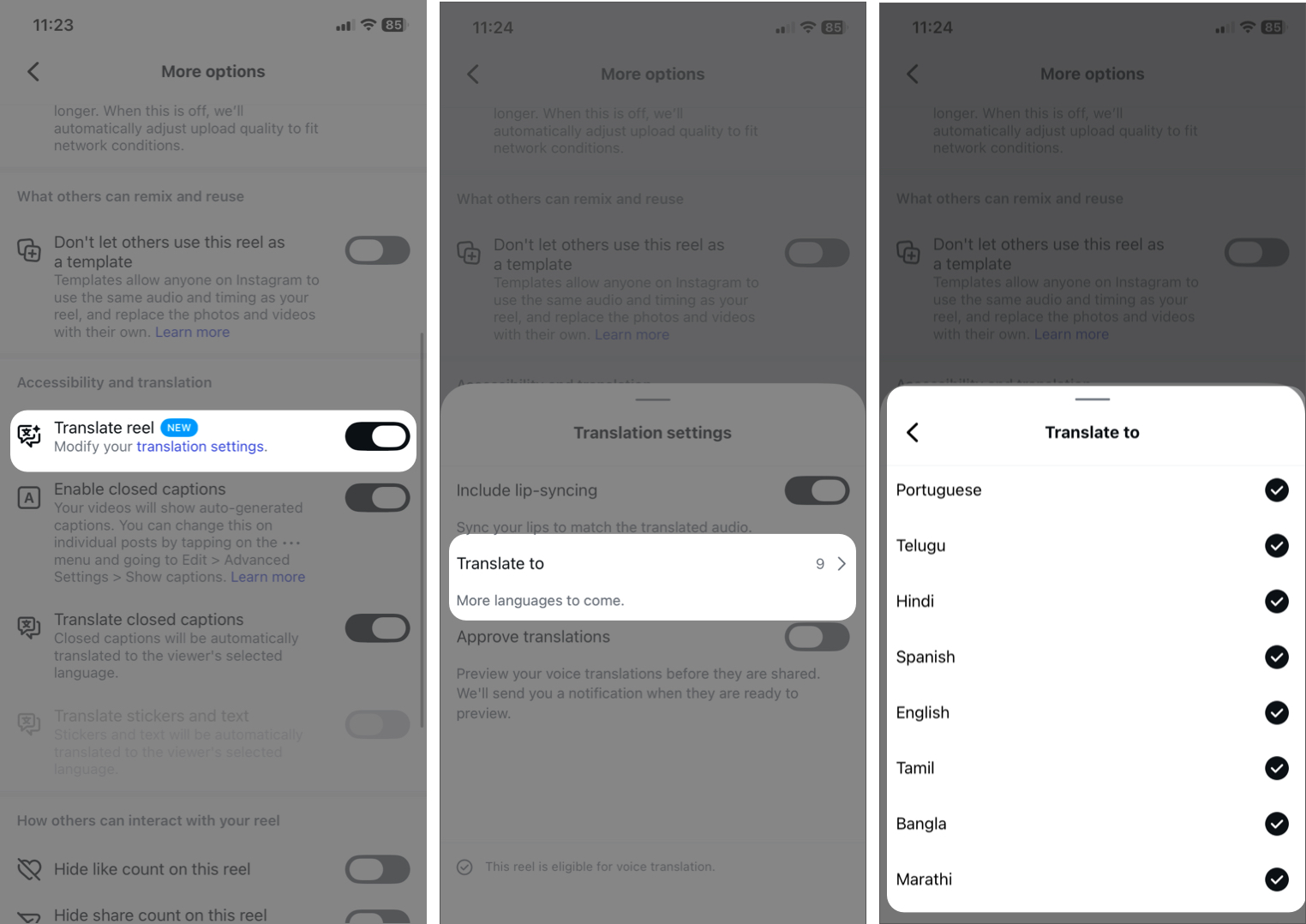
Just upload the reel and let AI do its magic!
3. Auto Scroll Reels
If you consume a lot of Reels, the Auto Scroll feature makes the binge experience smoother. Rather than swiping manually, Instagram can automatically move to the next Reel after one finish. It’s a small feature, but it improves usability and hands-free viewing.
To enable it:
- Open the Reels tab.
- Tap the three dots menu on the right side.
- Toggle on Auto scroll.
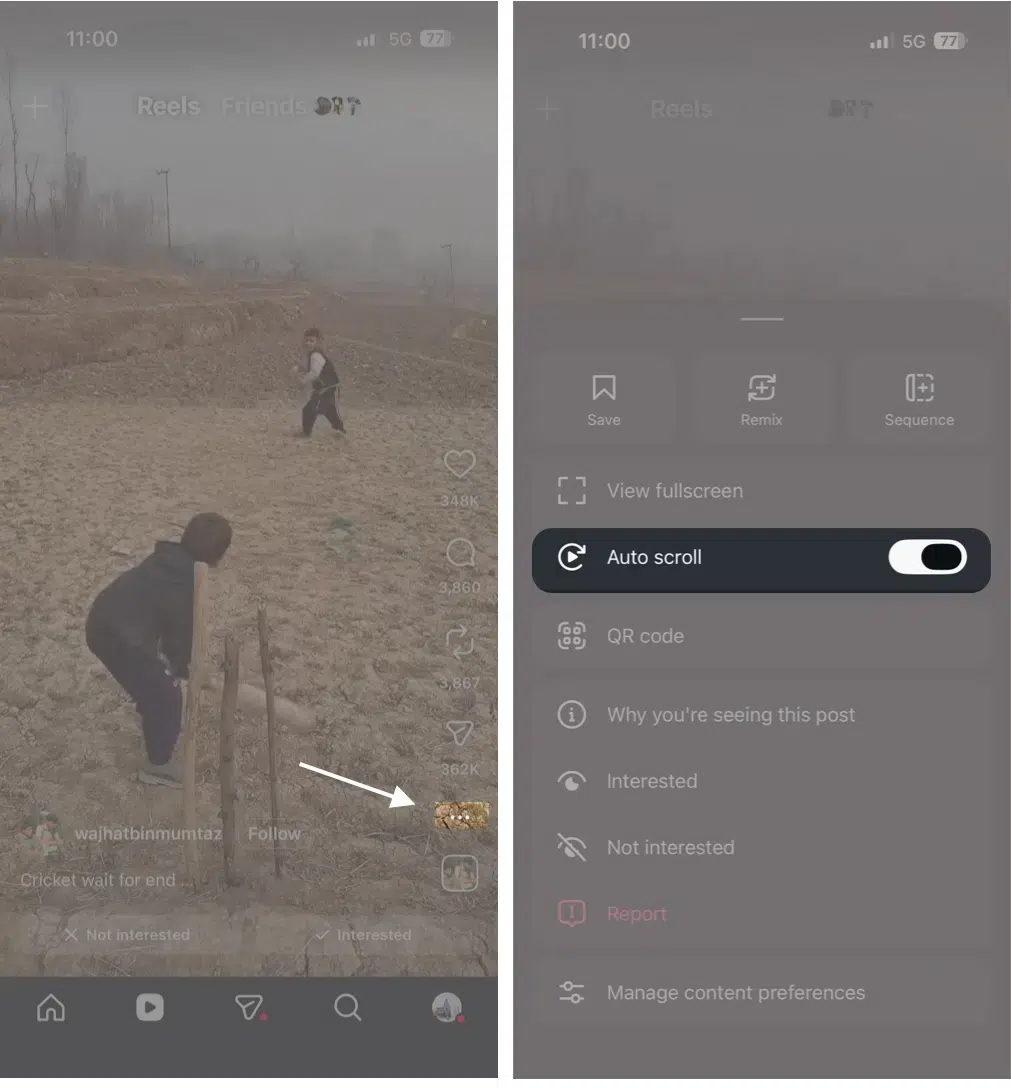
If you don’t see it yet, update your app. Instagram frequently rolls out features gradually.
4. Enjoy a Personalized Feed with “Your Algorithm.”
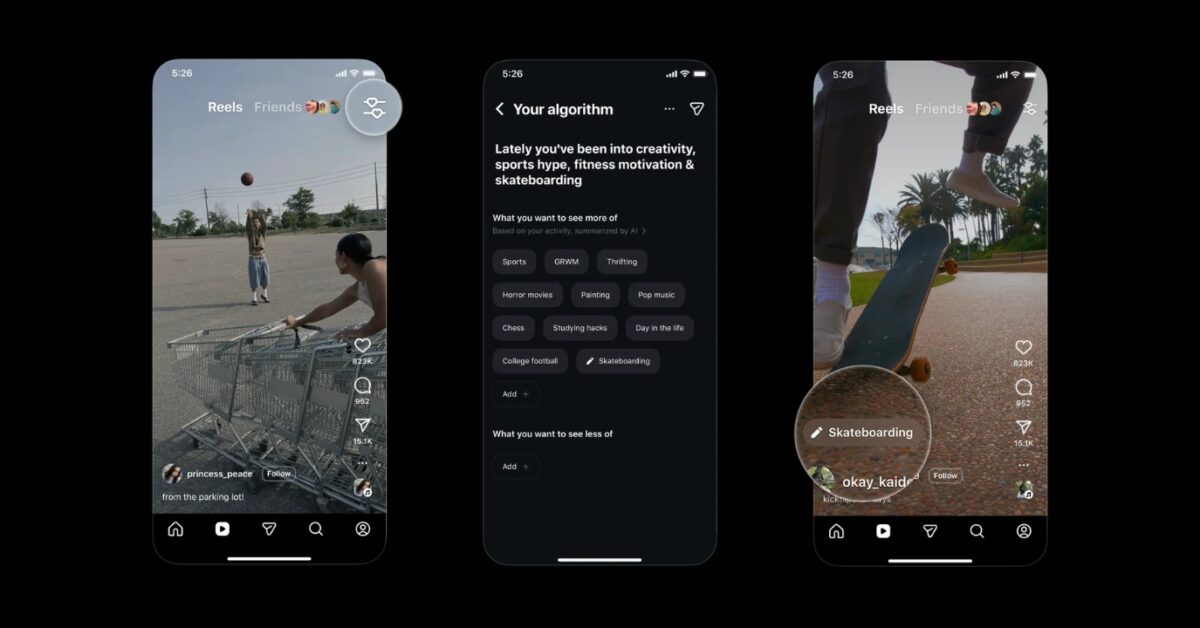
Your Instagram feed is controlled by the Instagram algorithm. But most users don’t realize they can train it.
Here’s how to personalize your feed like a pro using Your Algorithm:
- Go to the Reels tab and tap the two lines and hearts icon in the top-right corner.
- You will see Your Algorithm page with a summary of the topics Instagram thinks you like.
- Here, type in which topic you want to see more and see less.
The more intentional you are, the better your feed becomes.
Take 10 minutes to clean your feed. Your daily scrolling experience will improve dramatically.
5. Repost Your Favorite Reels or Posts
Instagram now makes it easier to repost public content. When you repost, your followers can see it on their feed. Also, there will be a dedicated Repost tab on your profile. So you can curate your favorite content with little effort.
- Open Instagram and tap the Repost icon next to the share button if available.
- To add your reaction, tap your profile picture bubble, enter text or emoji, and tap Save.
- Your followers can tap your bubble and send your direct message about your report.
6. Track Your Friends with Instagram Maps
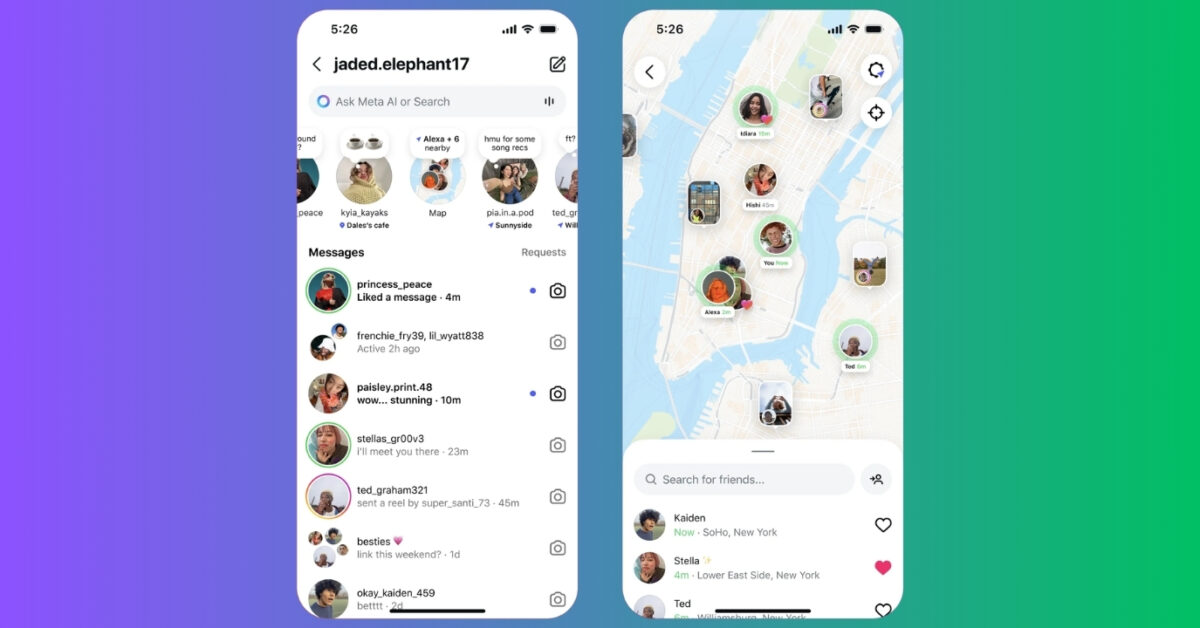
Want to stay updated with close friends? Instagram Maps lets you share your last active location with select friends and see where they’ve been posting.
- In Instagram, go to the Messages tab, swipe the Notes section, and tap Map.
- It will open your region’s map. Here, you will see the notes, posts, and stories of your friends at the location they have tagged.
- You can share your location by tapping Not sharing location at the top and selecting friends.
7. Link Reels to Create a Mini Series
If you’re serious about content creation, this is a pro-level strategy. Instead of posting random Reels, you can create a mini-series by linking the reels. This will increase watch time, encourage profile visits, and build anticipation.
- Start posting a Reel and tap Link a reel under the caption section.
- Now, select an existing reel from your profile.
- You may add a title to your linked reel to make it more relevant and tap OK.
- Post the reel, and your followers can tap the linked reel under your caption to see it.
8. Send HD Photos in DM
Instagram now allows you to send high-quality (HD) photos in Direct Messages (DMs). So, you can easily share crisp, clear images with your friends, family, or clients. Previously, Instagram compressed images sent through DMs, reducing their quality. With this new feature, you can ensure that your photos look just as sharp as when you captured them.
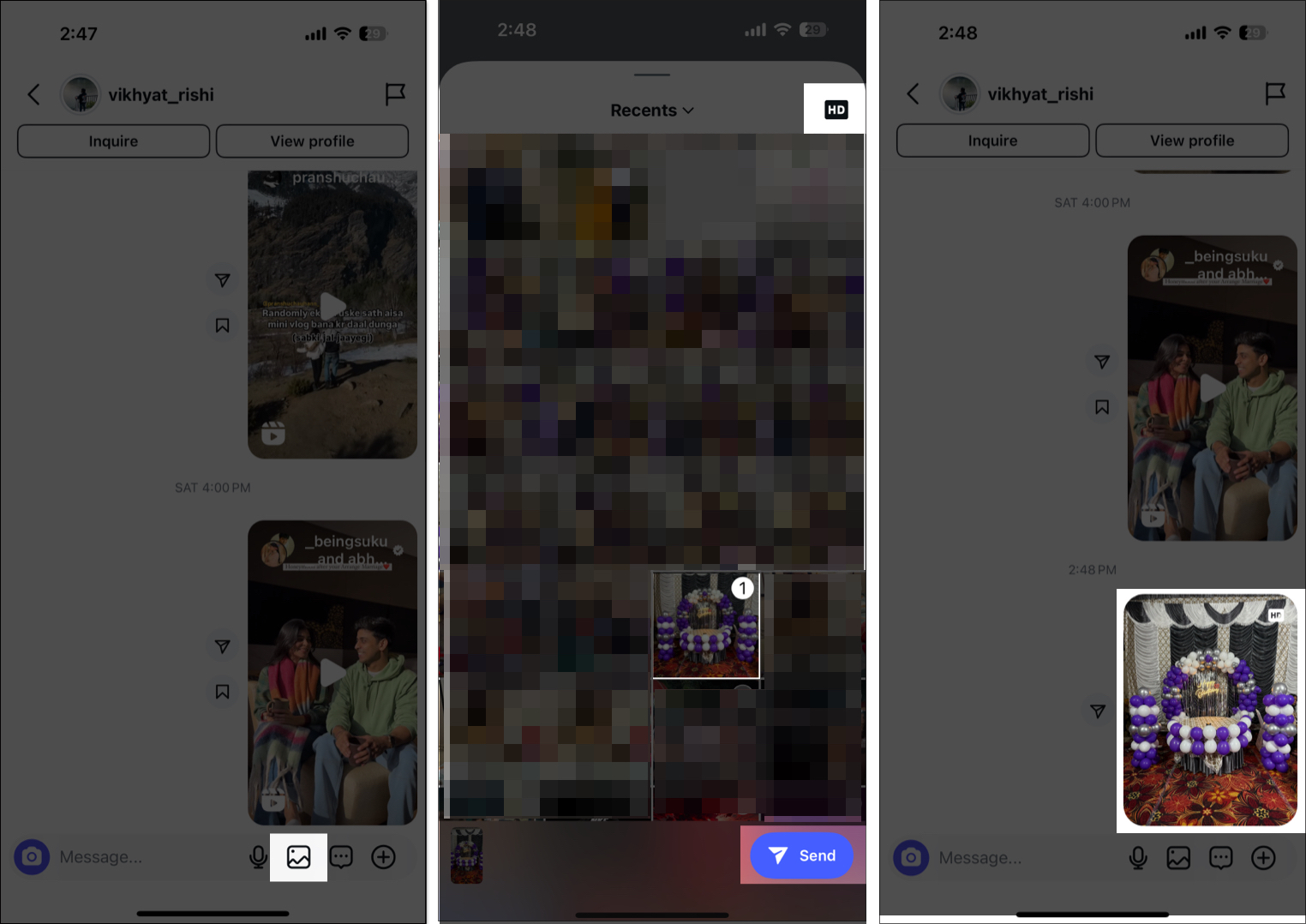
Simply open Instagram and go to a friend’s or family member’s DM. Select a photo and tap the HD button before sending it. If you don’t see this option, update your Instagram app to the latest version. Finally, tap the send button.
This feature makes sharing photos on Instagram from your iPhone even more convenient, without the need for third-party apps!
9. Schedule a Direct Message
If you often miss sending important messages at the right time, this tip can be a lifesaver. You can schedule messages in Instagram DMs to ensure they are delivered at the right time, even when you’re offline.
To do so, type your message as you normally would in a DM. Now, instead of tapping the send button, press and hold it for a few seconds. A scheduling menu will pop up. Set your preferred date and time and tap the Send button below. Your message will now be sent automatically at the selected time.
4. Recover a deleted post, story, or reel
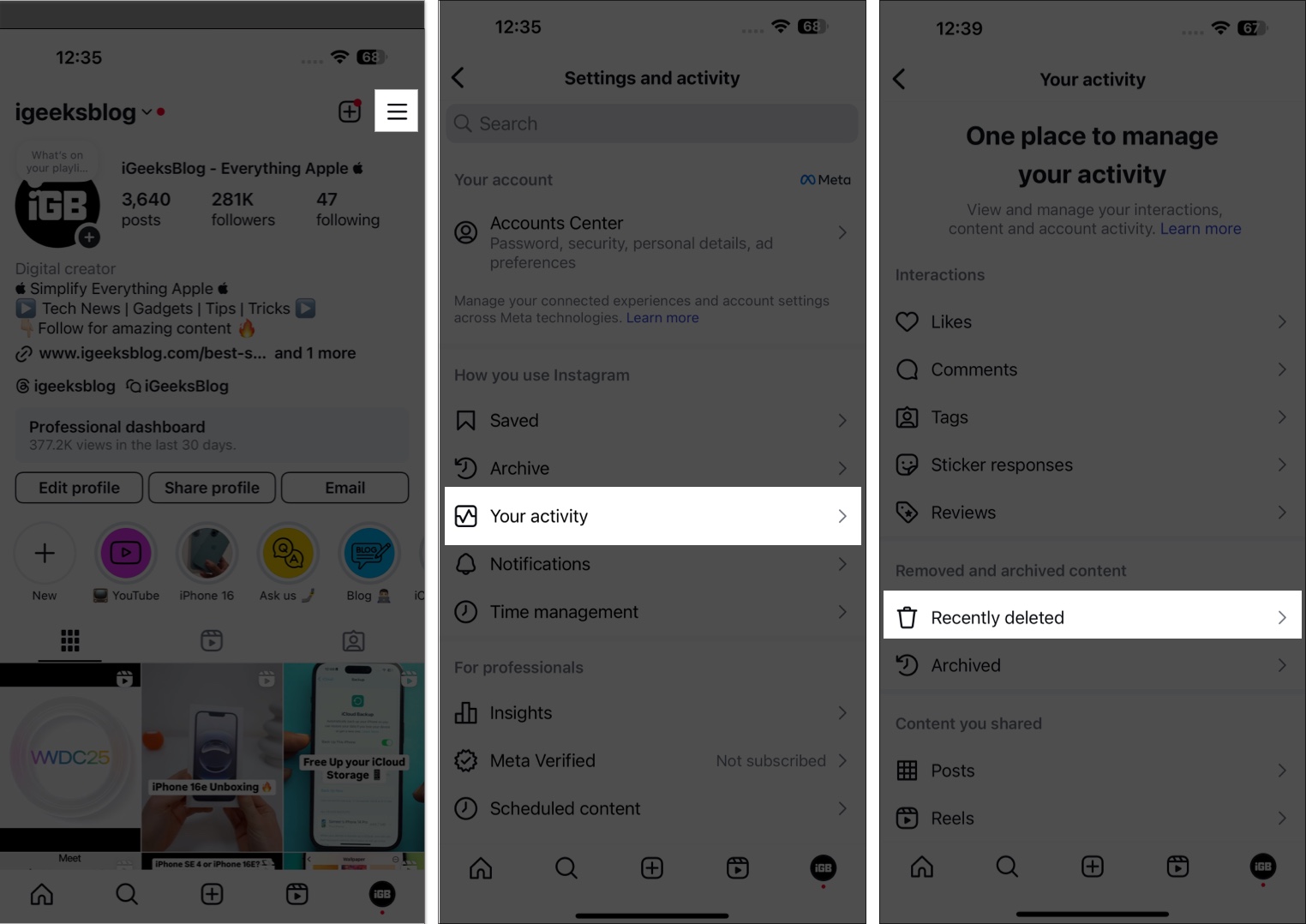
If, instead of archiving, you accidentally deleted an Instagram post, reel or story and regret doing so, you don’t need to worry at all. You can easily recover a deleted post or story in just a few taps. Here’s how:
- Head to your Instagram profile and tap the Hamburger icon at the top right.
- Now, tap Your Activity → Recently Deleted.
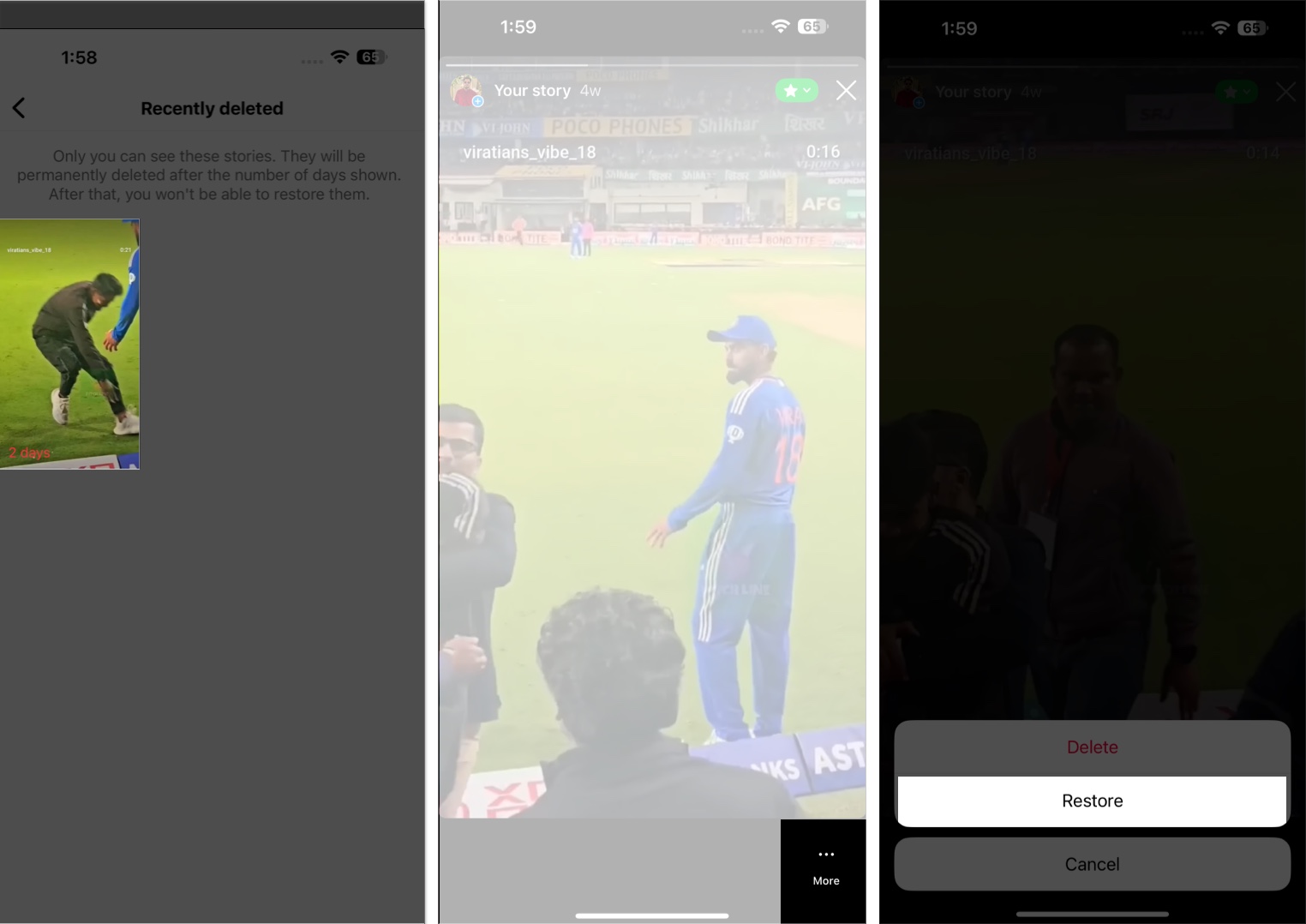
- Select the post you want to recover.
- Tap the Recover button.
5. See Who Has Unfollowed You
Are you wondering if someone has unfollowed you on Instagram? Unlike on other platforms, Instagram doesn’t notify you when someone unfollows you, but you can check manually or use third-party apps.
If you suspect someone has unfollowed you, you can check your Followers list on Instagram. If their name doesn’t appear, it means they are no longer following you.
However, checking specific users like this can be time-consuming. So, I suggest using Instagram followers checker tools such as FollowMeter, Reports+ for Followers Tracker, etc. Follow our detailed guide on how to see who unfollowed you on Instagram.
7. Save the Instagram Story in the Highlights
Instagram stories are a popular way to share daily moments with your followers, but they only last 24 hours before disappearing. If you want to showcase certain stories for an extended period, you can save them to your highlights.
Highlights are curated collections of stories you can display on your profile for as long as you like. So you can create a more permanent and organized way to showcase your content. To add a new highlight, go to your Instagram profile, tap the plus sign above your grid, select a past Story, enter your highlight name, and tap Done.
8. Find Out Who Viewed Your Instagram Highlights
As we mentioned above, Instagram highlights are a great way to keep your favorite Stories on your profile permanently. By default, you can see viewers for the first 48 hours after posting the original Story. After that, the list disappears, and only users who have reacted or engaged with your Story remain.
But have you ever wondered who is viewing your highlights after that? If the Story is older than 48 hours, you won’t be able to see new viewers. However, you can still track engagement using Follower insights for a business or creator account. Simply switch your account type from Instagram settings and select the professional account.
9. Praise Your Post Sharers
When someone shares your Instagram post, it means they found your content valuable, interesting, or entertaining. Acknowledging and appreciating these users can help strengthen your community, increase engagement, and encourage more people to share your posts.
However, Instagram does not directly show who shared your post, but there are ways to track it. If you have a creator account, you can check the post insights to see how many times your post was shared. Also, if someone has put a Story in your post, you will get a notification.
10. Add Music Link to Your Instagram Bio
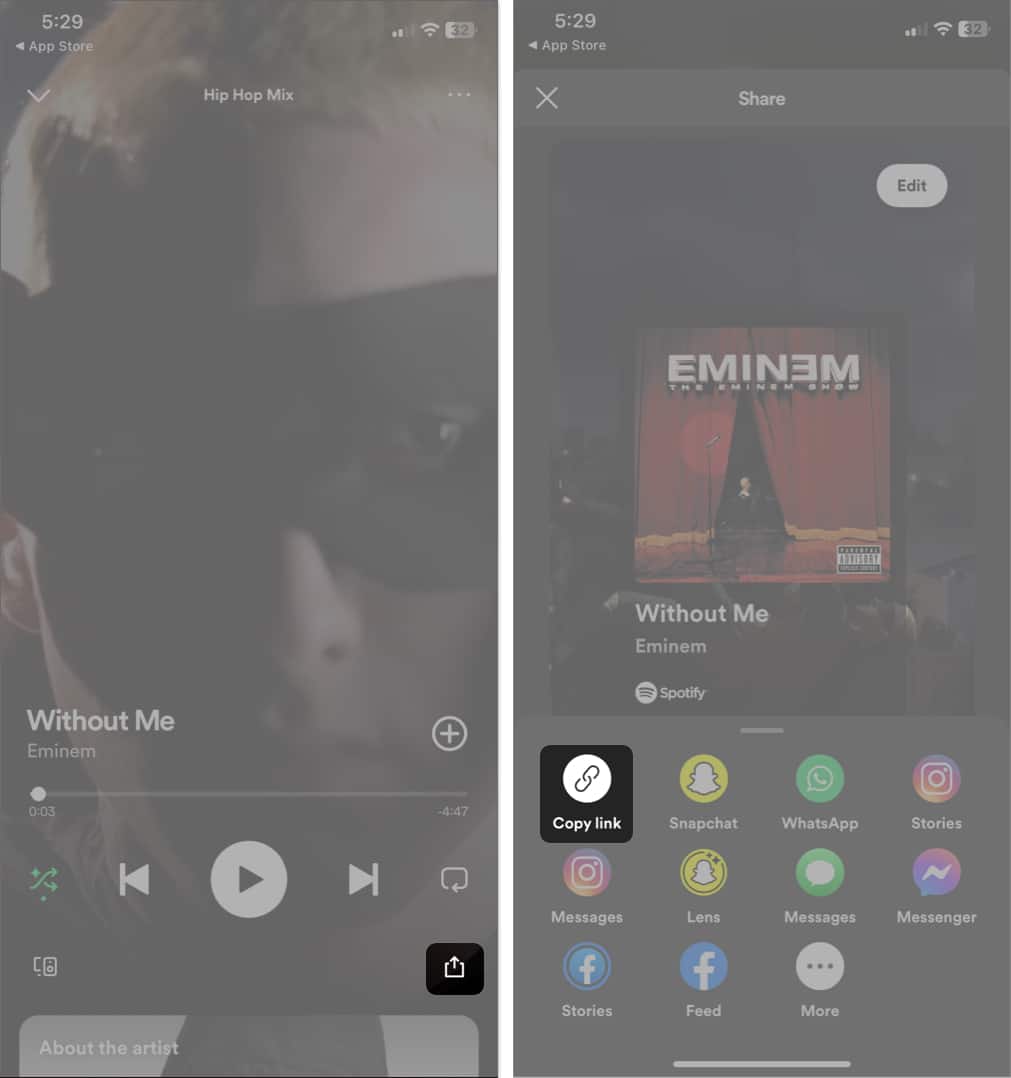
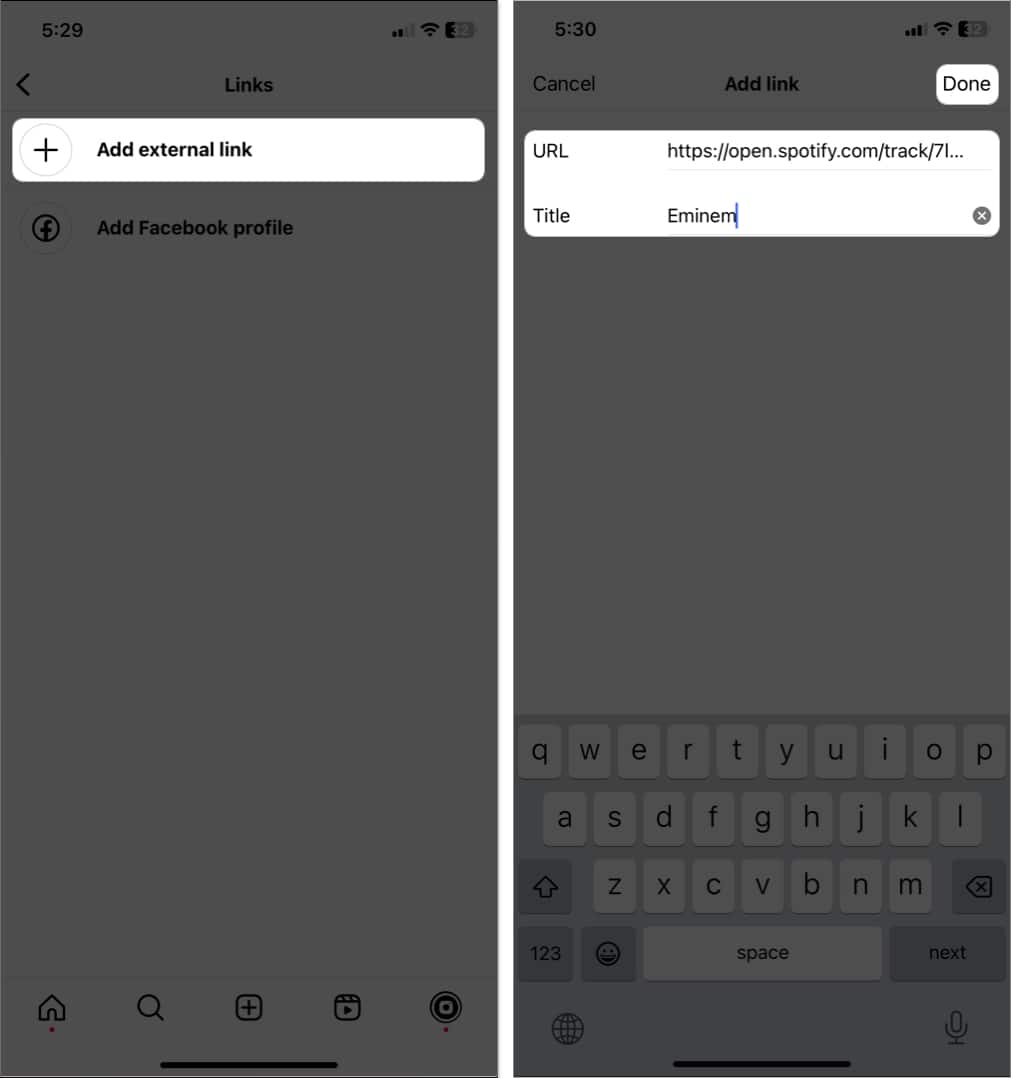
Want to show off your music taste to your followers? You may add a track, album, or playlist link from any music streaming platform to your Instagram bio. Here, I will show you how to add a Spotify link.
- Go to Spotify → Open the song.
- Tap the share button → Select Copy link.
- Launch Instagram → Tap your profile icon at the bottom.
- Tap Edit profile → Select Links.
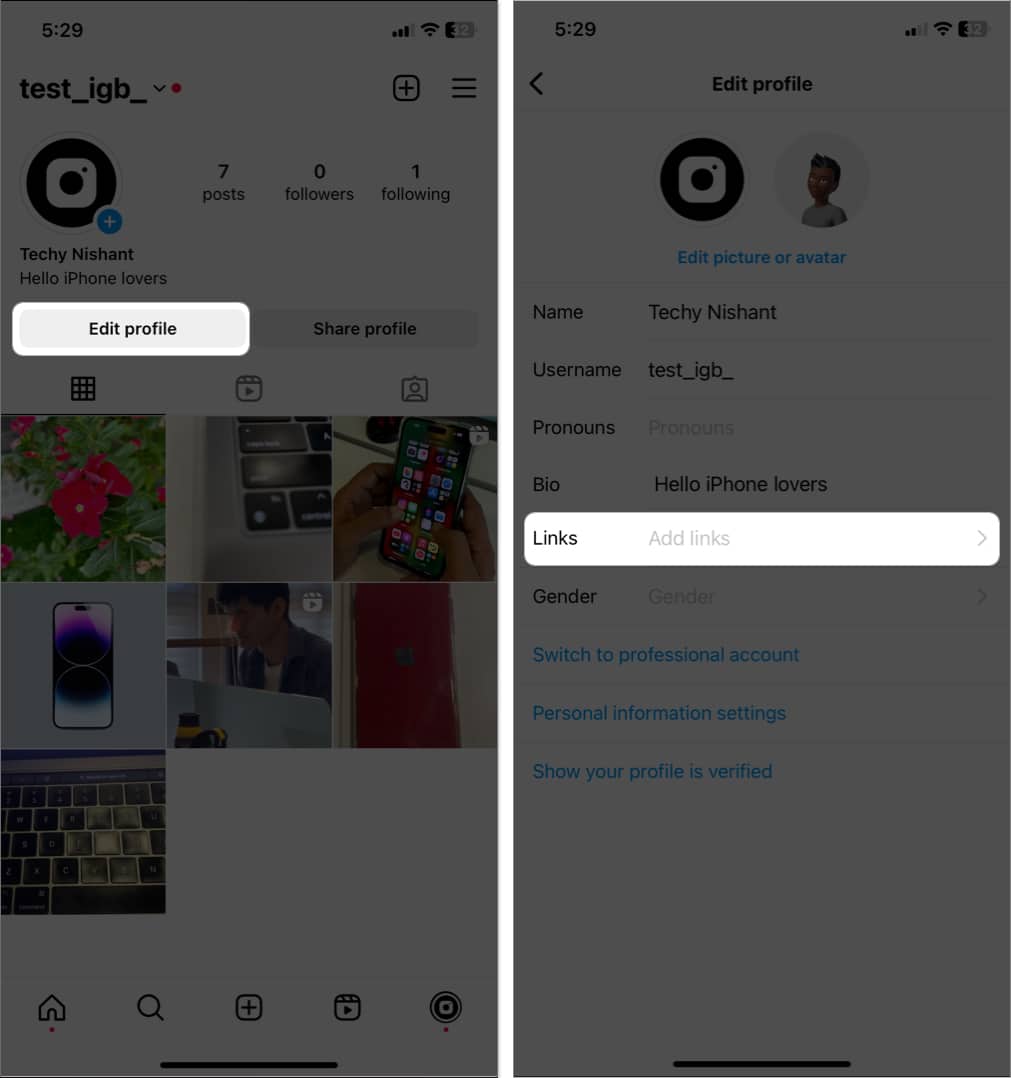
- Select Add external link.
- Now, paste the music link in the URL section and write a title.
- Once finished, tap Done.
Once a text is edited, both the sender and receiver will see the Edited mentioned below the message bubble.
11. Make Your Instagram Account Private
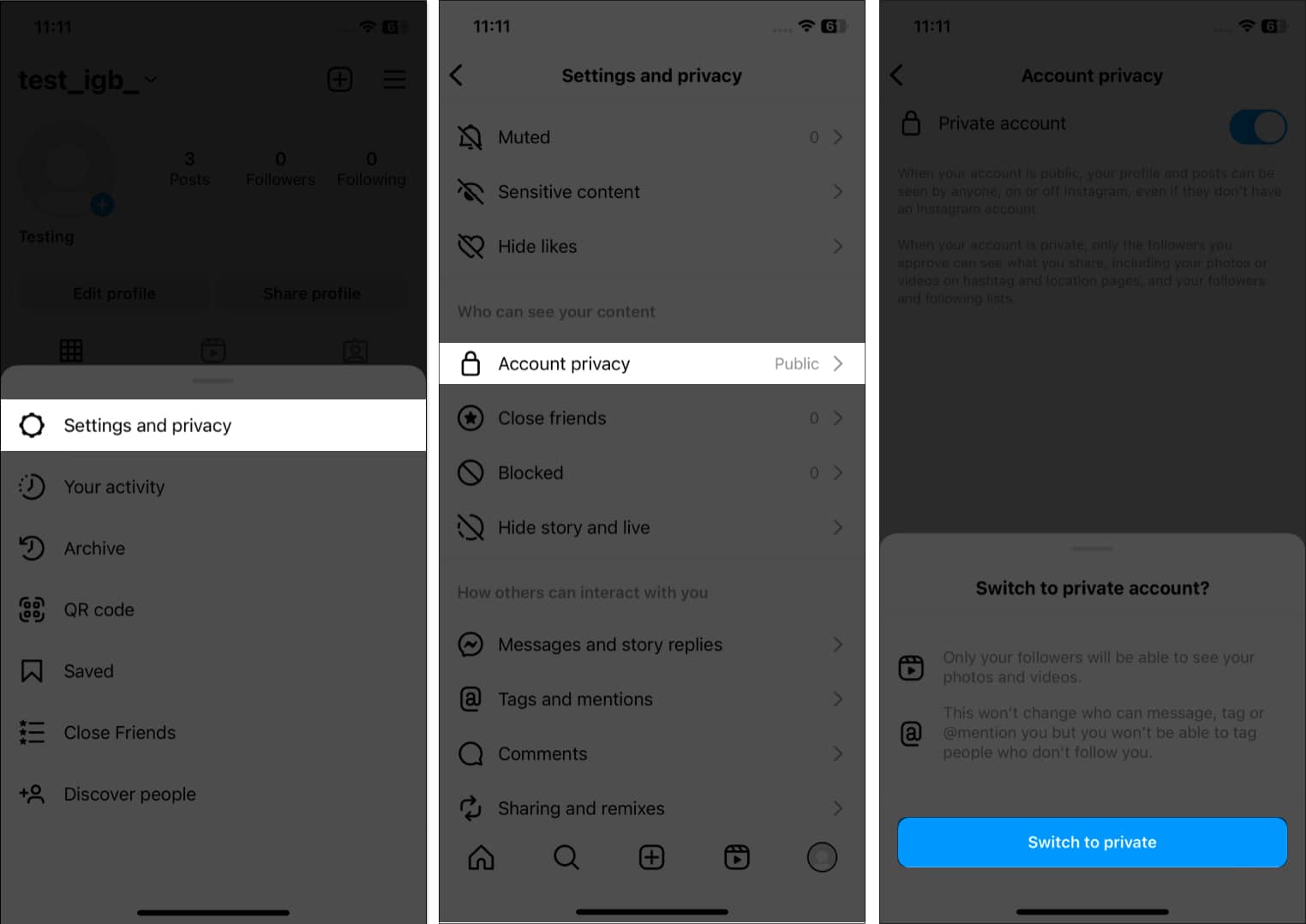
Don’t want unknown people to see your pics? You need to enable Private Account, which allows you to approve people before they can follow you. It doesn’t apply to your existing followers.
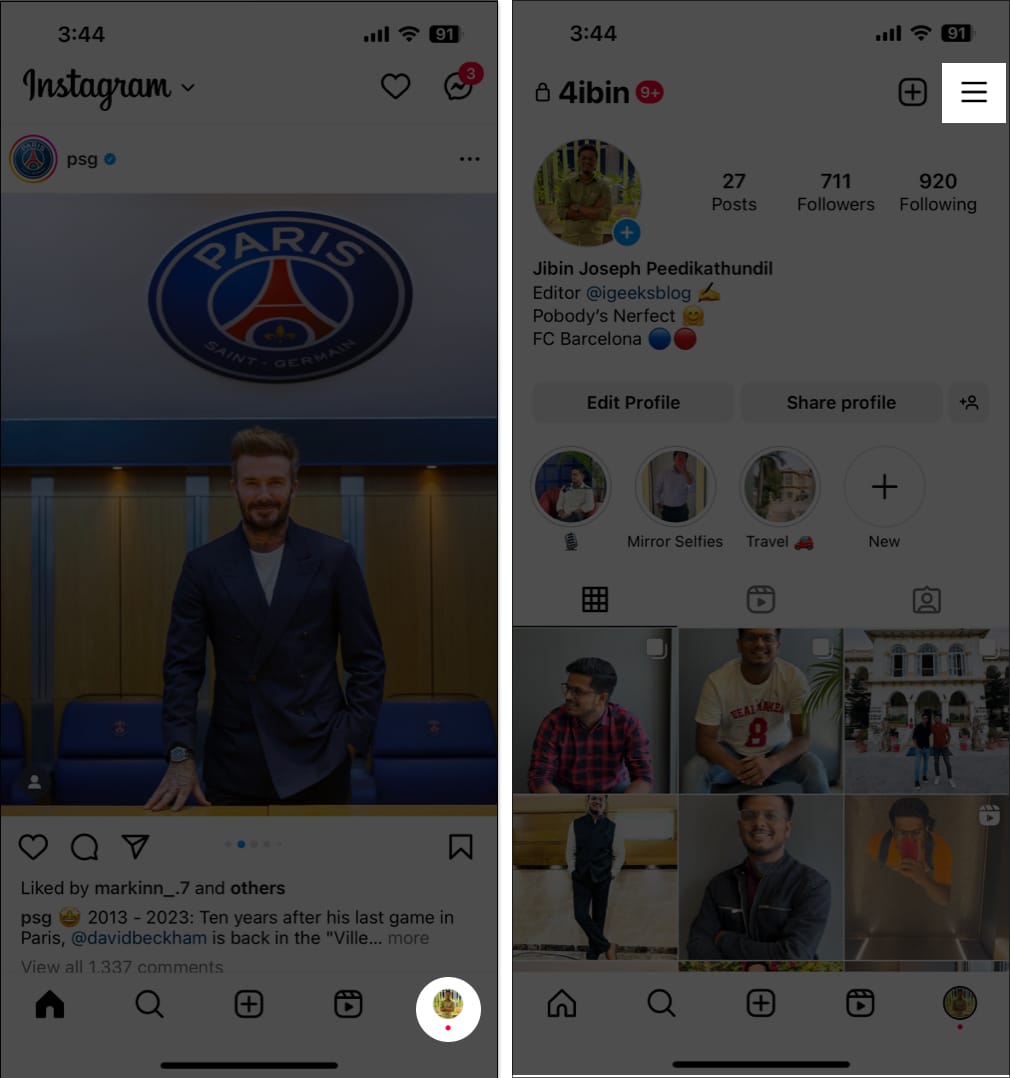
- Open Instagram → Select the profile icon to go to the profile tab → Tap the hamburger icon.
- Tap Account Privacy.
- Toggle on Private account → Select Switch to Private.
12. Reduce Instagram Data Usage
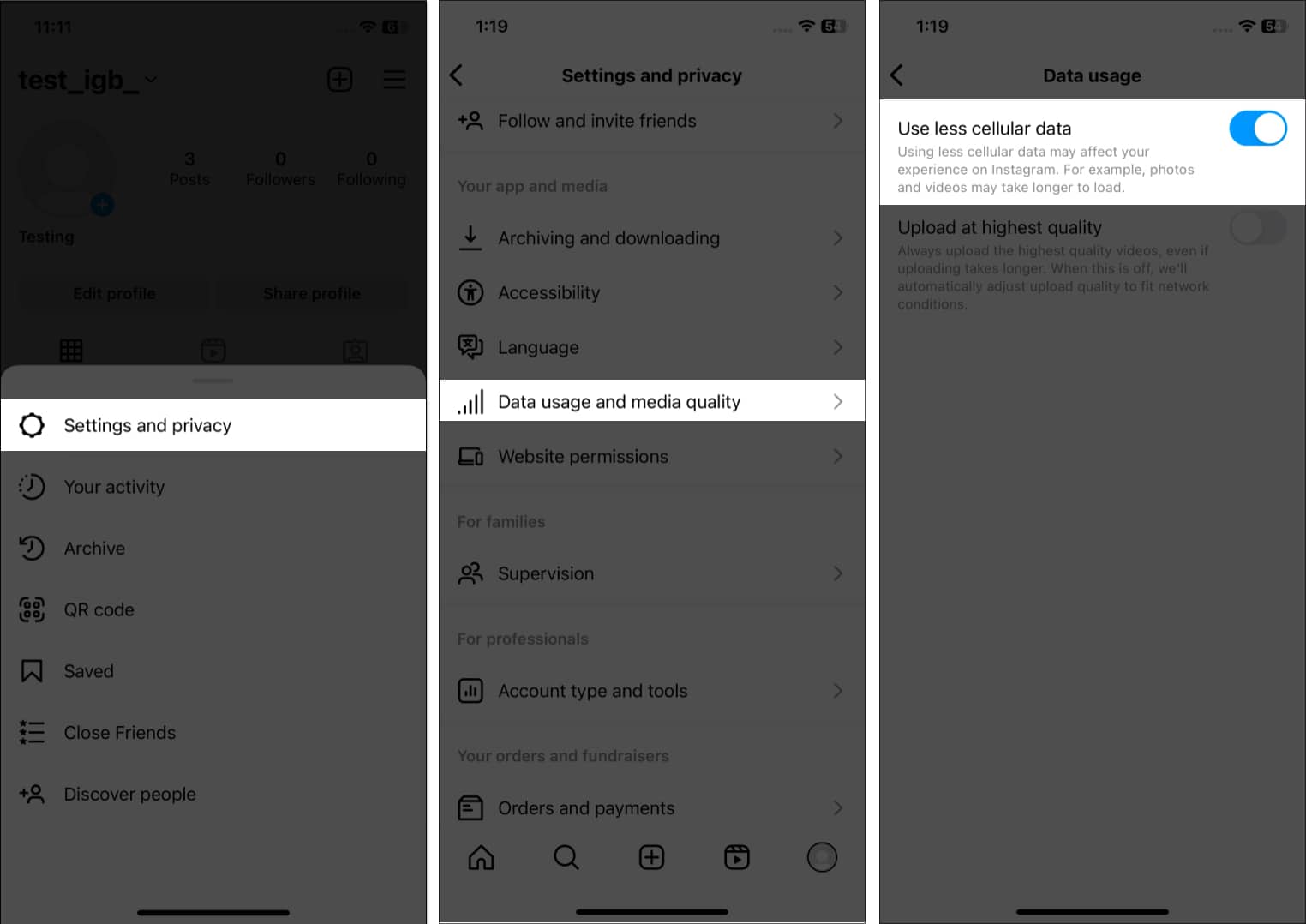
If you have poor network coverage or are short on data, this feature will help. However, it will hamper your experience as the media will take time to load.
- Open Instagram → Select the profile icon to go to the profile tab → Tap the hamburger icon.
- Tap Media quality.
- Toggle on Use less cellular data.
13. Hide Irrelevant Ads on Instagram
Instagram ads are increasing daily, but they can become irritating when they’re irrelevant. So, you may hide them. If the feed got refreshed, you may find recently viewed ads on Instagram.
- Tap the three dots icon on an ad post.
- Select Not interested → Then choose a reason.
14. Mute Someone’s Stories
While you enjoy watching stories from your friends and favorite influencers, there may be times when you want to mute specific stories without unfollowing the user. Perhaps the content is irrelevant to you, or you just need a break from seeing their updates.
Whatever the reason, you can refer to our guide on muting stories on Instagram to tailor your feed to your preferences. So, you can enjoy the content you love without feeling overwhelmed by the content you don’t.
15. Hide Inappropriate Comments on Posts
After posting something, you’ve probably encountered a comment you wish to remove or hide. Fortunately, Instagram provides an easy way to hide inappropriate comments. So you can take control of the conversation and maintain a positive environment on your profile.
- Open Instagram → Select the profile icon to go to the profile tab → Tap the hamburger icon.
- Select Hidden Words.
- Toggle on Hide comments.
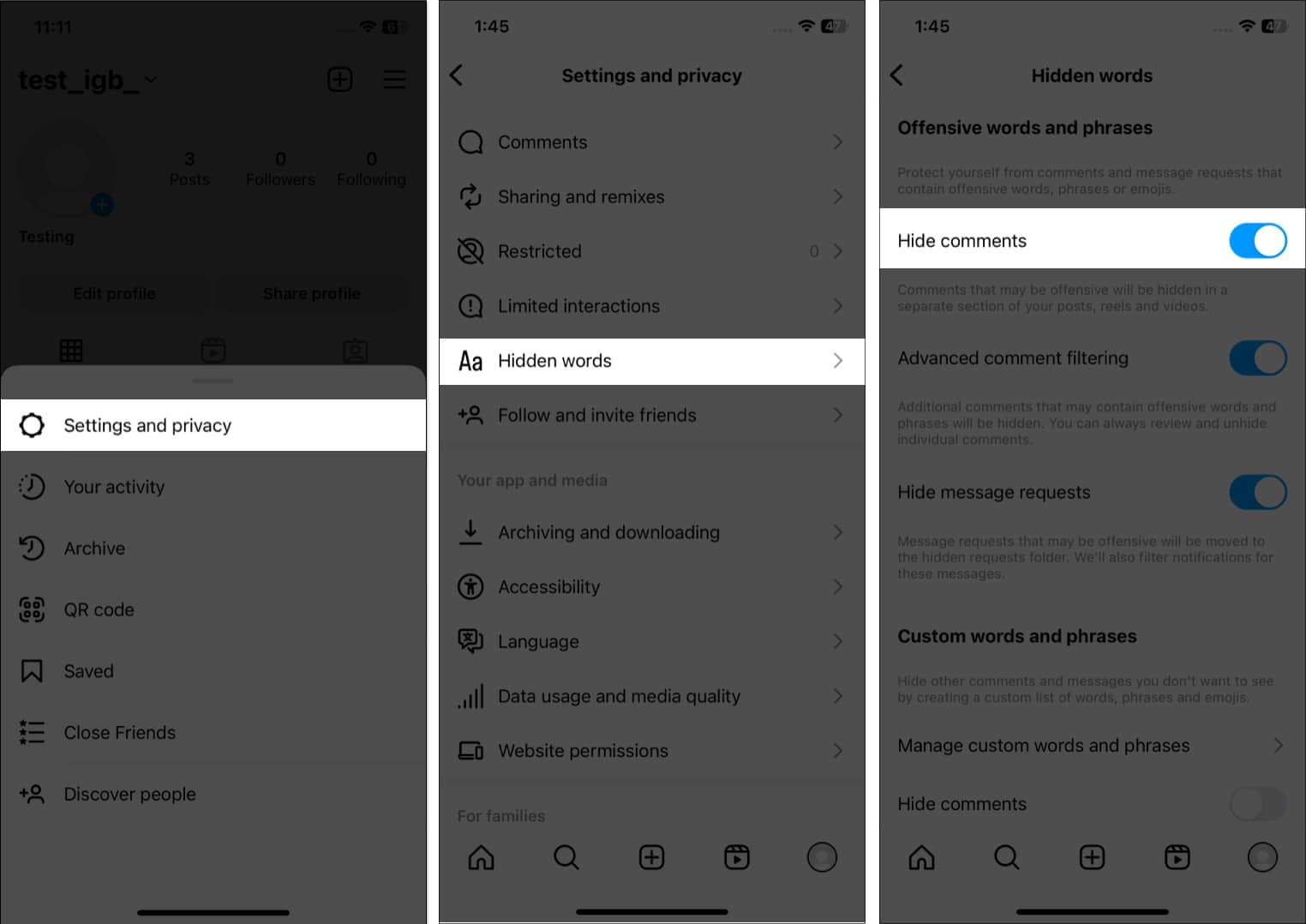
You may also add custom words and phrases that you don’t want in your comment box or message requests from Manage custom words and phrases. Then, toggle on Hide comments under that.
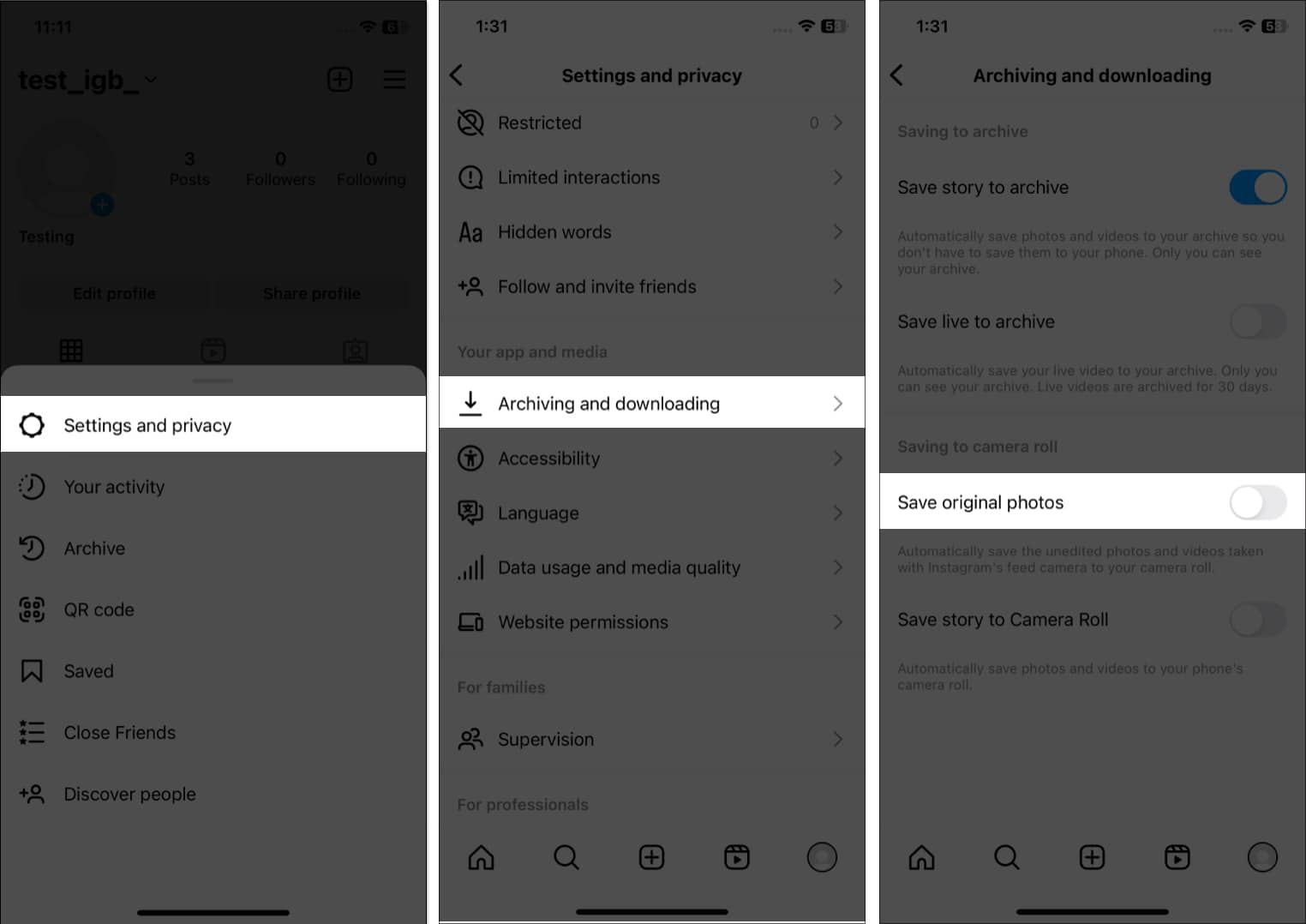
16. Don’t Save Original Photos on Instagram
Instagram filters are great. But whenever you post an image, it automatically saves a copy in your gallery. So, your storage may run out quickly.
- Go to Instagram Settings.
- Tap Archiving and downloading.
- Toggle off Save original photos.
17. Pin Favorite Instagram Posts at the Top
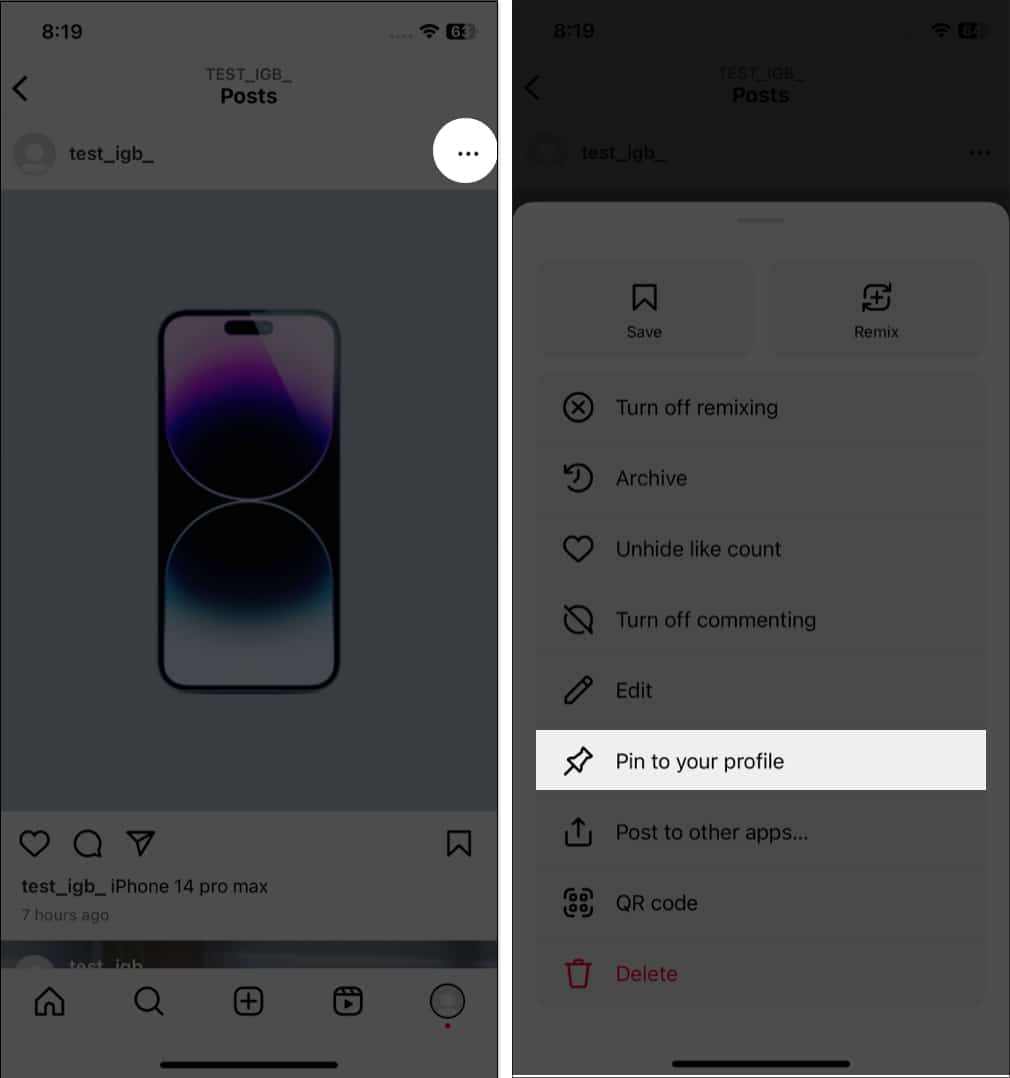
You can customize your profile in several ways but I most love the pinned posts. You can pin three posts at the top of your feed.
- Open the Instagram post you want to feature.
- Tap the three-dots icon.
- Select Pin to your profile.
18. See the History of Your Instagram Account
Do you want to know when you joined Instagram and your former usernames or bio texts? Well, you can know all these in easy steps:
- Tap the hamburger menu → Your activity.
- Select Account history.
- Here, you can see a list of all the information. Tap the activity to see the full details.
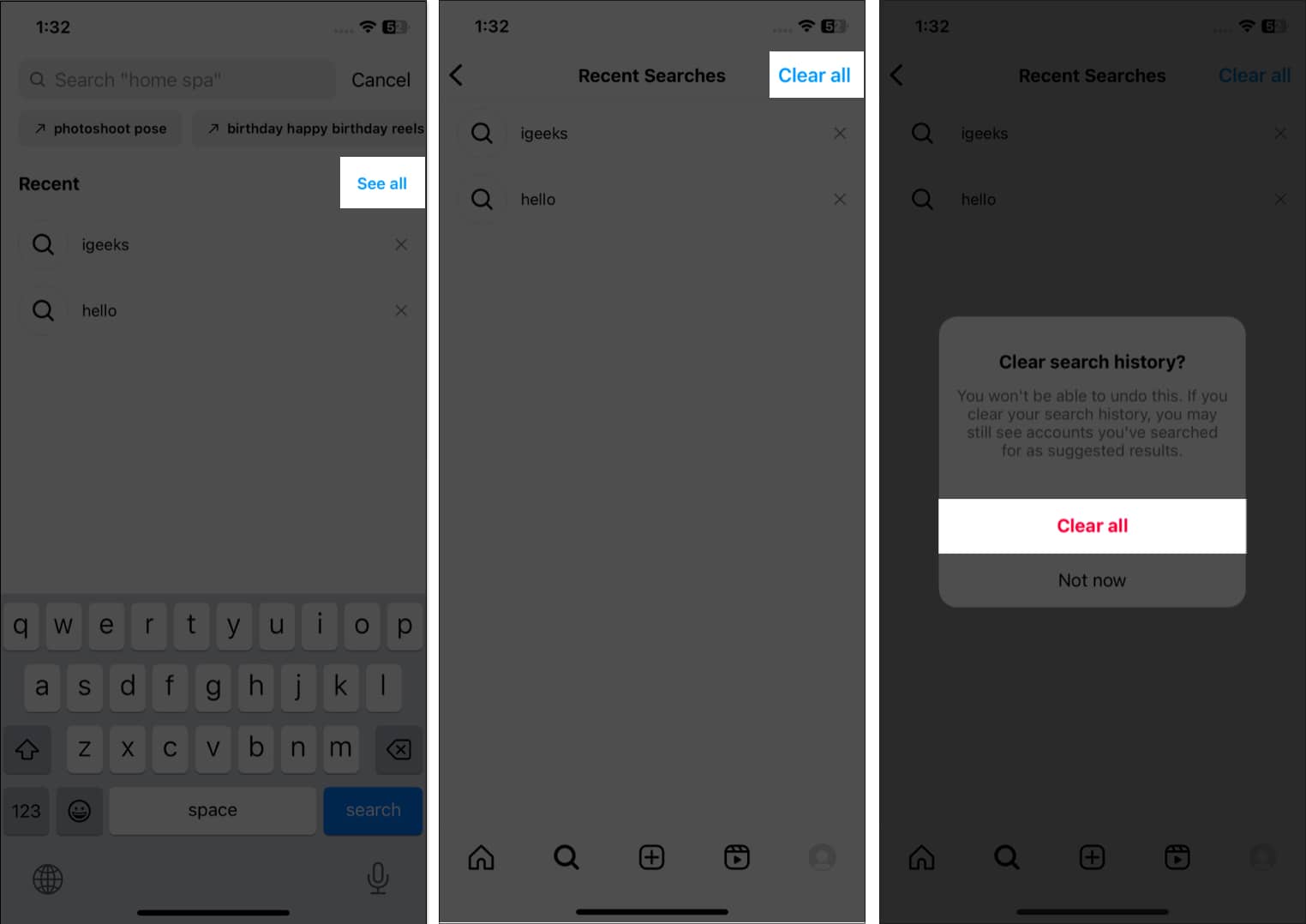
19. Clear Instagram Search History
You can clear your Instagram search history and remove all traces of what accounts you searched for. To do this:
- Launch Instagram and tap the Search icon.
- Tap the Search bar → Select See All.
- Select Clear All and tap Clear All again to confirm.
20. Save Instagram Stories as a Draft
Sometimes you may not have enough time to post a photo or video immediately, or you may want to edit it before sharing it. In these cases, you can save your half-finished post as a draft on Instagram. So, you can quickly come back to it later and finish your edits or add captions without losing your progress. Note that the Story drafts will expire in the next seven days.
- Open Instagram and swipe left to right to open the camera.
- Click a photo or record a video.
- Tap Close icon (x).
- Select Save Draft.
21. Find links You Have Visited
Do you visit websites linked to Instagram posts? The app now records all your link visits so you can return to them anytime.
- Select the profile icon to go to the profile tab → Tap the hamburger icon.
- Go to Your activity.
- Select Link history.
- Here, you can see your link history.
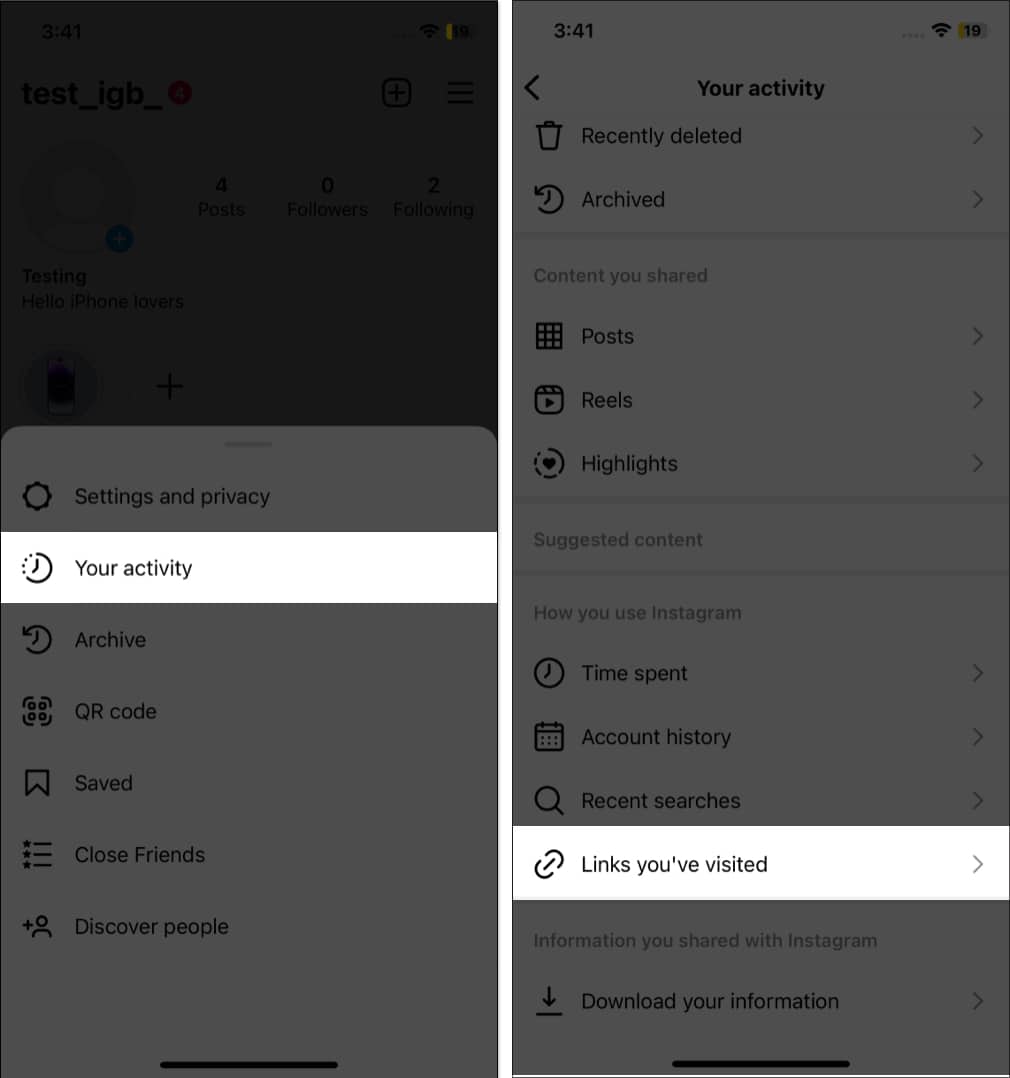
- To delete the list, tap Clear all → Clear.
22. Share Photos/Videos Directly to Instagram
Rather than searching through your camera roll while posting, you may directly share photos or videos on Instagram from the Photos app. So, you can quickly and easily share your favorite moments with your followers as feed posts/Stories or send them via DM.
23. Restrict an Account on Instagram
Have you encountered an account that makes you feel uncomfortable or harassed? In these situations, you may use Instagram’s “Restrict” feature to limit an account’s interaction with your profile without blocking them.
So, whether you’re dealing with cyberbullying, harassment, or unwanted attention, restricting an account on Instagram can help you take control of your social media experience and protect yourself.
24. Archive Instagram Posts or Story
Sometimes, you may want to remove a post or story from your profile feed without deleting it. This is where the “Archive” feature comes in handy. Archiving allows you to hide a post or story from your profile rather than removing it. So you can view archived posts later or restore them to your profile if you change your mind.
Also, Instagram Stories disappear after 24 hours, but you can keep them saved if you archive them. Therefore, archive Instagram posts or stories on your iPhone to easily manage your content and keep your profile looking its best. Later, you may also delete archived stories permanently.
25. Pause Instagram Push Notification
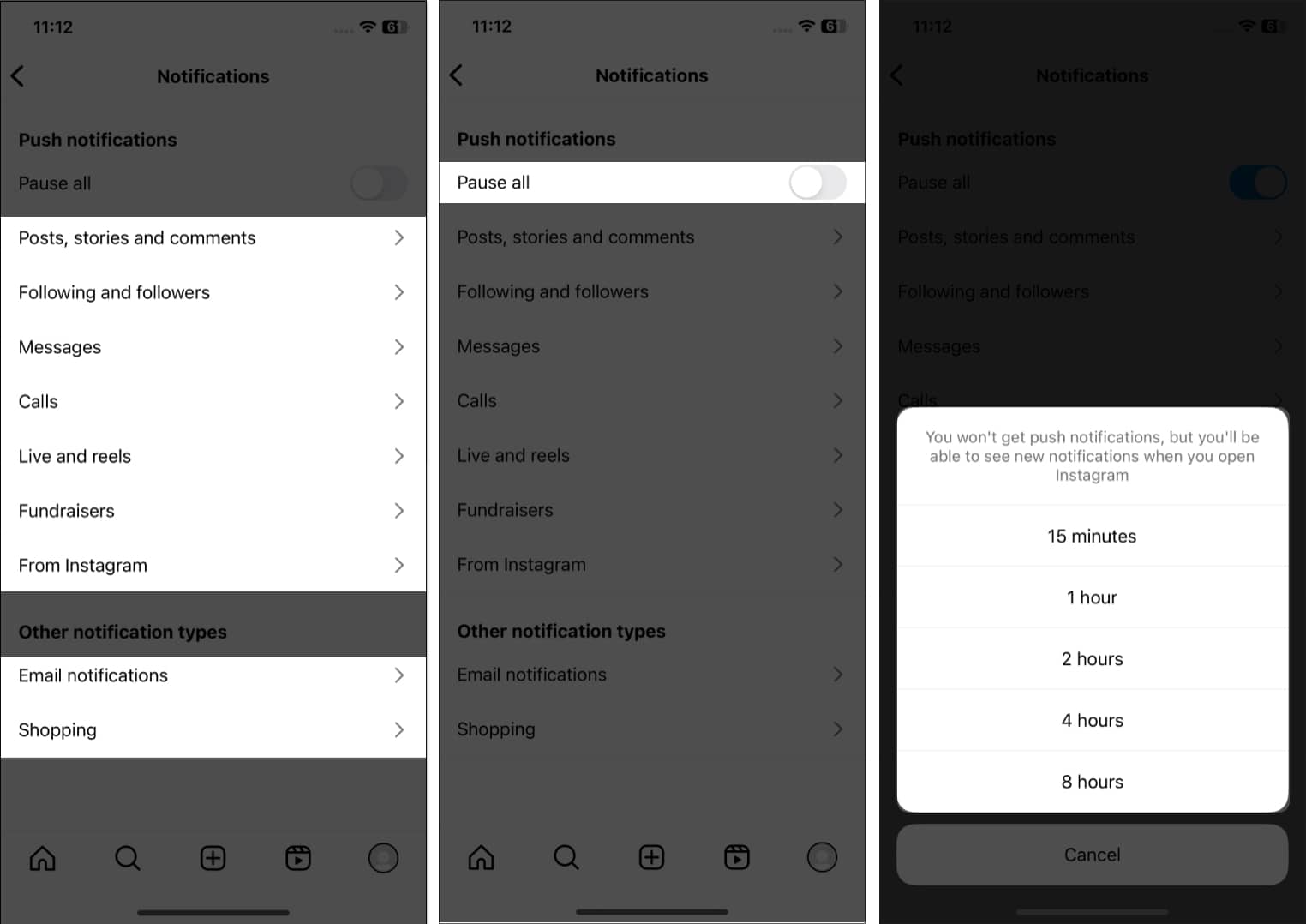
Getting too many notifications can be annoying, but you can change the notification frequency.
- Go to Instagram Settings.
- Tap Notifications.
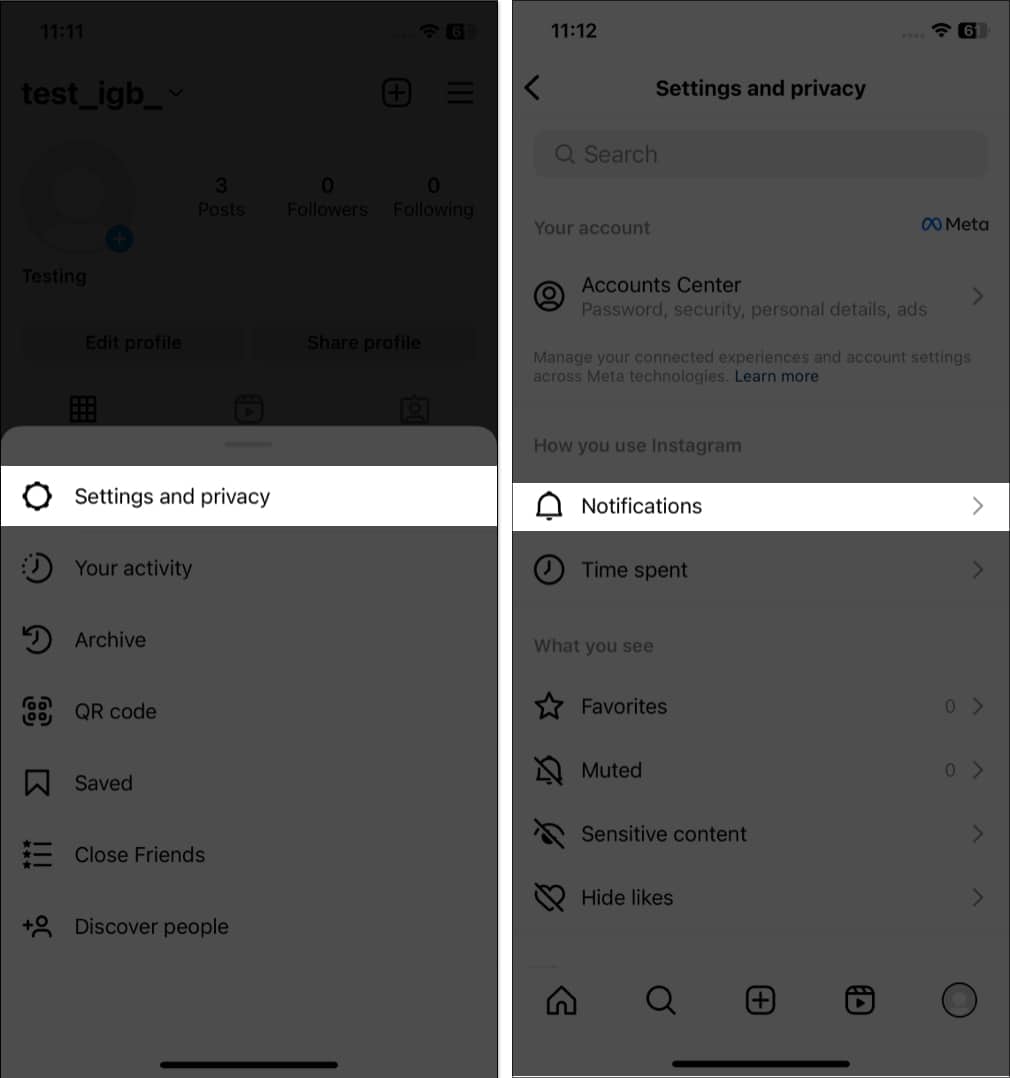
- Choose the setting that suits your needs.
- Toggle on Pause all to stop push notifications for a selected period.
26. Make a Close Friends List on Instagram
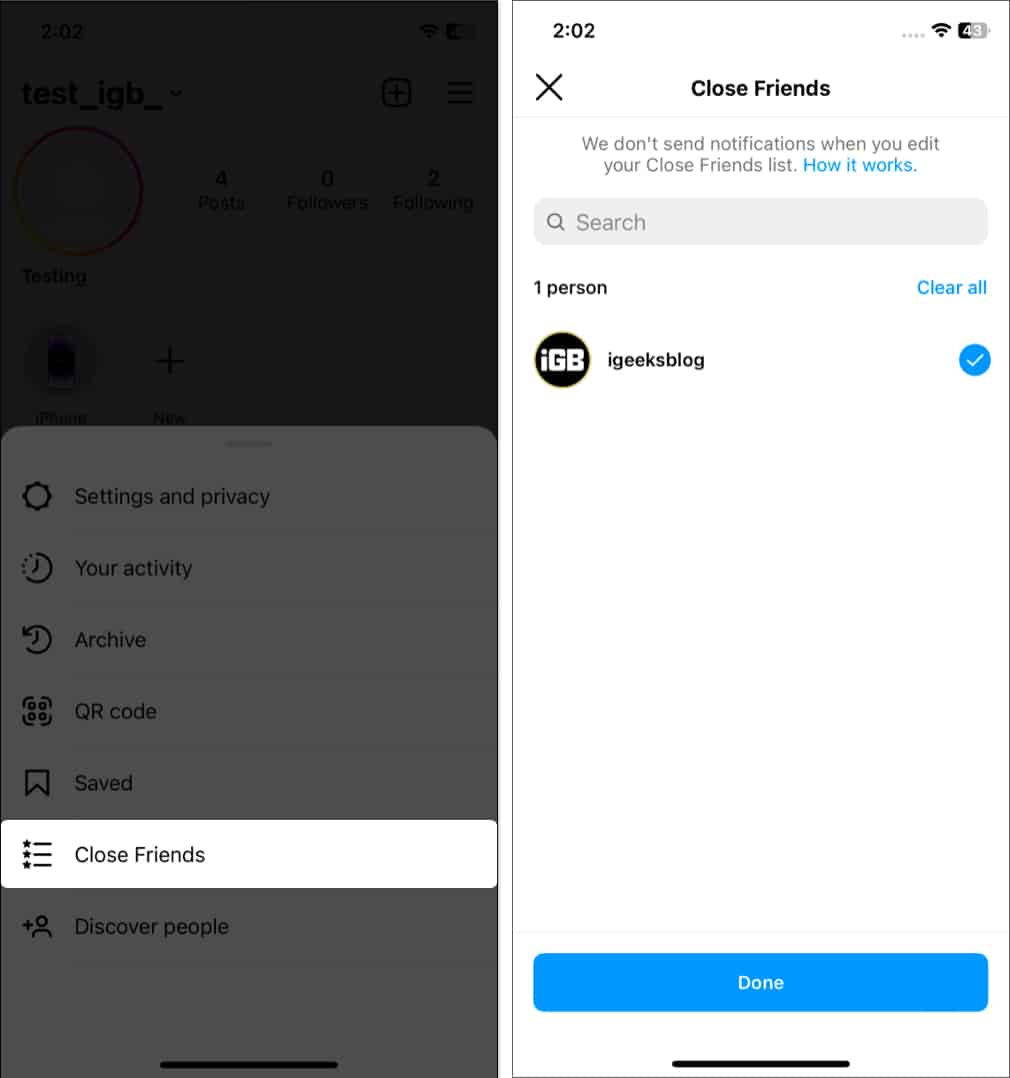
You may add some people as your close friends. This allows you to share stories that are not for everyone, but only close friends. No one can see your close friend list except you. To add a friend as a Close Friend:
- Go to a friend’s profile and tap Following.
- Select Add to Close Friends List.
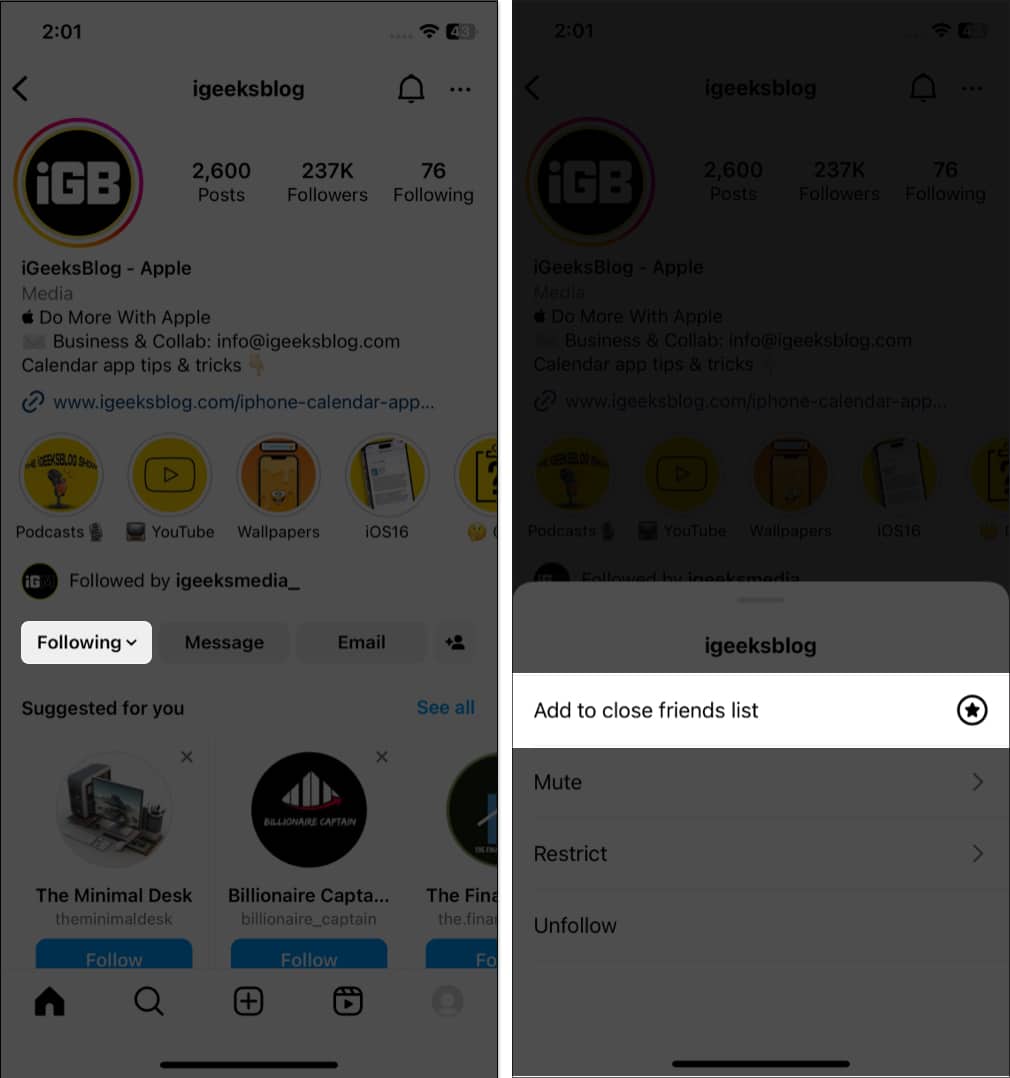
- Further, to see all your close friends, go to your Instagram profile and tap on the hamburger icon.
- Now tap Close Friends.
- You can see your list or quickly add multiple people as close friends from the Suggestions list here.
27. Download Your Instagram Data
If you use Instagram for business or marketing purposes, it’s crucial to have access to your Instagram data. So, Meta lets you download your Instagram data, including photos, videos, messages, and more. This can be a valuable tool for backing up your content or gaining insights into your online presence.
28. Check Time Spent on Instagram
Are you spending too much time on Instagram? Well, you can see the activity time and make adjustments.
- Go to Instagram Settings → Time management.
- Here, you can see the time you spent on Instagram.
You may also set a daily time limit that will notify you once you reach the time duration. Further, you may enable Sleep mode, which will mute notifications for the time you set.
29. Save Posts for Later on Instagram
Whenever you come across any insightful posts, you may save them. Just tap the bookmark icon on the post. Also, you may create collections to organize saved posts on Instagram.
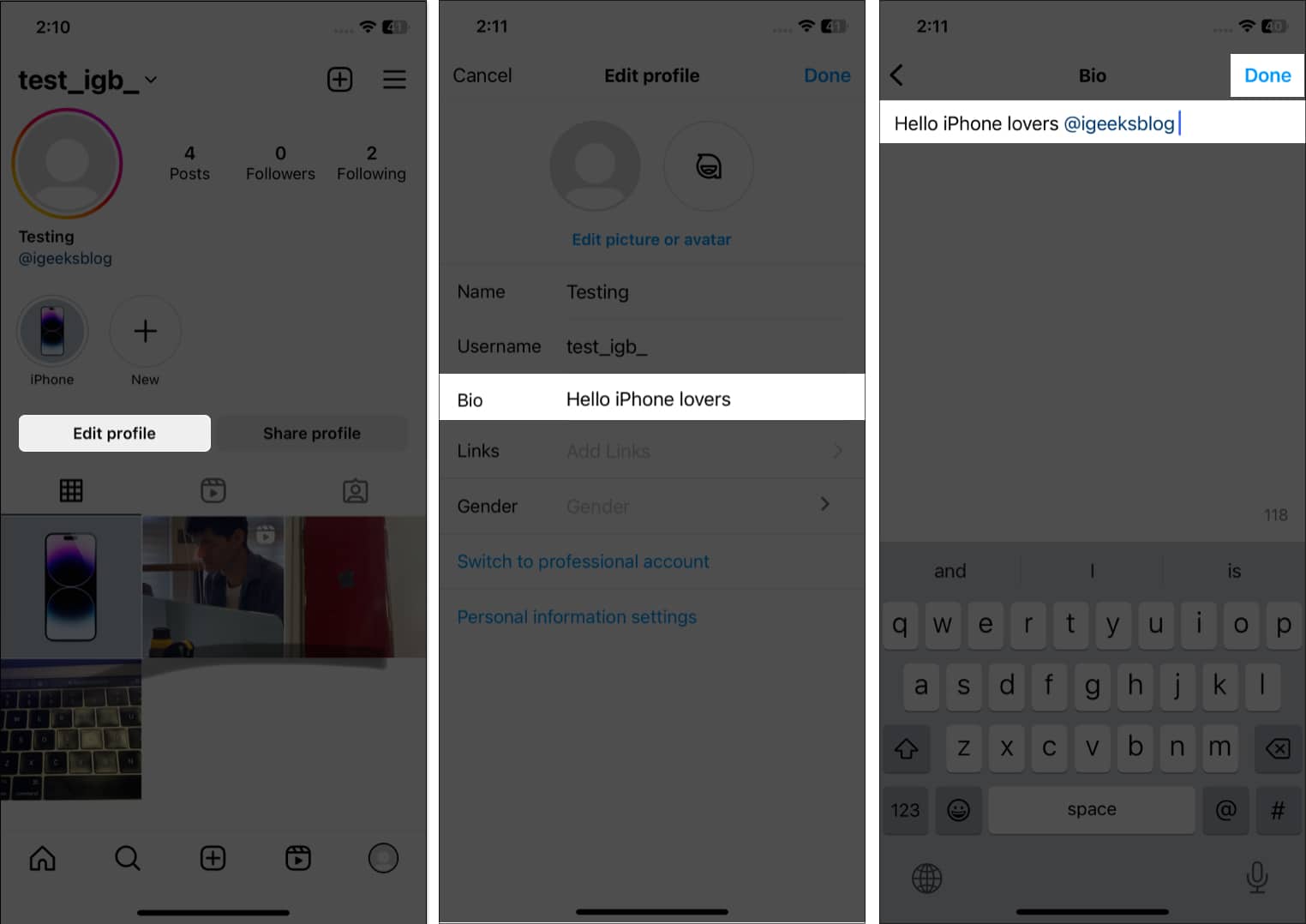
30. Add Another Instagram Account to the Bio
If you have another account for professional works or a business account, you may promote that on your primary account.
- Tap the profile icon to go to your profile tab → Select Edit profile.
- Tap Bio.
- After your bio text, type @ and enter your Instagram ID.
To optimize your bio further, add relevant hashtags (#).
Also, you may add links to your Facebook profile, LinkedIn, or website by tapping Links.
31. Set Filters as Favorites
Instagram offers the best filters and effects for capturing stories and reels. But it can be frustrating to search through different filters and find your favorite one each time. How about saving filters for quick access?
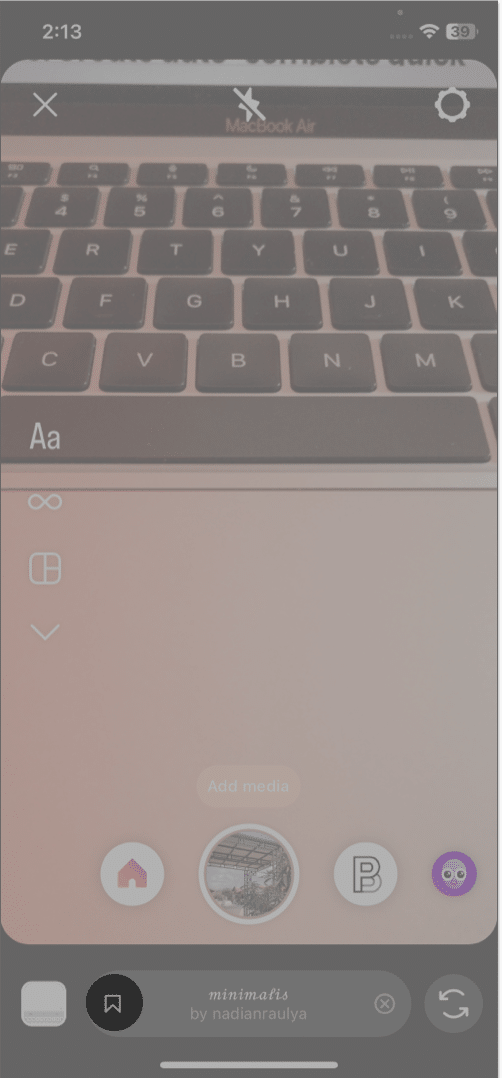
- Open the camera on Instagram.
- Scroll through the filters at the bottom.
- Tap the bookmark icon.
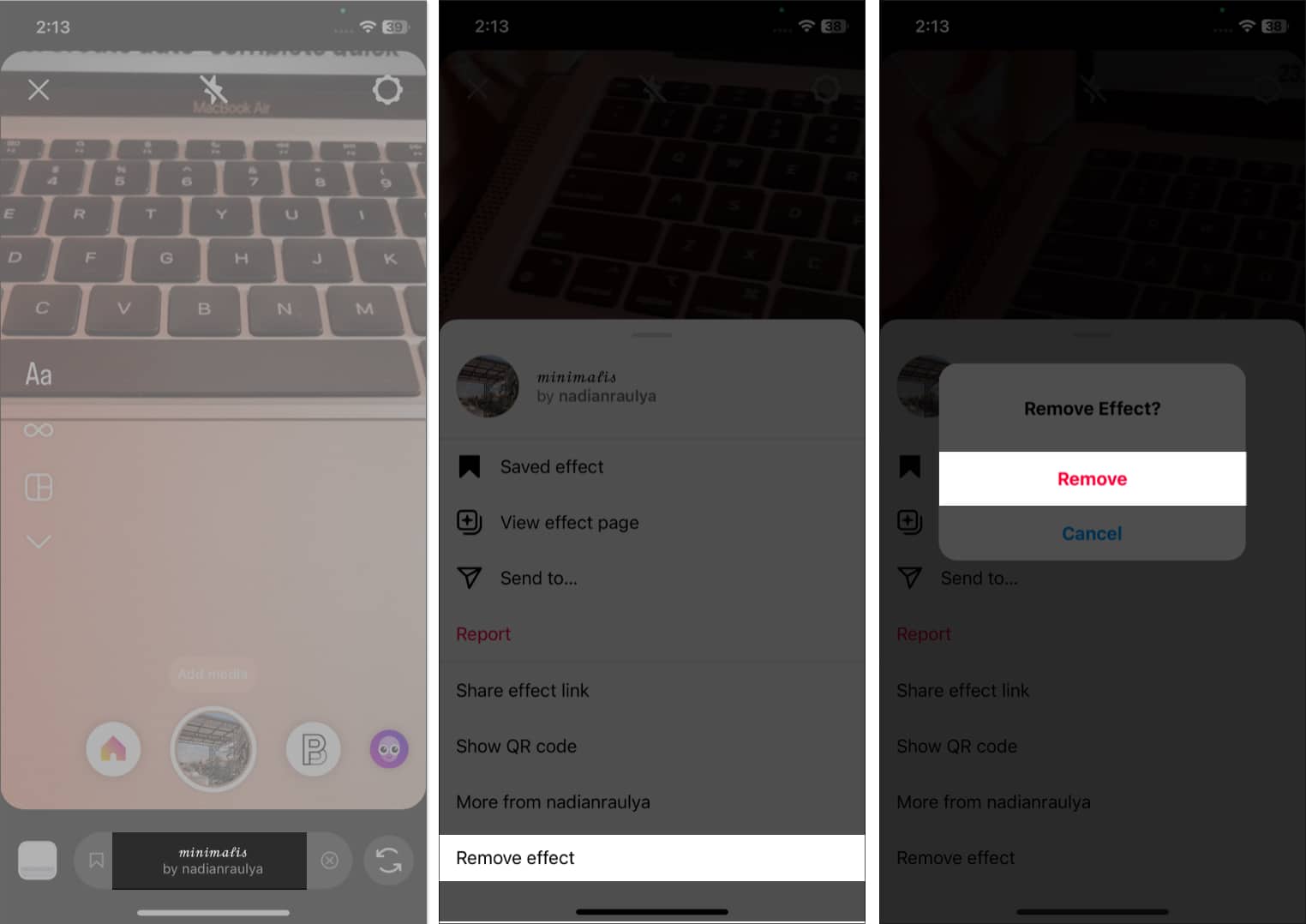
- You may also delete a filter. For that, tap it and select Remove effect → Remove.
32. Create an Auto-Complete Quick Reply
Want to save time replying to direct messages? You can set up automated quick replies on Instagram. The feature is available on professional accounts.
- Open the Instagram app → Tap the messenger icon.
- Tap the three-dots icon → Tools.
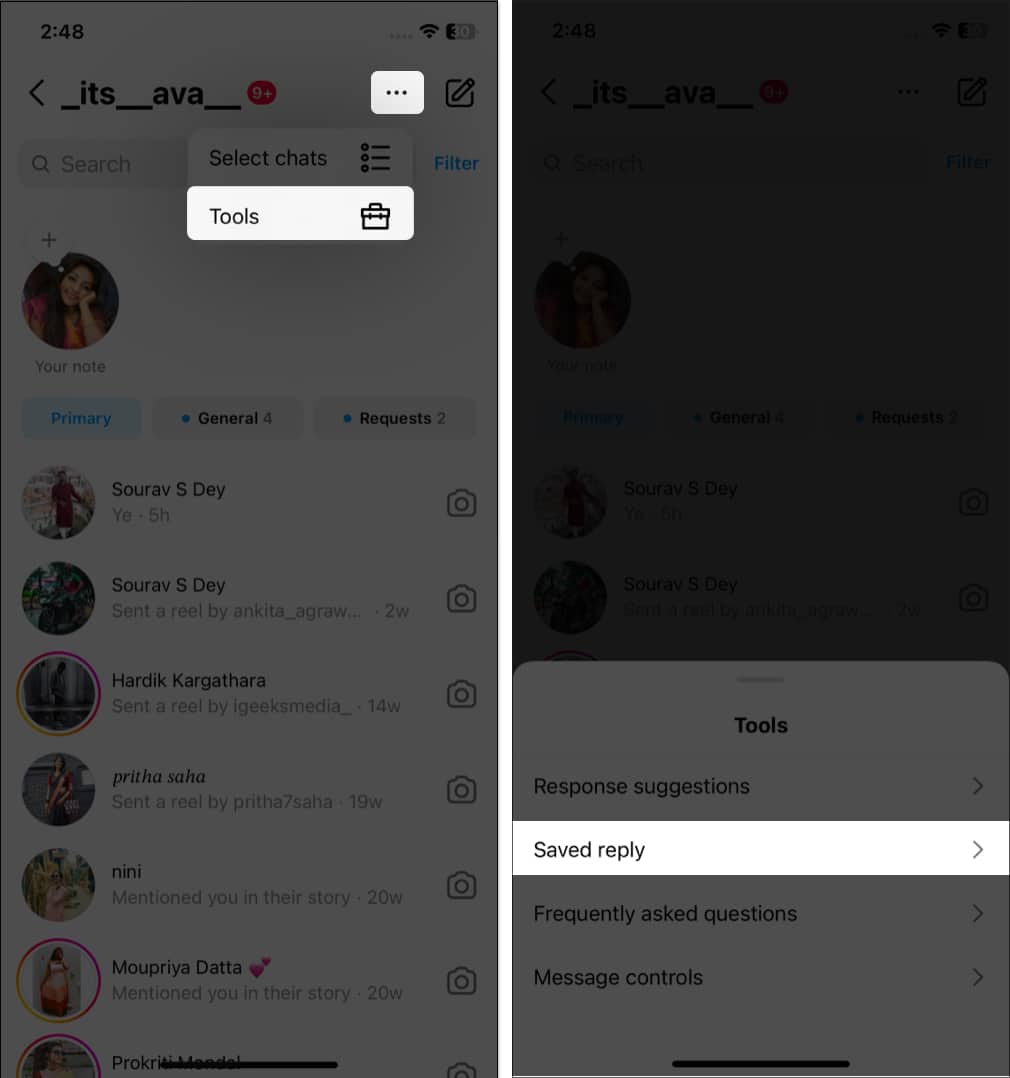
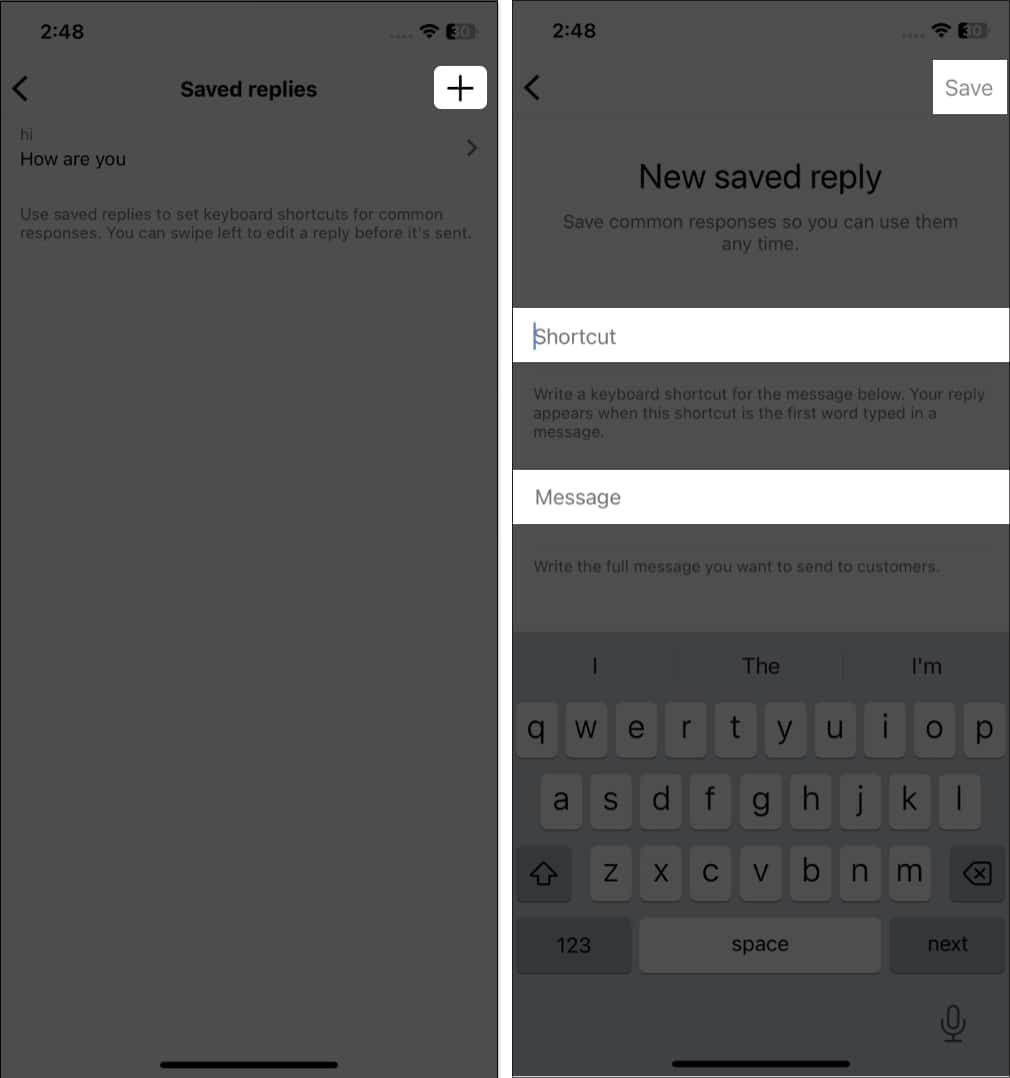
- Select the Saved reply.
- Tap the plus icon and enter your shortcut according to the auto-complete message.
- Choose Save.
33. Make Your Stories Interactive
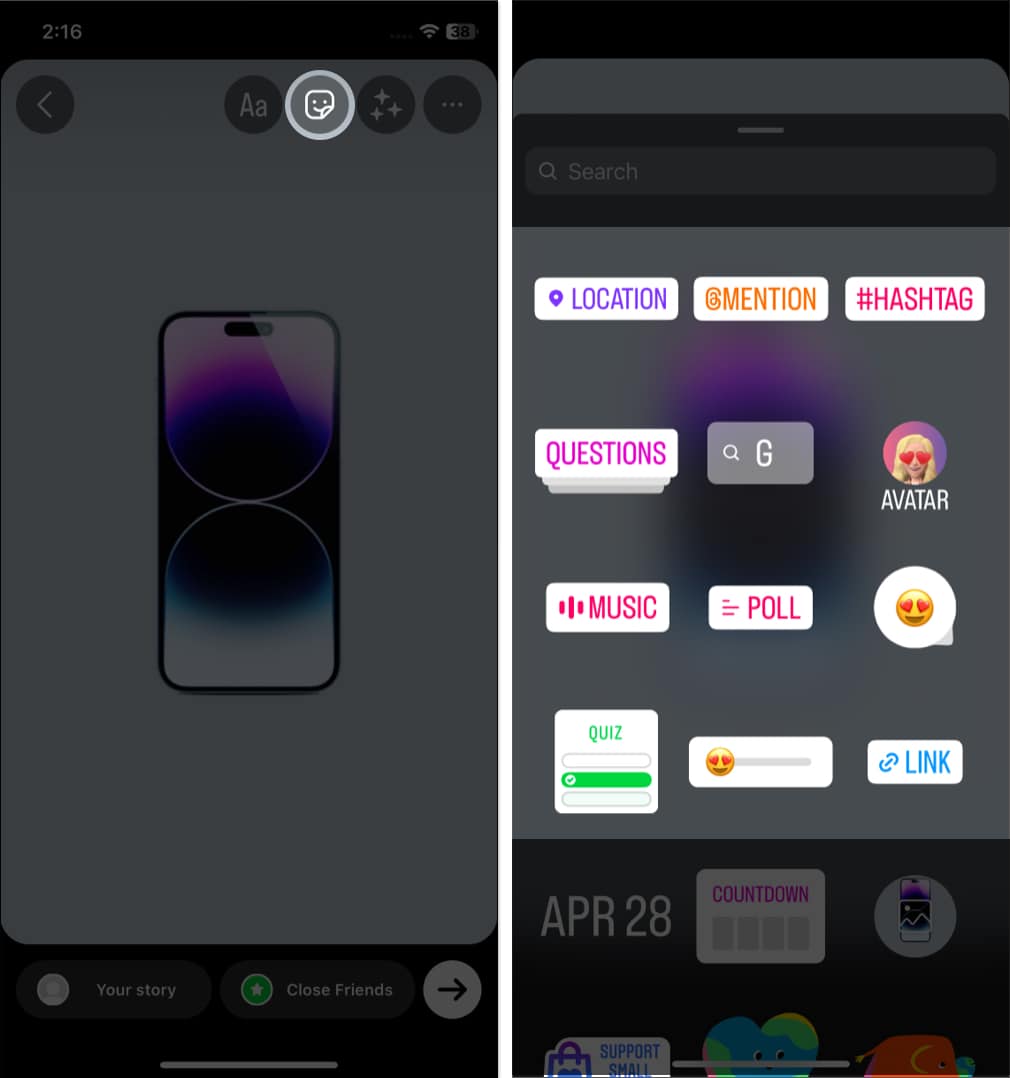
You can easily engage with your followers through Instagram Stories stickers. Let them ask you questions, vote on polls, answer quizzes, etc.
- Select a photo or video from the gallery or capture one for your Story.
- Tap Sticker icon.
- Choose Poll, Quiz, Questions, or anything as per your choice.
34. Get Notifications Whenever Your Favorite Person Posts
With so much content being shared on Instagram daily, it’s easy to miss posts from those we care about. So, if you don’t want to miss out on any updates from your favorite person on Instagram, you can get notifications whenever they post. To stay up to date with the latest content from someone you admire,
- Open Instagram → go to their profile.
- Tap the bell icon.
- Toggle on Stories.
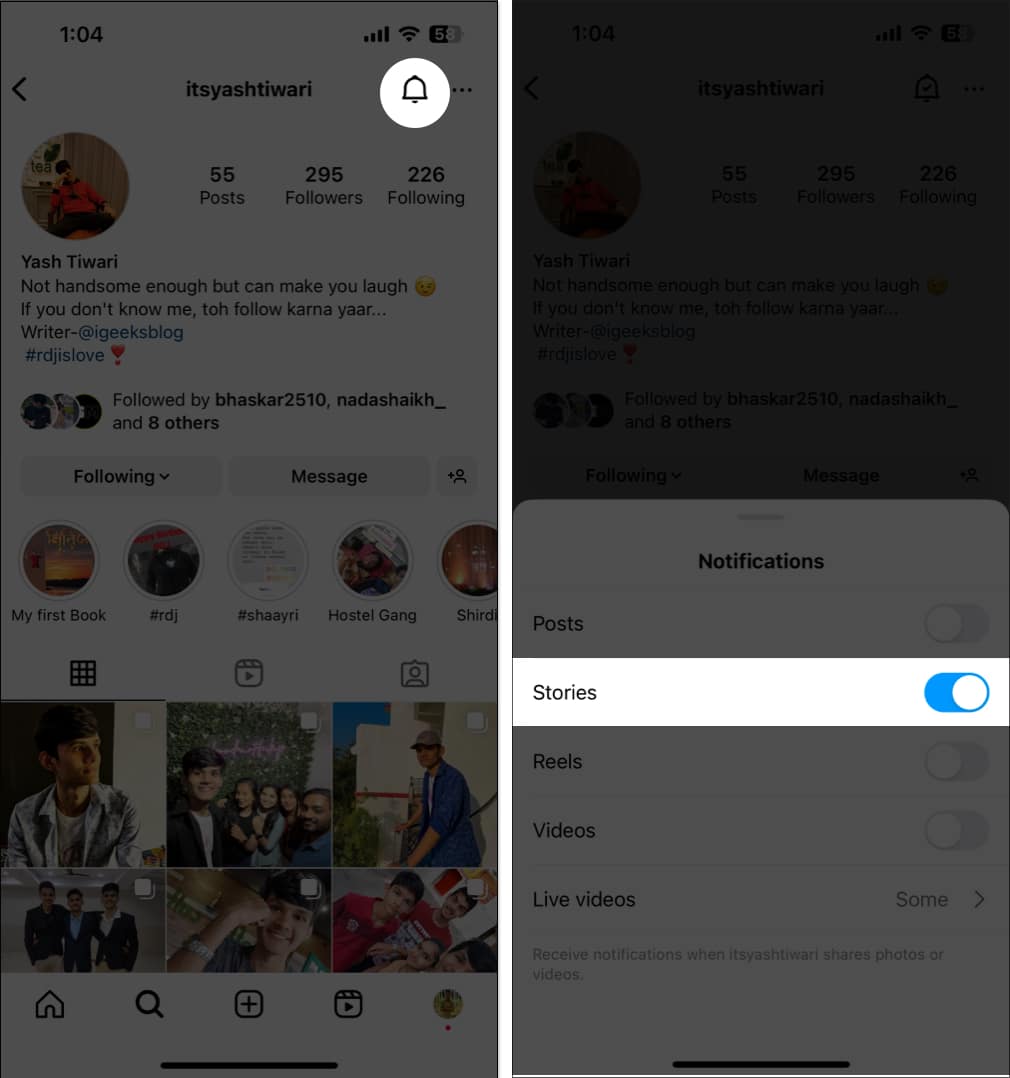
You may enable notifications for Stories, Reels, Videos, and Lives.
35. Hide Photos You Are Tagged In
Suppose someone tags you in a post that shows on your profile. So, you may untag yourself from inappropriate posts.
- Go to your Instagram profile.
- Tap the tagged icon.
- Choose the post to open it → Tap the three-dots icon.
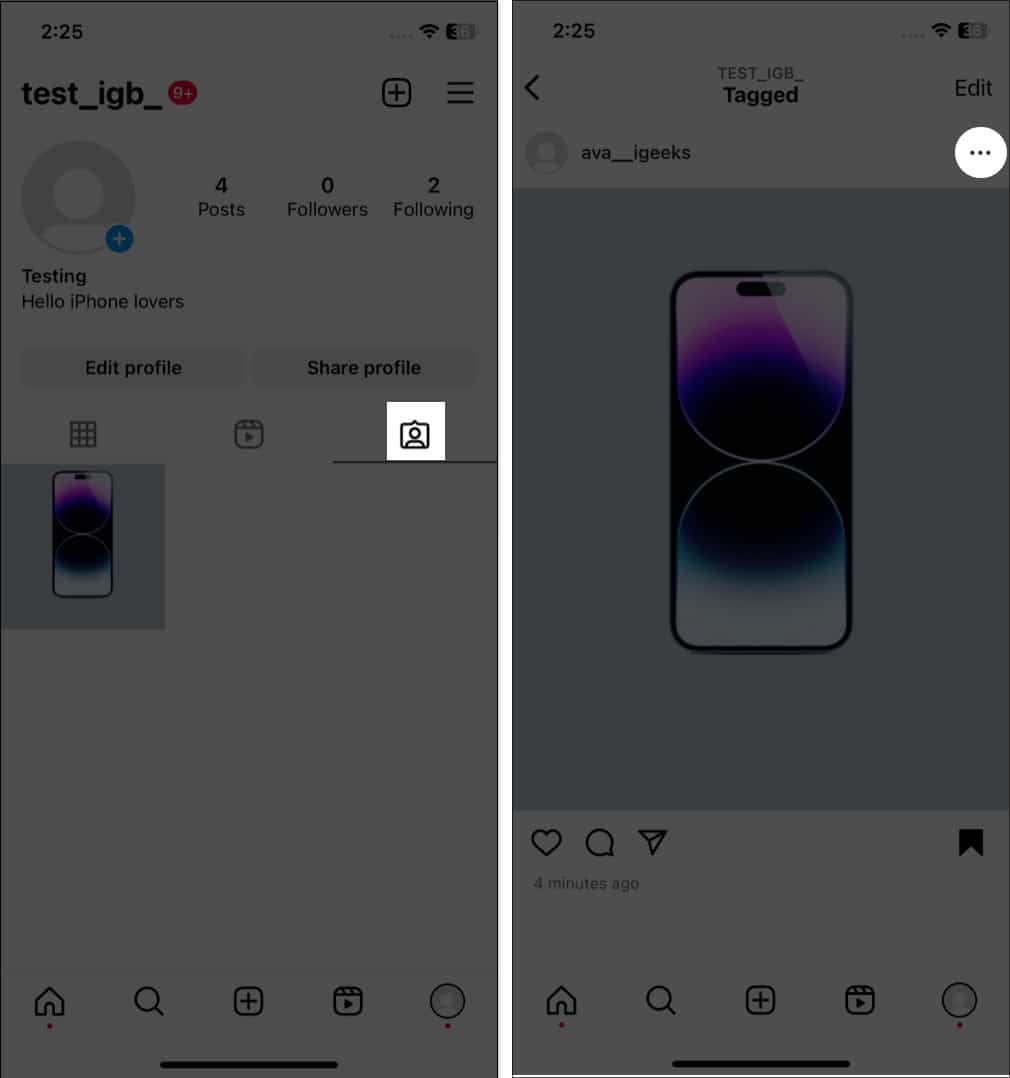
- Tag Options.
- Select Remove me from post.
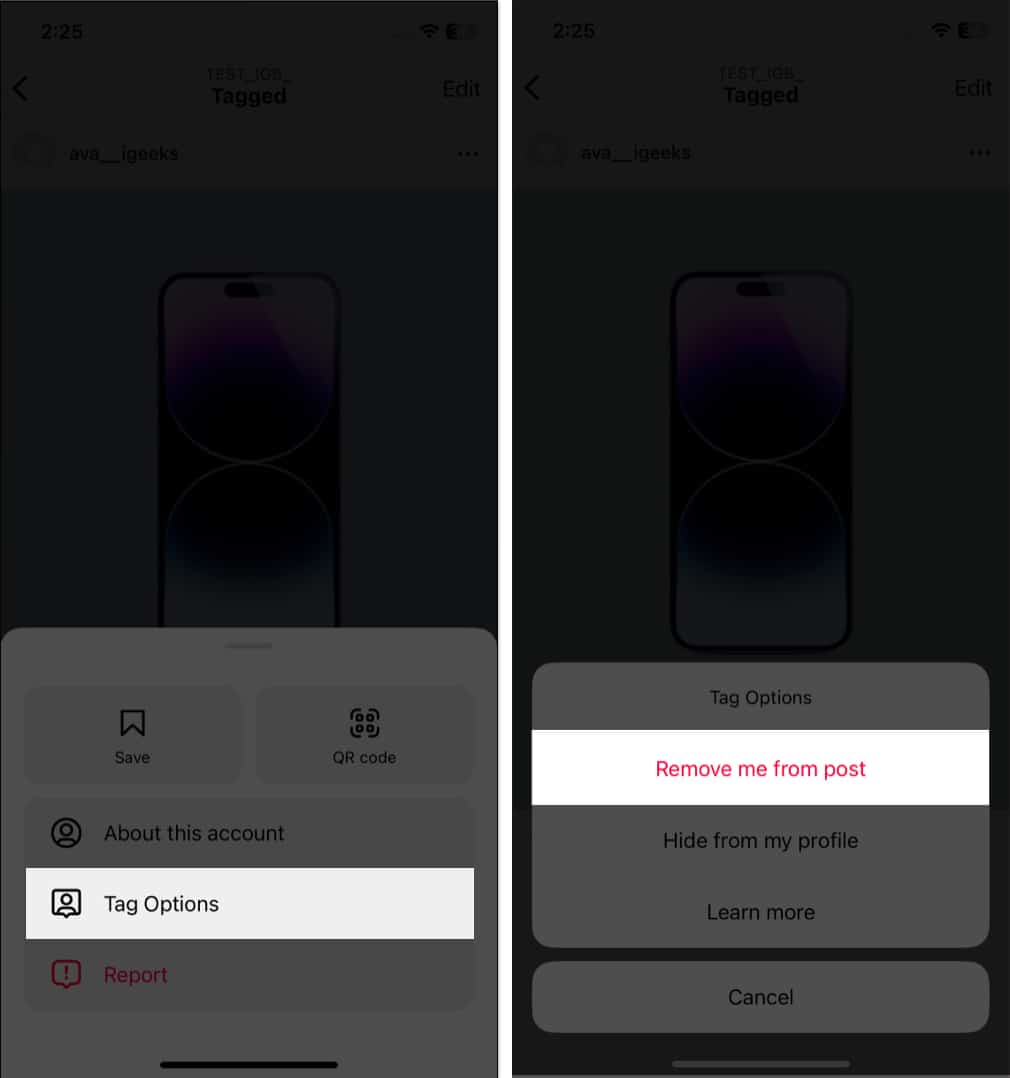
You may choose Hide from my profile if you don’t want to untag yourself.
36. Set Manual Tagging
I know checking tagged posts and deleting each one is tedious. So, you may turn on manual tagging. Whenever someone tags you in their posts, you need to approve them. After that, it will show up on your profile.
- Open your profile on Instagram.
- Tap the tagged icon.
- Choose any post.
- Tap Manage.
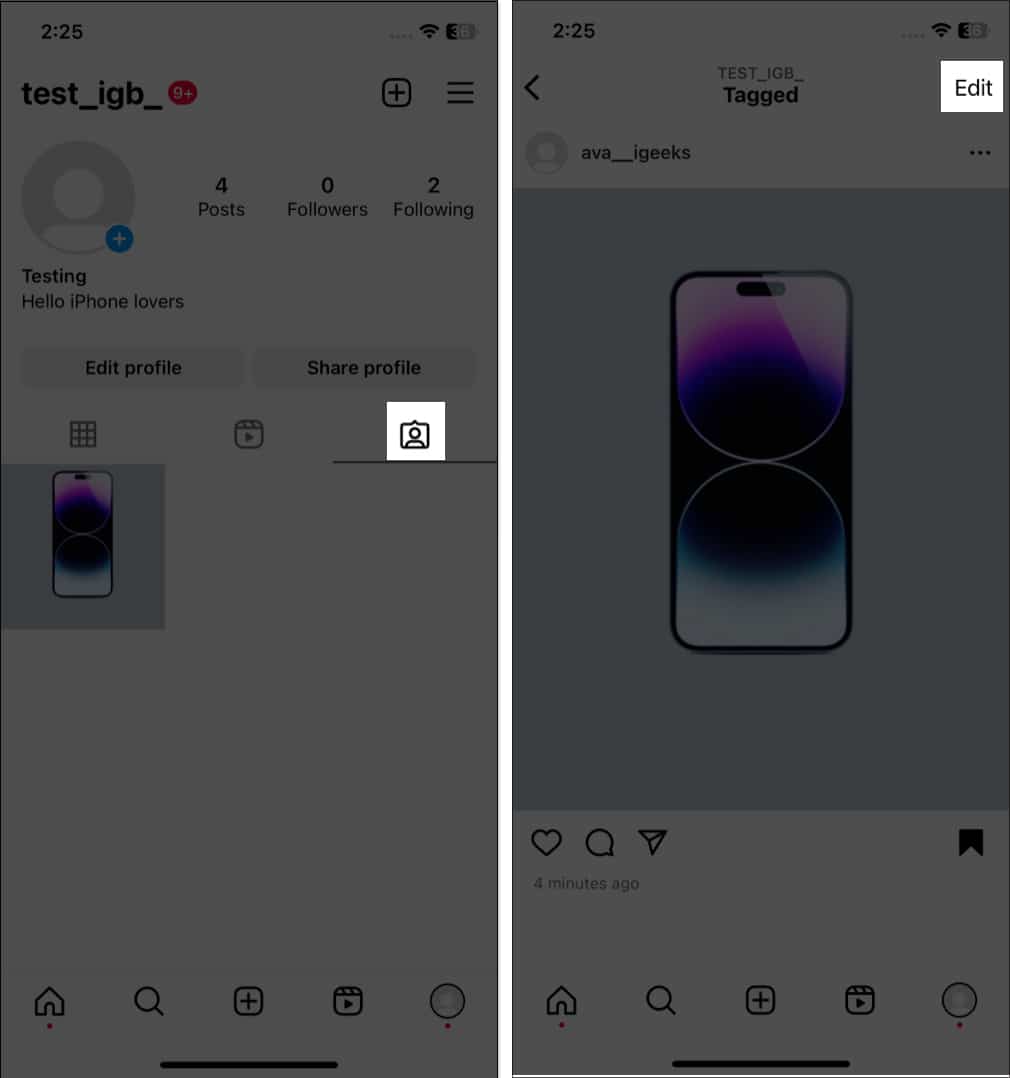
- Tap the three-dots icon → Manage settings.
- Toggle on Manually approve tags.
- Select Turn on to confirm.
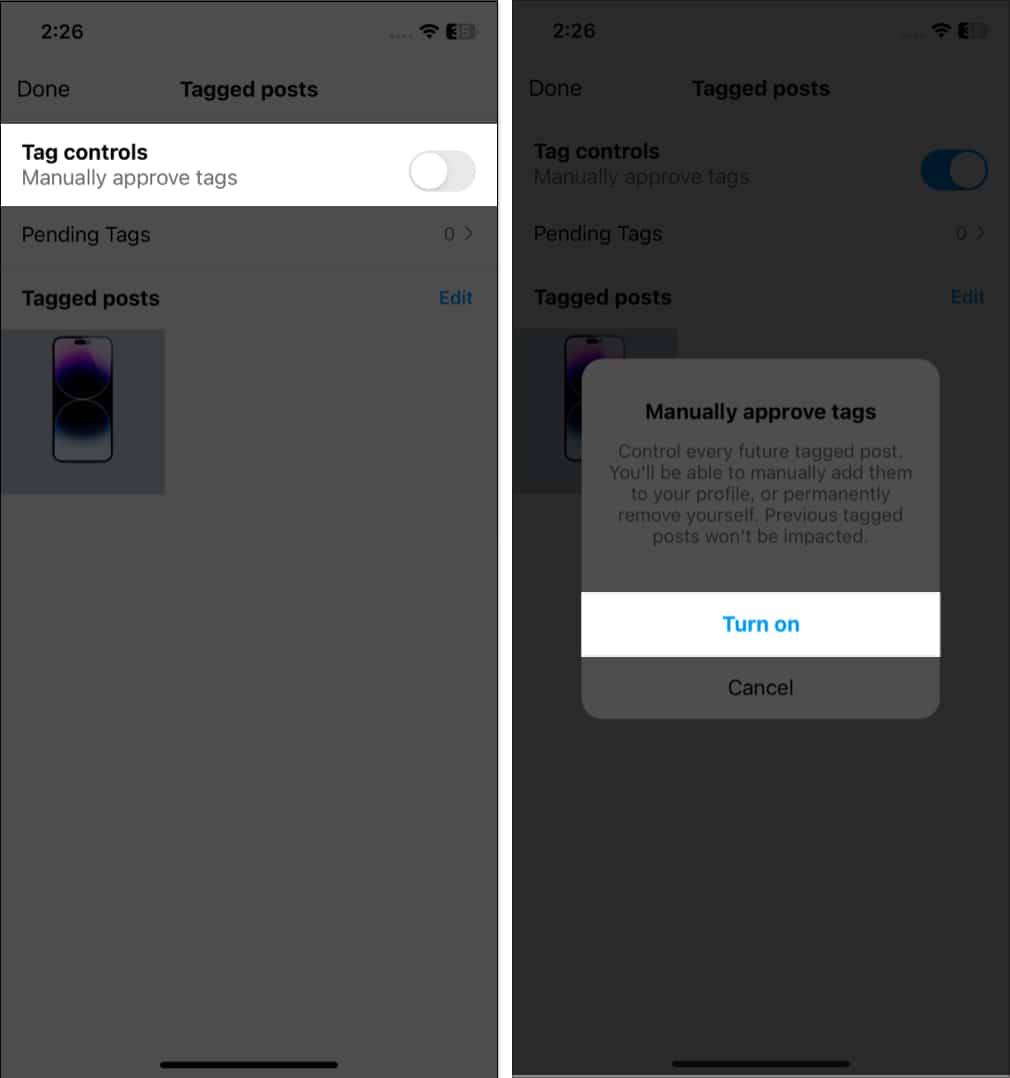
You may approve posts from Pending Tags.
37. Turn Off Comments
Sometimes, social media trolling gets on your nerves. What should you do then? Delete the post or report each comment? Instead, I suggest turning off comments on Instagram. It will disable the comment box and help you take control of it.
38. Go Quiet on Instagram
If you are too distracted by Instagram notifications, you may enable Quiet mode on Instagram. It helps you to focus on yourself by pausing notifications and messages.
39. Remove Instagram Followers
It may sound weird, but there may be instances when you want to remove a follower. There are two ways to remove Instagram followers and make you stress-free.
40. Reset the Instagram Explore Page
The Instagram Explore page helps you find trending posts that are relevant to you. But sometimes, the Instagram algorithm messes up and shows irrelevant posts. In this case, it’s best to reset the Instagram Explore page.
41. Hide Active Status
Do you want to scroll through your feed without letting others know? The trick is to disable active status on Instagram.
42. Turn Off Your Precise Location
Do you know you must turn off your precise location on Instagram? It will protect your identity and save you against multiple threats.
43. Recover Your Instagram Account from Hackers
The worst-case scenario is if your account is hacked. But don’t panic! You may recover your hacked Instagram account.
44. Deactivate Your Instagram Account
If you want to take a break from Instagram, you may deactivate it rather than delete it. Because once you delete your account, you can’t recover it. So, learn how to deactivate your Instagram account.
45. Change the Password of Your Account
Most of us forget our Instagram account credentials. But what if you get locked out and can’t enter the correct password? You may easily reset your Instagram password and log in again.
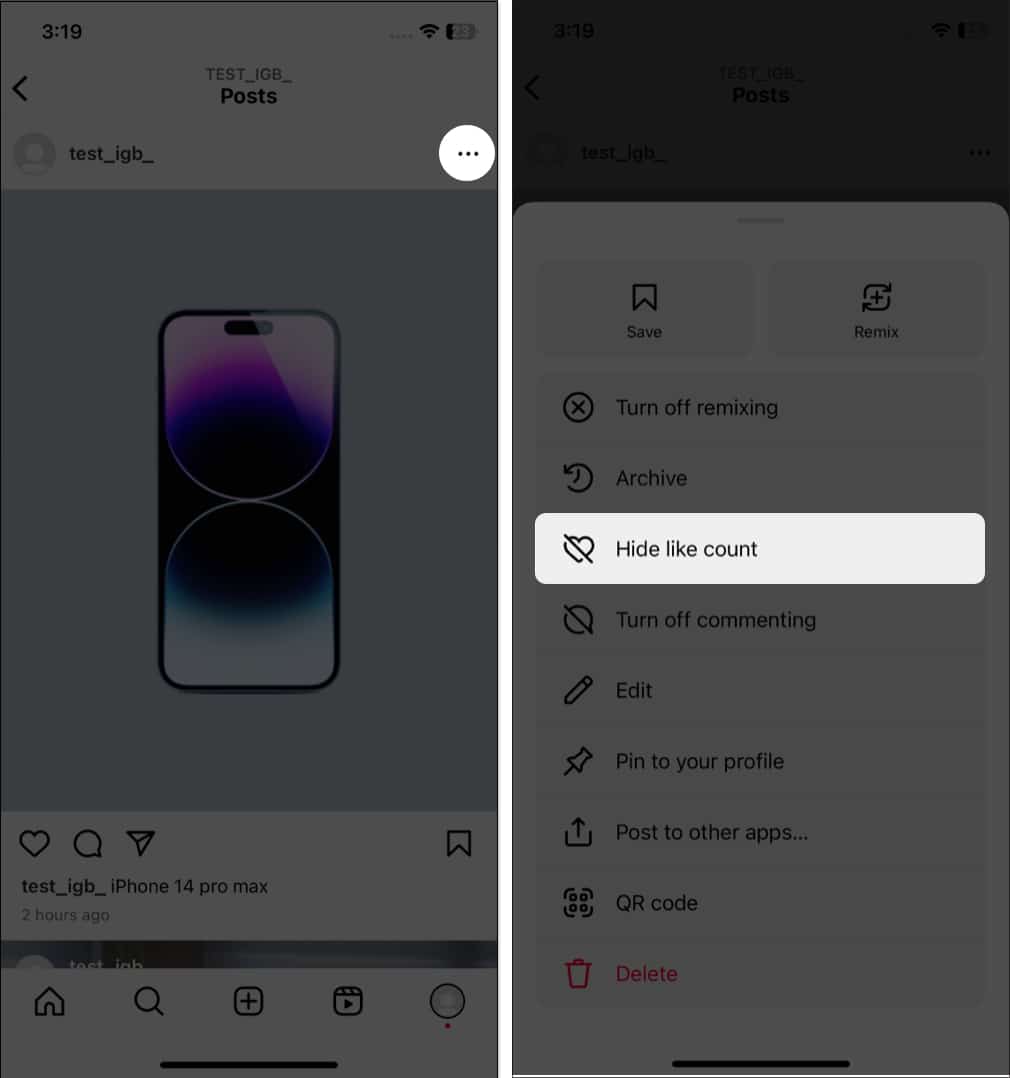
46. Hide Like Count on Instagram Post
Instagram offers a way to hide the like count so no one can see it, except that you can see the details, including the total number and engaged accounts.
- Open the post.
- Tap the three-dots icon → Hide like count.
- To see the like count, tap View count under the post.
47. Share a Post as Your Story
Have you come across an interesting post and wanted to share it with your followers? You can do this by following:
- Tap the Share icon on the posts.
- Select Add to story.
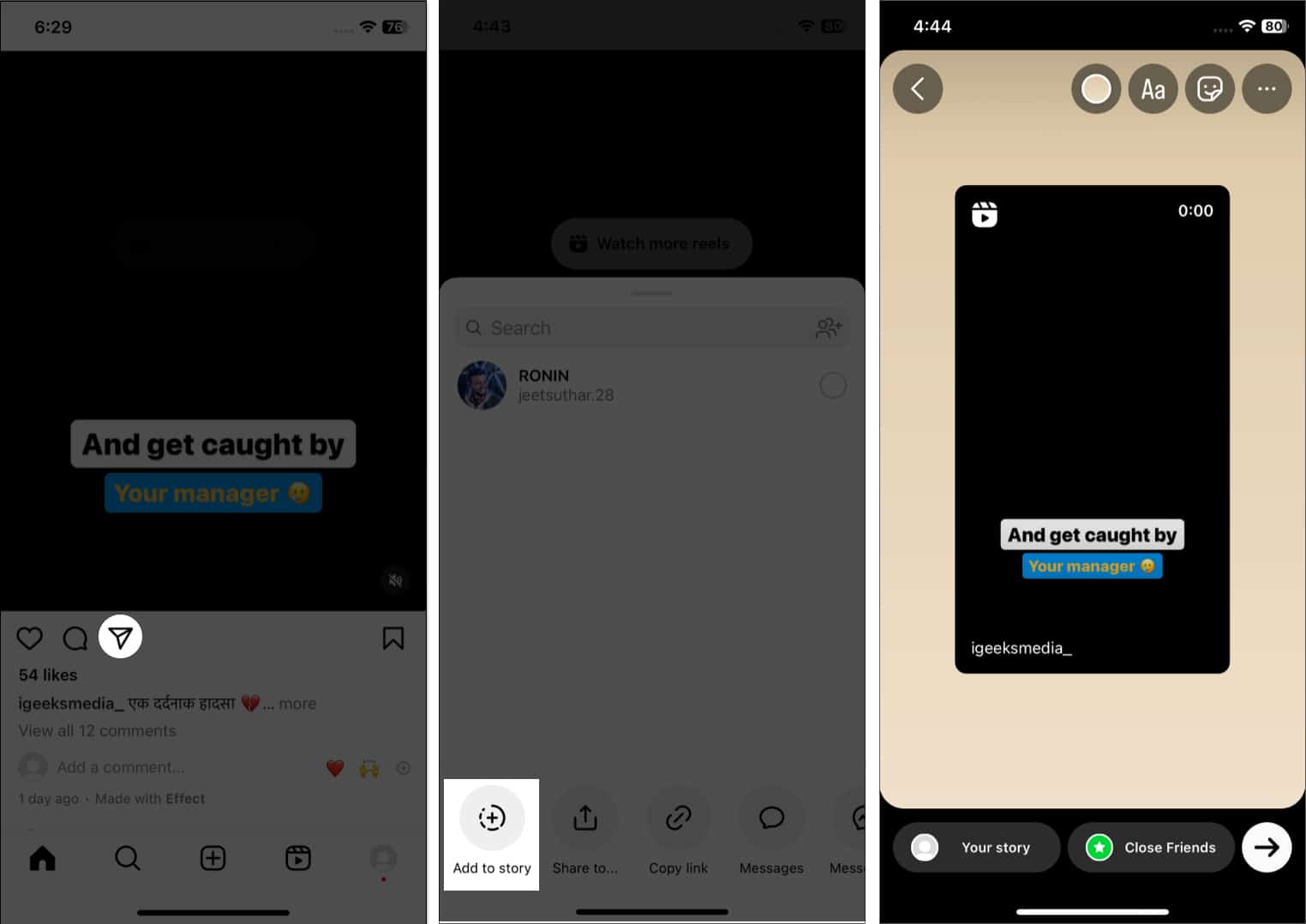
You can share the post via Messenger, WhatsApp, Twitter, Facebook, Snapchat, etc. Also, you may copy the link to that post if necessary.
48. Hide the Story and Live with Specific People
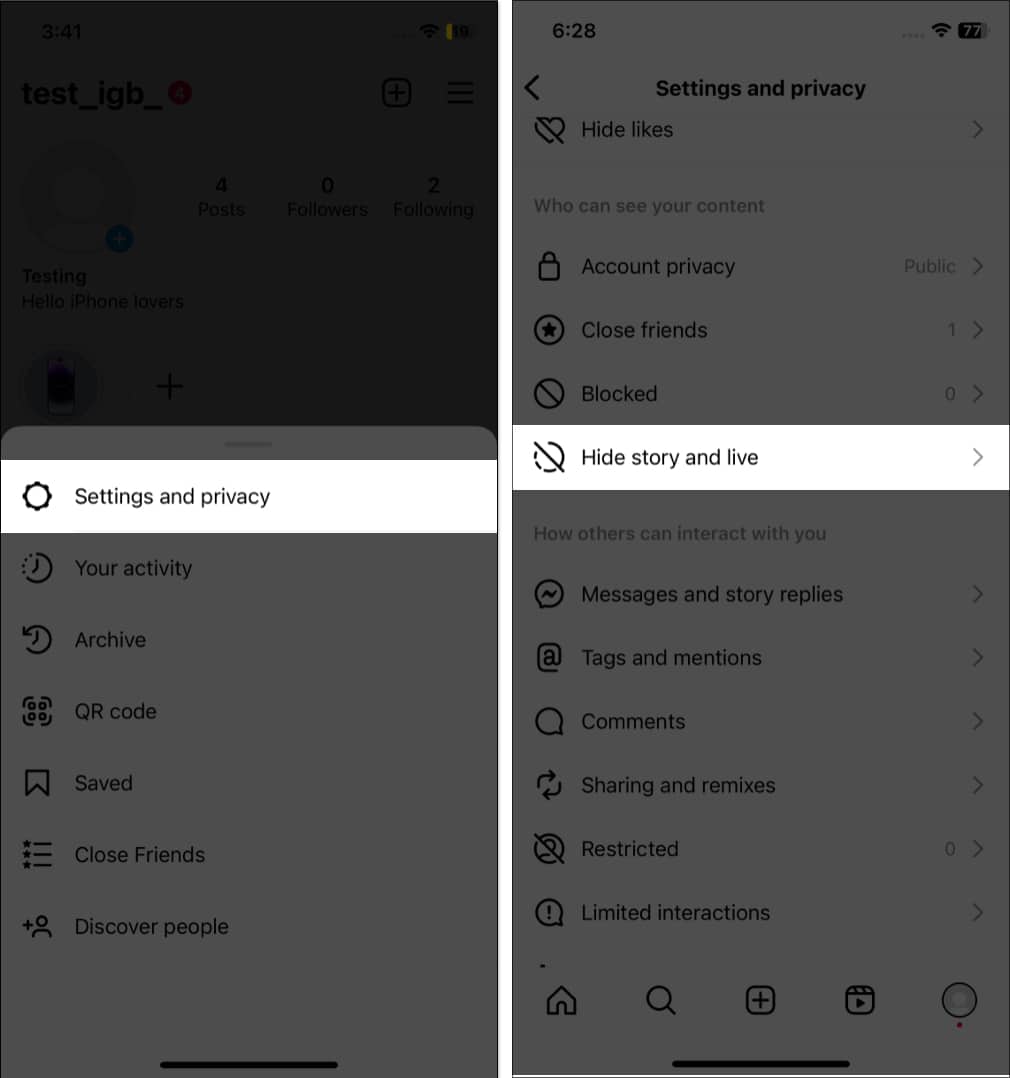
Instagram lets you adjust the privacy settings for your story and Live videos.
- Go to Settings.
- Select Hide story and live and tap it again.
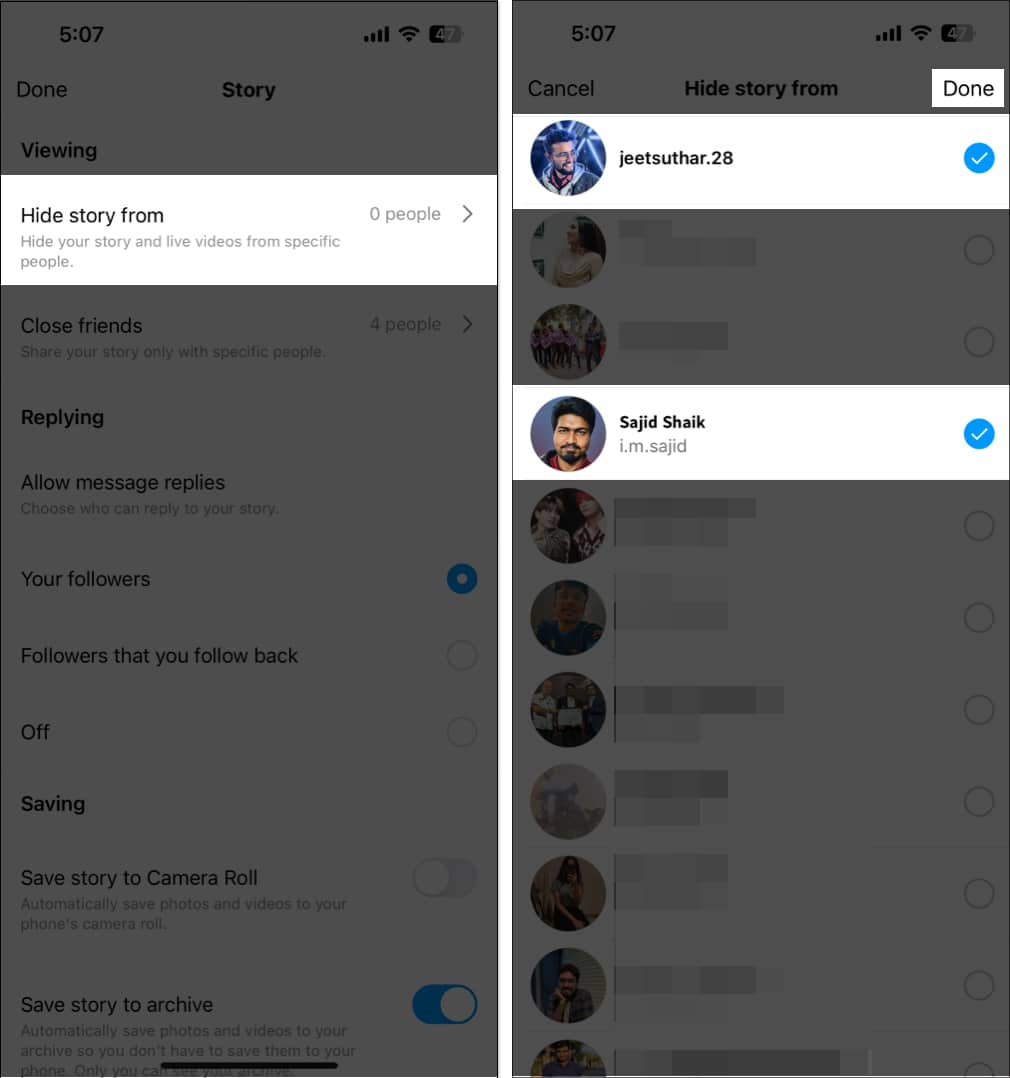
- Search for the users you want to hide from.
- Tap Done.
49. Auto-Generate Video Captions
When I forget my AirPods at home while on the go, this feature is lifesaving. It auto-generates captions for IGTV videos and Reels, and you can enjoy them without sound.
- Open Settings → Accessibility and translations → Captions and translations.
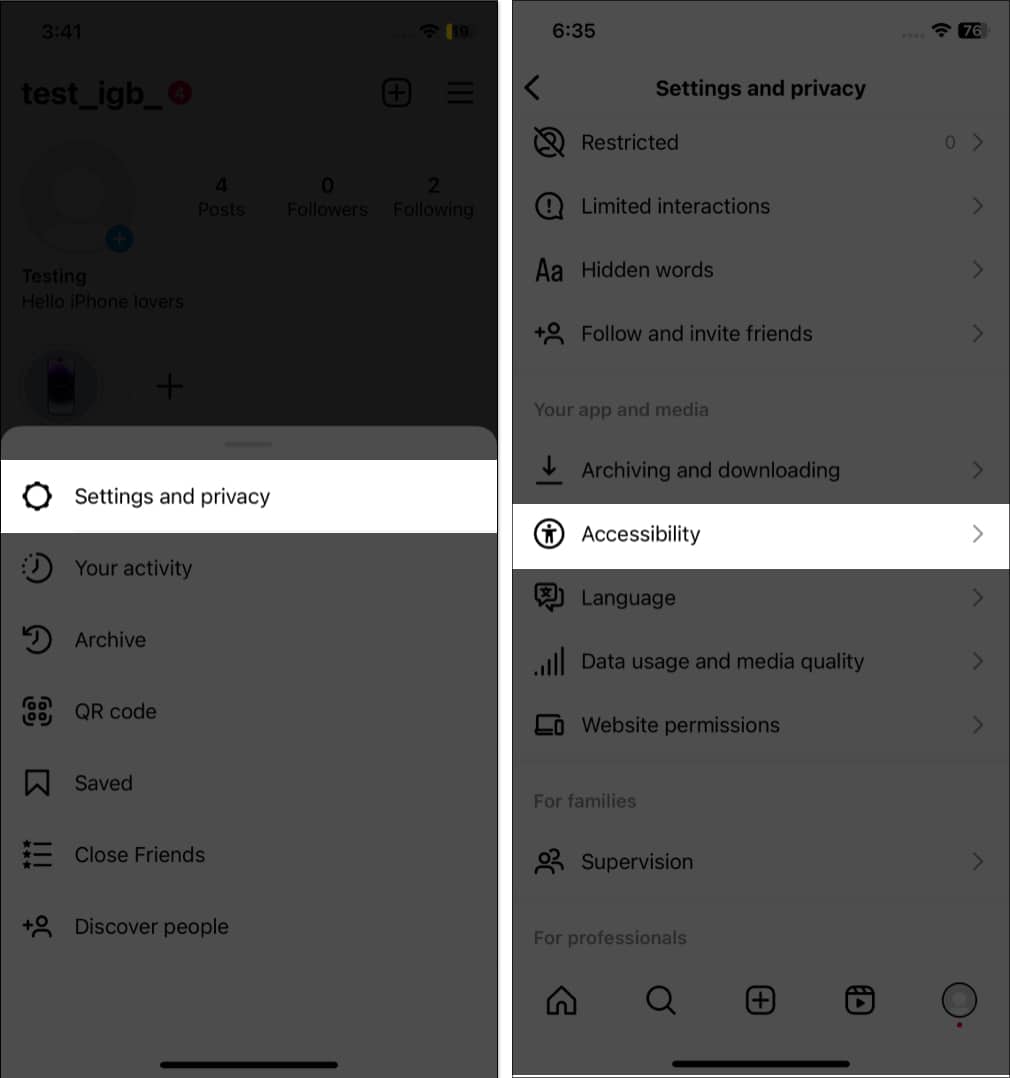
- Select Always show closed captions.
50. Change the Instagram Language
Indeed, it will be fun to use your favorite app in your native language.
- Open Settings → Language.
- Tap Continue.
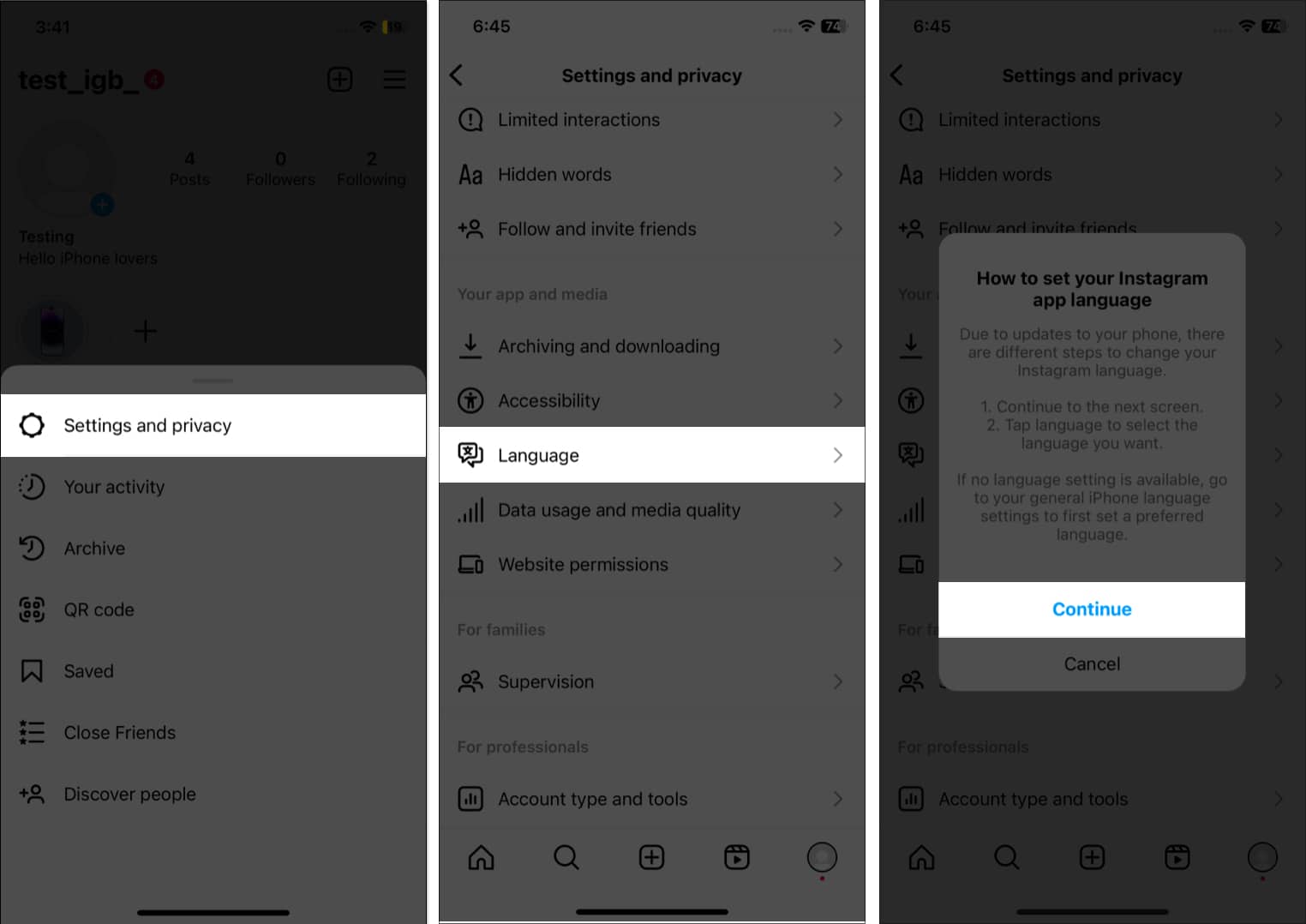
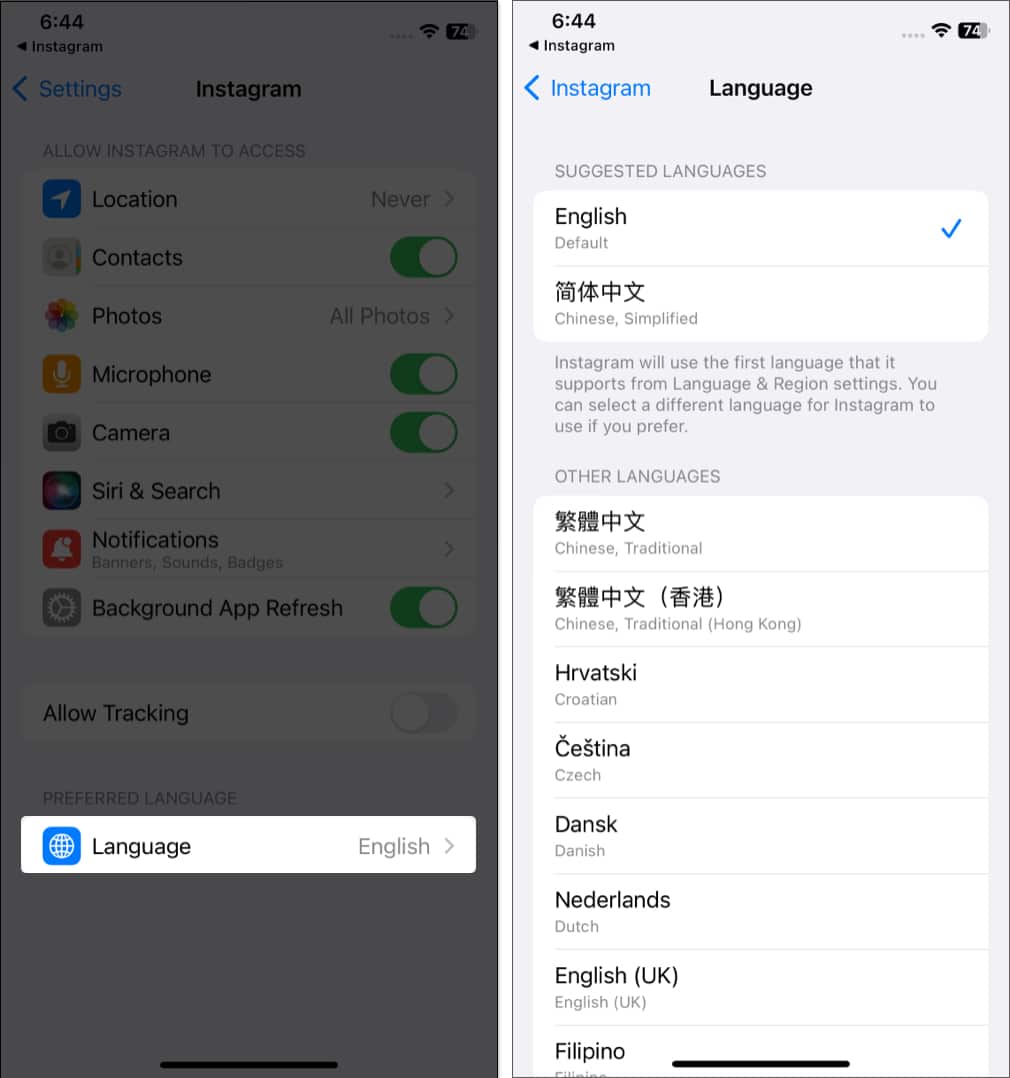
- It will redirect you to your iPhone settings.
- Tap Language.
- Choose your preferred language.
51. Check Apps and Website Access to Your Account
Sometimes, I use my Insta ID to sign up for apps and websites to save time. So, when I can’t remember credentials, I check the Instagram app access. Also, granting account details access to shady websites is not safe. So, if you have granted Instagram ID permissions to any apps or websites, check and remove that.
- Navigate to Settings → App website permissions → Apps and websites.
- Here, you will see the app lists with active authorization.
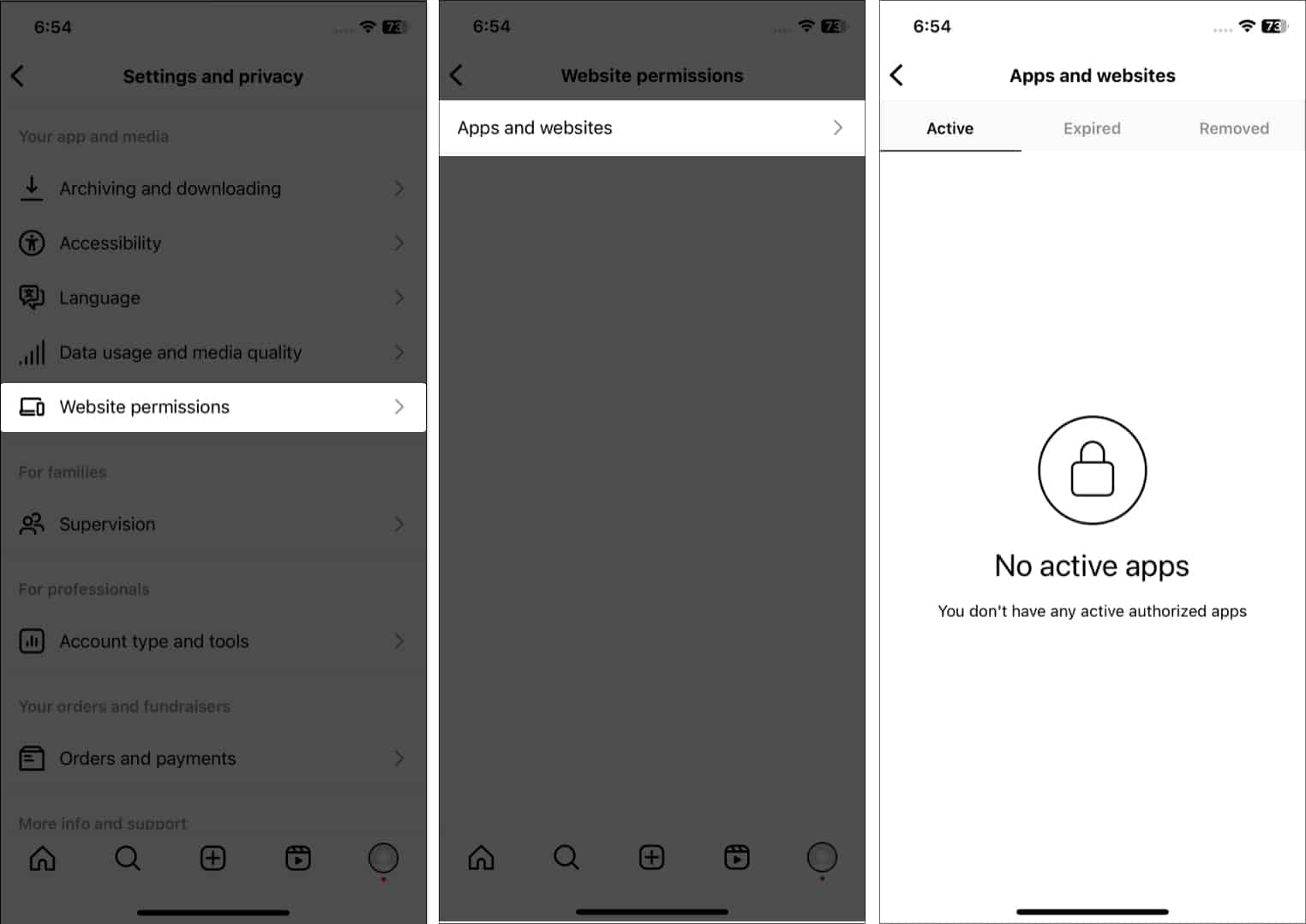
You may also check the apps and websites for which the authentication has expired or for which you have removed access.
52. Share Your Instagram Profile
Want a hack to share your Insta account without typing your ID? Follow the steps below:
- Go to your Instagram profile → Tap Share profile.
- Now, show your friend the QR code.
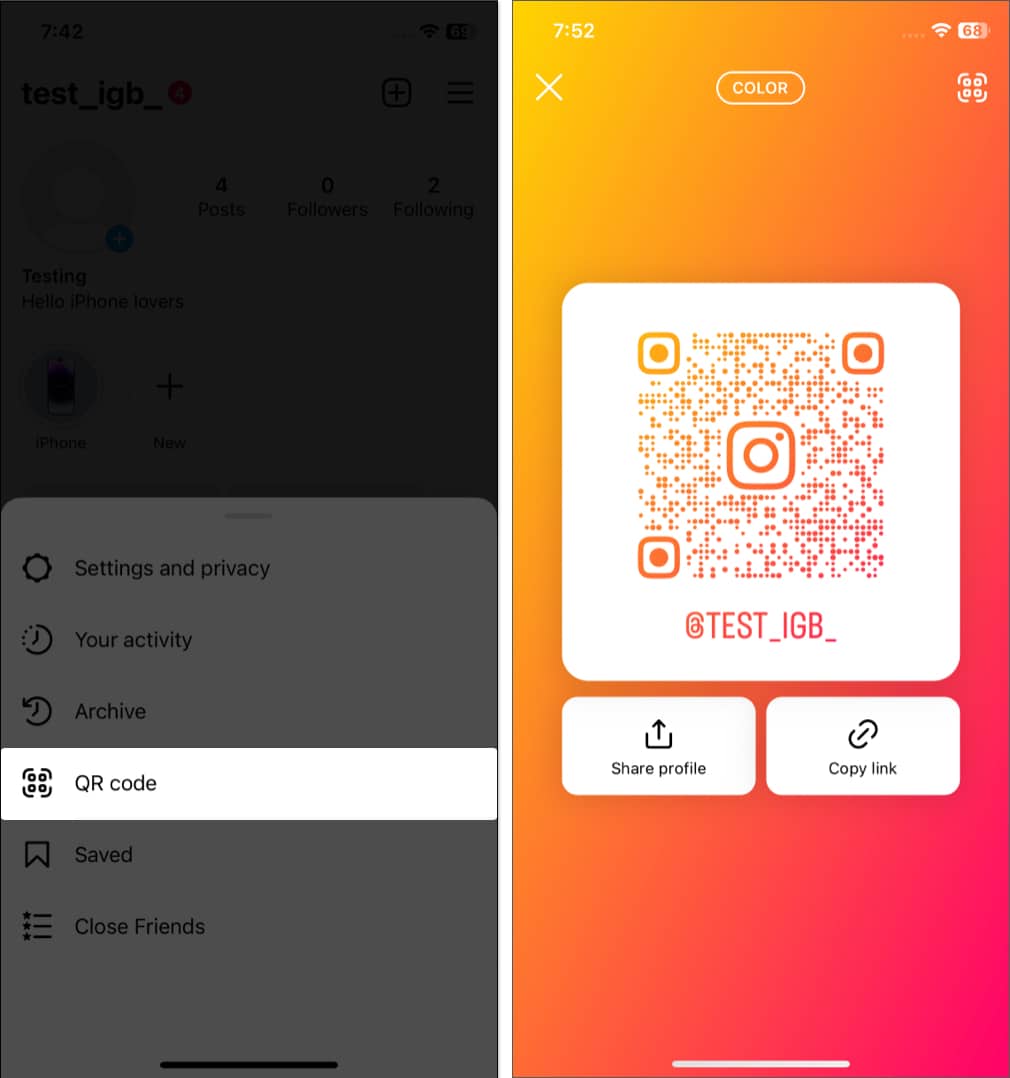
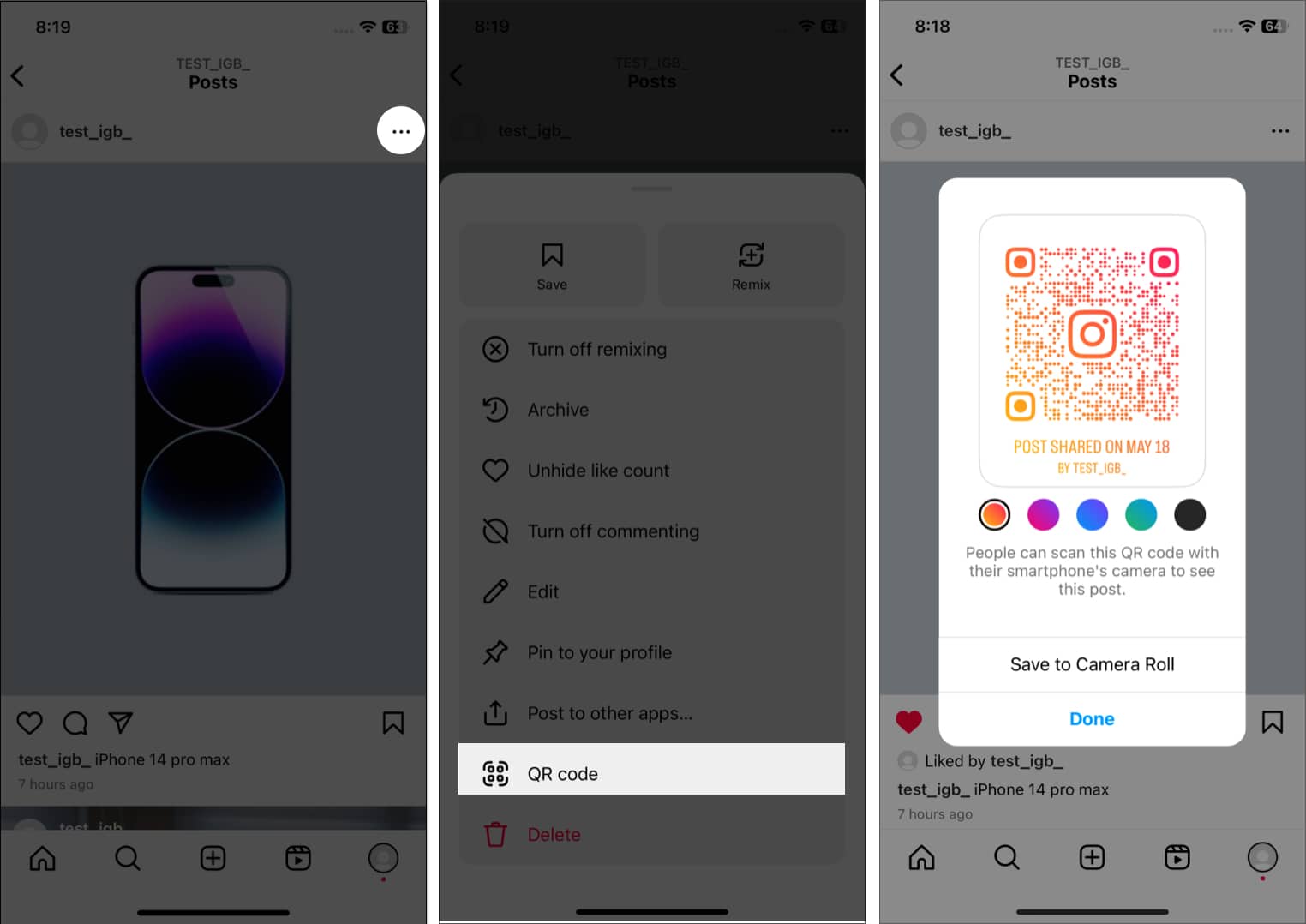
You may also select Share profile or Copy link to share your Insta ID. Additionally, you can create QR codes for your posts, too.
- Open the post and tap the three-dots icon.
- Select QR code.
- Tap Save to Camera Roll.
53. Get Verified on Instagram
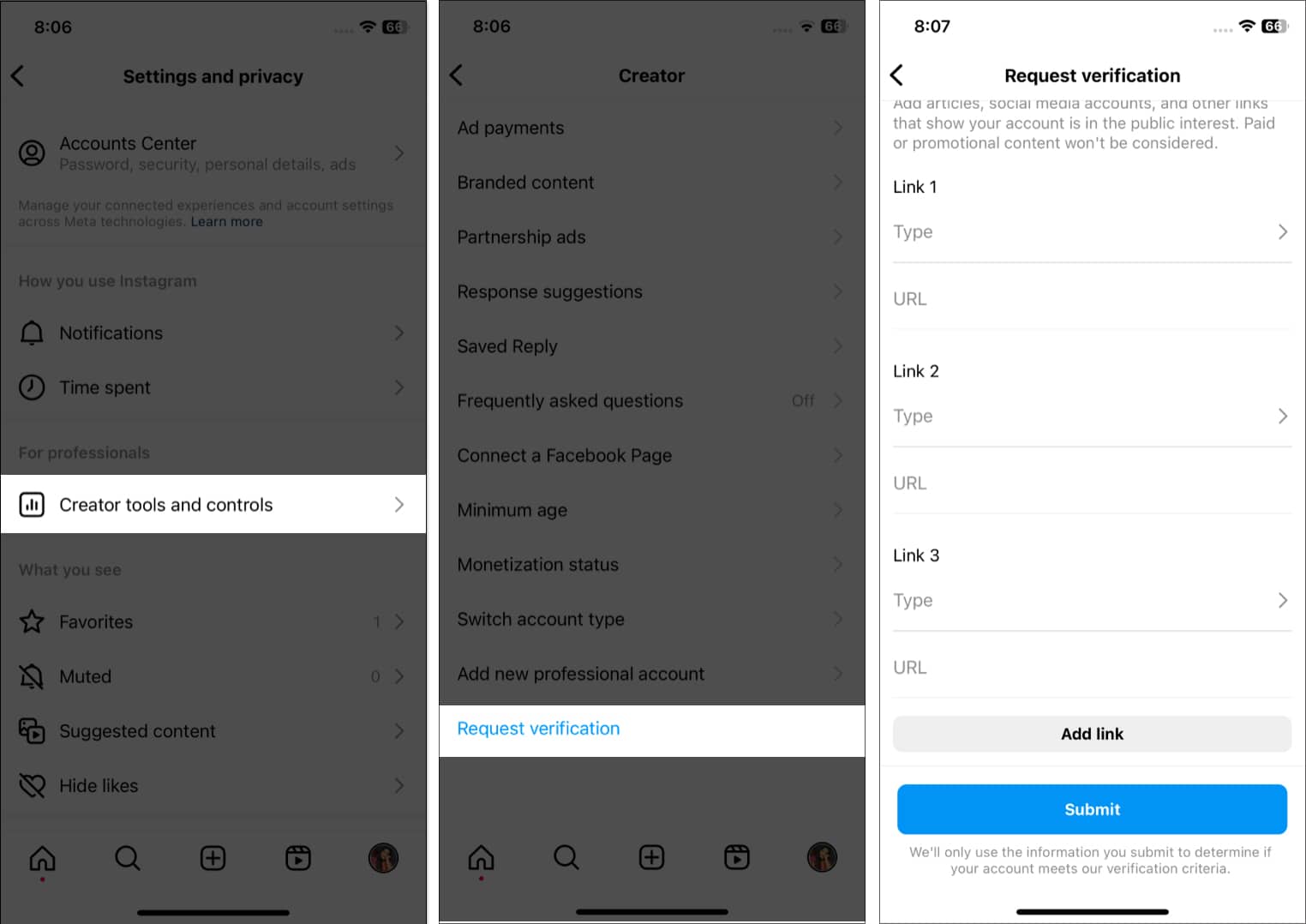
A verification badge is a sign of trustworthiness that helps followers to connect with you. But how to get it? Only professional accounts are eligible for this. A verification badge is a sign of trustworthiness that helps followers connect with you. But how to get it? Only professional accounts are eligible for this.
- Open Settings → Creator tools and controls.
- Tap Request verification.
- Fill out the form and tap Submit.
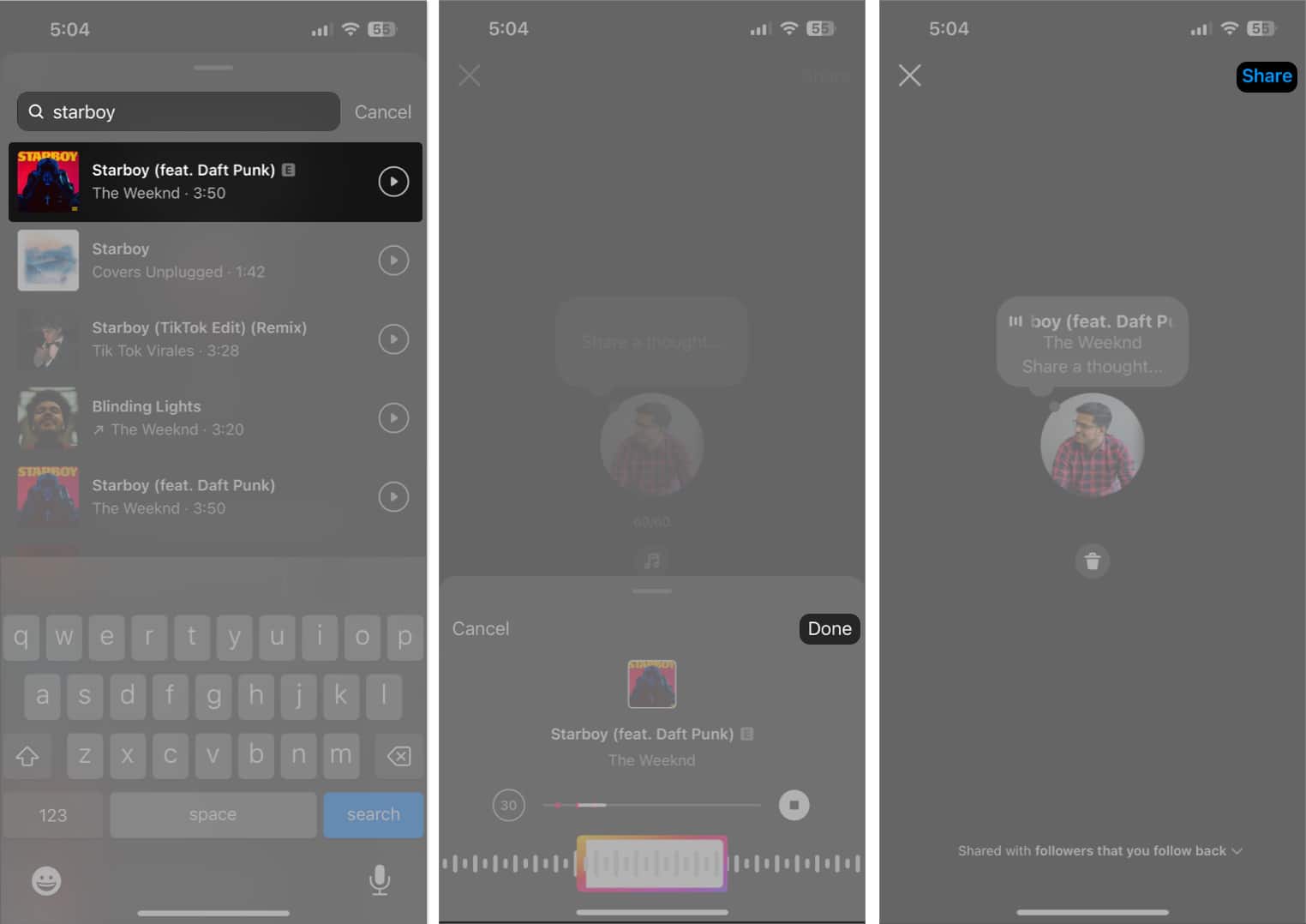
54. Add Music to Instagram Notes
With the latest updates rolled out almost every day, here’s another one that will change how you use the Notes feature on Instagram.
Users can now share their favorite music in Instagram Notes. Follow the steps prescribed below to try it out for yourself:
- Launch Instagram → Access the DMs section.
- Tap Your Note option and hit the Music icon.
You can share thoughts the traditional way if you desire.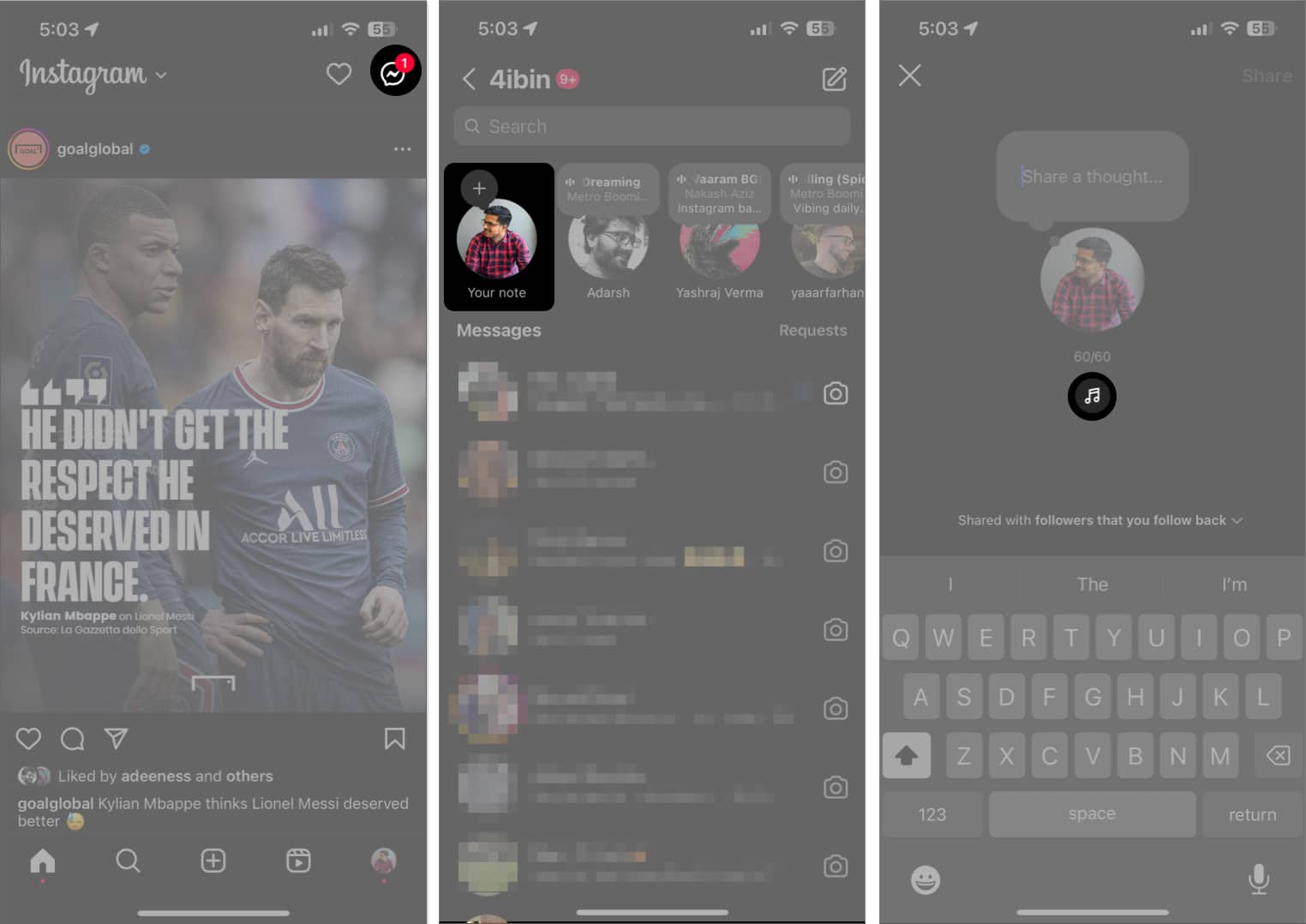
- Search for your favorite artist or album, like you normally do.
- Choose a segment from the song and tap Done.
- Hit Share to conclude the process.
55. Use Boomerang in Instagram
The Boomerang feature lets you take a short burst of photos that cycle back and forth to create looping videos or GIFs. You can capture a quick moment or create fun, engaging content to grab your audience’s attention. So, whether you’re a seasoned Instagram user or just getting started, you must know how to use Boomerang on Instagram.
Rock on, Instagram stars!
I hope this extensive guide provided you with useful pointers. But that’s not all! Our website has many more tips and tricks for using Instagram on iPhone. If you are getting started with Instagram Reels, Avatar, or Notes, we have guides for each. So, you may explore those and find answers to your Instagram problems.
About The Author