
How to Find the Serial Number of an AirTag (All Methods Explained)
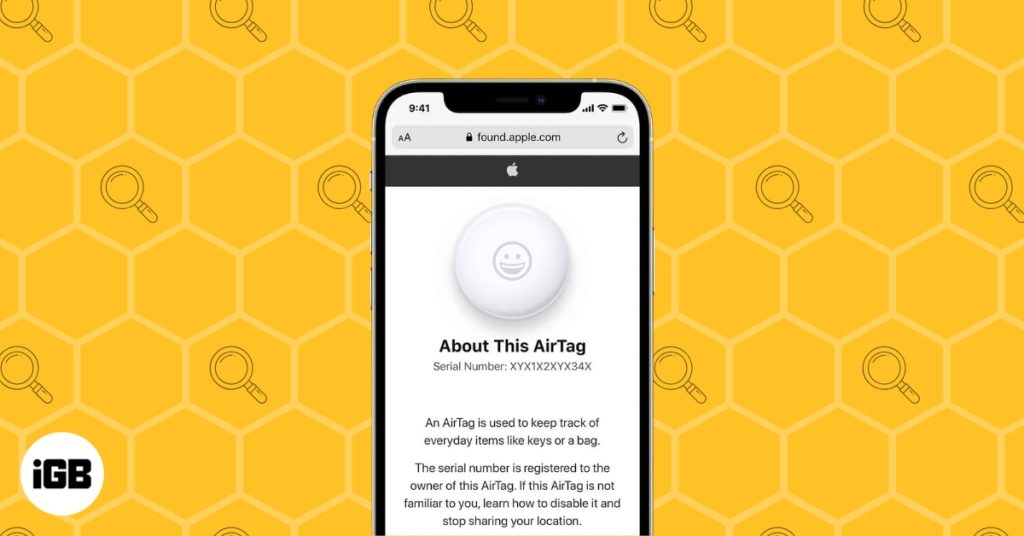
Knowing how to find an AirTag serial number can help you identify your own AirTag, return a lost one, or check the details of an unknown AirTag found near you. Apple uses this number for verification, ownership checks, and safety features, so it’s helpful to know where to locate it.
In this guide, we’ll walk through every method step-by-step so you can easily find the AirTag’s serial number, whether it’s paired or unknown.
Table of Contents
- Method 1: Find the AirTag Serial Number in the Find My App
- Method 2: Find the Serial Number Printed on the AirTag (Under the Battery)
- Method 3: Use NFC to View the Serial Number (Lost Mode Scan)
- Method 4: Check the AirTag Packaging (If Not Activated Yet)
- Identify AirTag in Seconds!
Method 1: Find the AirTag Serial Number in the Find My App
If the AirTag is already set up with your iPhone, this is the most convenient method. Just ensure it is visible in your Find My app.
- Open the Find My app on your iPhone.
- Tap the Items tab at the bottom of the screen.
- Choose the AirTag you want from the list.
- Tap the address of the AirTag at the top.
- The serial number will appear right there. You’ll also see the firmware version next to it.
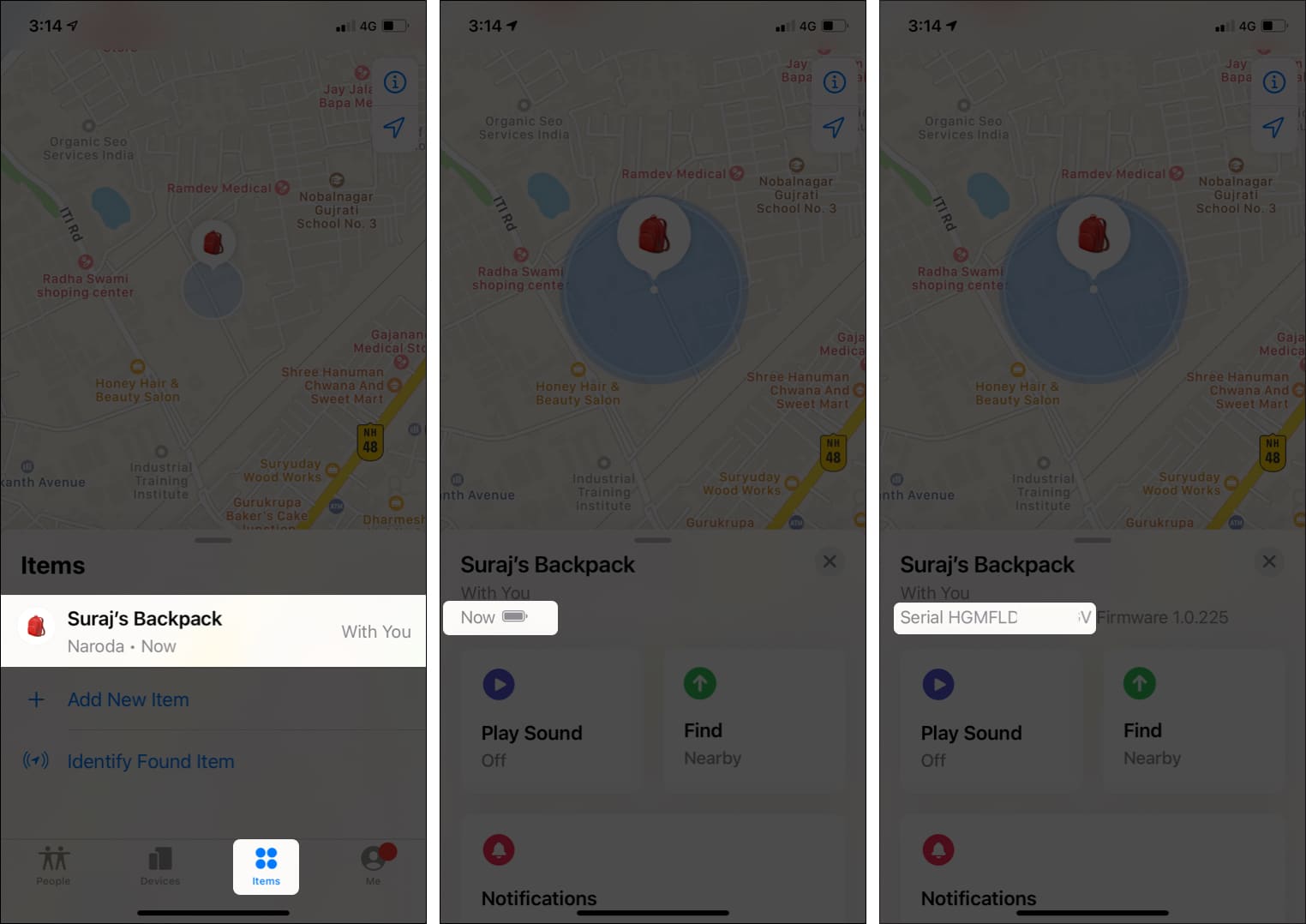
That’s it! No need to touch the AirTag at all. However, this works only for AirTags connected to your Apple ID.
Method 2: Find the Serial Number Printed on the AirTag (Under the Battery)
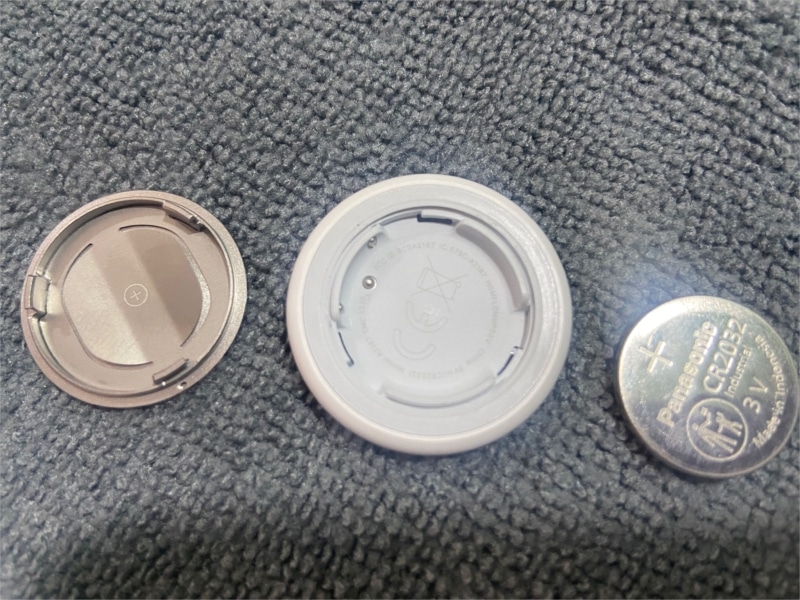
If the AirTag isn’t paired with your Find My or the battery is dead, the serial number is physically engraved on the device itself. The steps are similar to replacing the battery.
Here’s how to open it safely:
- Hold the AirTag with the metal cover facing you.
- Place both thumbs on the shiny stainless-steel back.
- Press down firmly and twist counterclockwise (left).
- Keep twisting until the steel cover pops off. Now, remove the cover and battery.
- Look inside the white cap. The serial number is laser-etched in tiny letters around the edge.
- When you’re done, put the cover back. Line up the three tabs with the slots, press down, and twist clockwise until it clicks and locks.
Method 3: Use NFC to View the Serial Number (Lost Mode Scan)
If the AirTag isn’t yours, it may have been found near you or triggered a tracking alert; you can still identify it. You just need any modern iPhone (iPhone 7 or later) or NFC-enabled Android phone to read the details. No pairing is required!
- Hold the white side of the AirTag against the top half of your phone.
- Wait a second. An NFC notification should pop up saying “AirTag Found” or similar.
- Tap the notification.
- Your browser will open a page on found.apple.com. You will see the AirTag serial number.
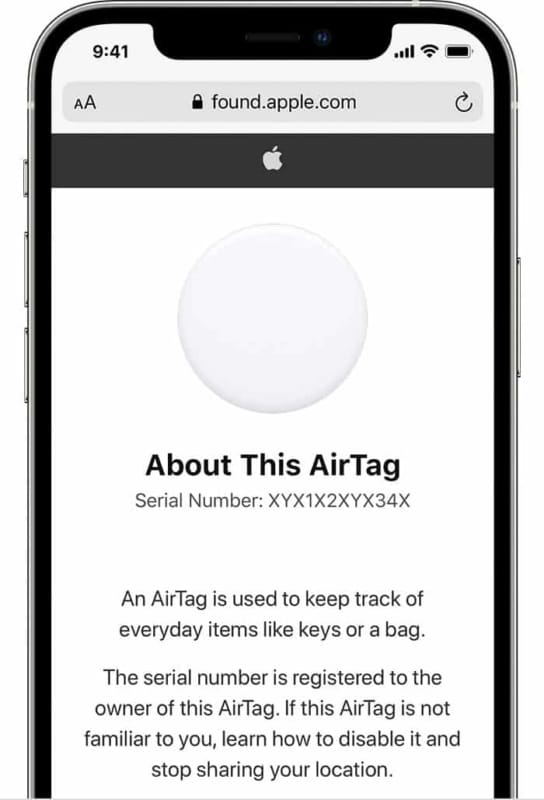
If the owner has turned on Lost Mode and left a phone number or message, you’ll see it on that webpage too. So, here is how you can find the owner of an AirTag using its serial number.
Method 4: Check the AirTag Packaging (If Not Activated Yet)
If your AirTag is brand new and still in the box, you can find the serial number without opening anything.
- Look on the back of the box, there’s usually a white barcode label.
- The serial number is listed right next to the barcode or UPC label.
Identify AirTag in Seconds!
There you go! Finding the serial number of an AirTag is easier than most people expect. Whether the AirTag is paired, brand new, dead, or even an unknown one you’ve stumbled across, you can identify it with the above methods. This also helps you stay safe, especially if an unfamiliar AirTag shows up.
Have another AirTag or Apple-related question? Just ask, I’m here to help!
FAQs
An AirTag serial number is a combination of letters and numbers, usually 12 characters long, something like A3QJ1234LKLM.
Yes. Even if the battery is completely dead, you can still open the AirTag and check the serial number under the battery or look at the original packaging. A dead AirTag won’t appear in the Find My app.
No. AirTags are not cellular devices, so they don’t have an IMEI (that’s for phones and tablets with SIM cards). They only have a serial number.
Yes, only if they physically have your AirTag in their hands. They could twist it open or use NFC to scan it. Nobody can see it remotely through the Find My network. This design helps others identify or return your AirTag without exposing your private details. If you’re worried about stalking, the best defense is to monitor unknown AirTag alerts on your iPhone.
About The Author